Why Does My Projector Keep Turning Off? (Real Causes & Fixes)
If your projector randomly powers down mid-movie or shuts off within minutes of turning on, you’re not imagining it — and you’re definitely not alone. Here’s every real cause, in order of likelihood, and exactly how to fix each one.
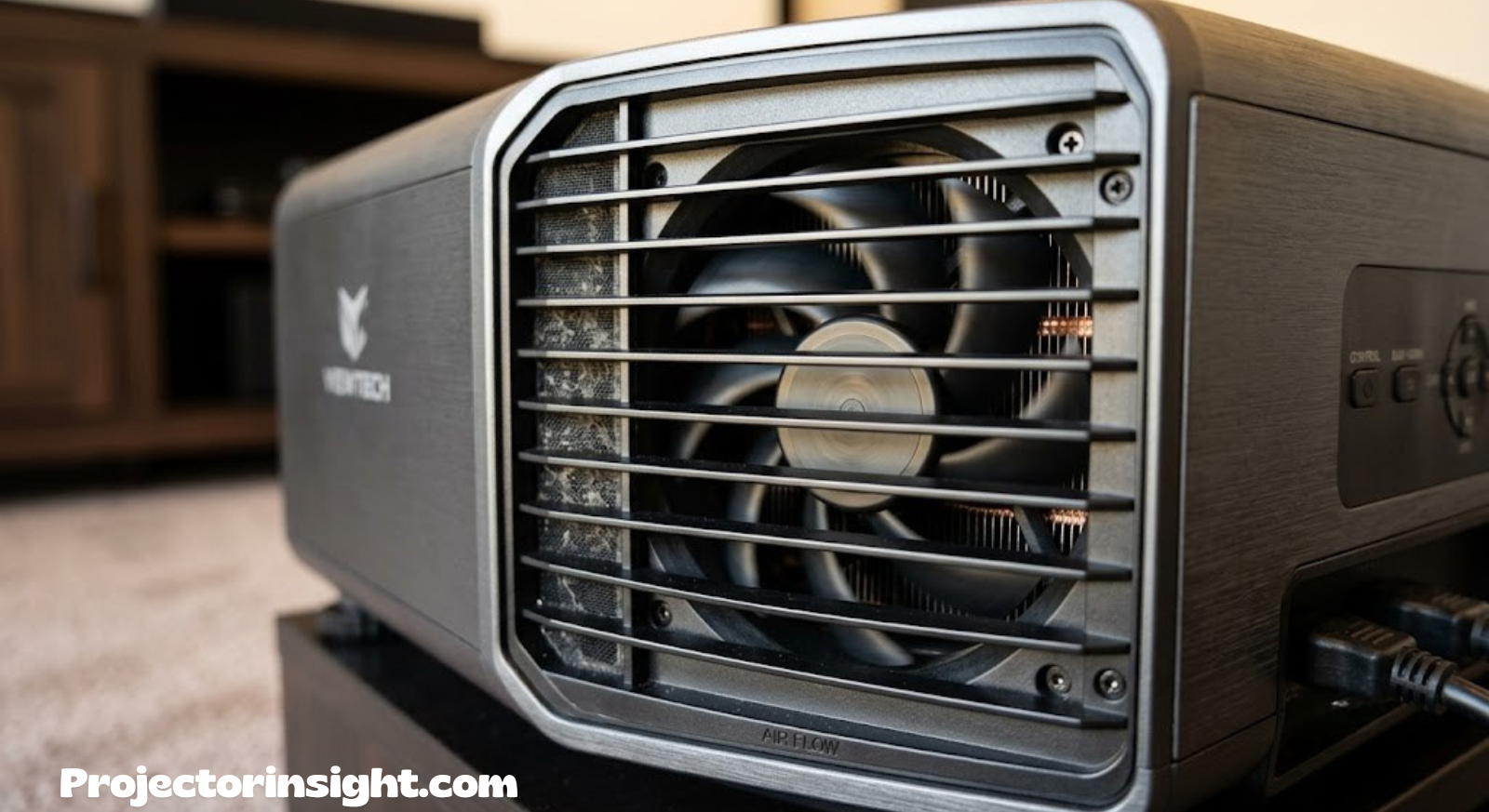
A projector that shuts itself off is almost always protecting itself from something — the trick is figuring out what.
You settle in, hit the power button, and for a few glorious minutes everything is perfect — until the screen goes black and the projector shuts itself off without warning. It’s one of the most frustrating experiences in home theater and presentation setups alike, mostly because the reasons behind it are invisible. There’s no crash screen, no error code flashing across your wall, just silence and a blinking standby light.
The good news is that projectors are engineered to protect themselves, which means an unexpected shutdown is rarely a random failure — it’s a symptom pointing to a specific, usually fixable cause. In this guide, we’ll walk through every major reason a projector keeps turning off, starting with the most common culprits and working toward the rarer, more serious ones. By the end, you’ll know exactly what to check, what to clean, what to replace, and when it’s time to consider a new projector altogether.
1. Overheating and Thermal Shutdown
By far the most common reason a projector powers itself off is thermal protection. Every projector — whether it uses a traditional lamp, an LED engine, or a laser light source — generates a significant amount of heat while running. To manage that heat, manufacturers build in temperature sensors near the lamp housing, the color wheel, and the main circuit board. When any of these sensors detects a temperature above the safe operating threshold, the projector’s firmware immediately cuts power. This is not a malfunction; it’s the projector doing exactly what it was designed to do to prevent permanent damage to the light source or the internal electronics.
Thermal shutdowns tend to follow a recognizable pattern: the unit runs fine for anywhere from five to forty-five minutes, then shuts off abruptly, sometimes preceded by a brief flicker or a noticeably louder fan just before it happens. If you turn it back on immediately, it may run for an even shorter period before shutting down again, because the internal components haven’t had time to cool. This “runs shorter each time” pattern is one of the clearest fingerprints of a heat-related shutdown.
Several factors compound the overheating problem. A projector placed inside an enclosed cabinet, positioned close to a wall, or used in a room with poor air circulation will run hotter than one with open space around every vent. Ambient room temperature matters too — a projector that performs flawlessly in a climate-controlled living room may shut down constantly in a garage or an un-air-conditioned home theater during summer. If you’re setting up in a challenging space, it’s worth reviewing our guide to projectors built for bright, less-controlled rooms, since these models often ship with more robust thermal management.
How to Fix Overheating Shutdowns
- Give the projector at least 6 inches of clearance on all sides, especially around the exhaust vent.
- Never place it inside a fully enclosed media cabinet without active ventilation.
- Run the projector in “high altitude” or “high-heat” fan mode if your unit has this setting — it increases fan speed to compensate for warm environments.
- Add a small room fan nearby (not pointed directly at the lens) to improve overall air circulation.
- Let the unit fully cool for 15–20 minutes between thermal shutdowns before restarting it.
It’s worth understanding exactly how a projector “decides” it’s too hot, because it removes a lot of the mystery from the process. Inside the housing, one or more thermistors sit close to the lamp or LED array, the color wheel motor, and sometimes the main logic board itself. These sensors continuously feed temperature readings back to the firmware, which compares them against a hard-coded safe operating ceiling set by the manufacturer during design and testing. There’s rarely a gradual warning built into consumer models — most simply cross the line and cut power within a second or two, which is why the shutdown always feels sudden even though the underlying temperature rise was gradual.
Seasonal patterns are another clue worth tracking. If your projector behaved perfectly all spring and only started shutting down once summer arrived, that’s strong evidence the cause is environmental rather than a developing hardware fault — the unit’s thermal margin, which may have been comfortable at 68°F ambient, simply isn’t large enough once the room climbs to 78–82°F. In these cases, running a portable air conditioner or a dehumidifier in the room during use, even temporarily, can be enough to keep shutdowns from recurring while you plan a more permanent ventilation fix.

Running Hot? Upgrade to a Projector With Better Thermal Management
Some models are simply engineered to handle heat better than others, with larger heat sinks and smarter fan curves.
Check Prices on Amazon2. Failing or Faulty Cooling Fans
Every projector relies on one or more internal fans to pull cool air across the lamp housing and push hot air out through the exhaust vent. When a fan starts to fail — whether from worn bearings, a damaged blade, or a loose connector — the projector loses its ability to regulate internal temperature, which almost always leads directly back to the thermal shutdown described above. The difference here is the root cause: it isn’t the room or the ventilation that’s the problem, it’s the projector’s own cooling hardware.
A failing fan often announces itself before the shutdowns start. Listen for a new grinding, rattling, or high-pitched whine that wasn’t present when the projector was new. Sometimes a fan will spin intermittently, speeding up and slowing down erratically rather than maintaining a steady speed. In more advanced cases, a fan may stop spinning altogether, which most projectors detect through a tachometer signal — when that signal disappears, the firmware assumes the worst and shuts the unit down immediately as a safety measure, often within seconds rather than minutes.
Dust is usually the underlying reason a fan bearing wears out prematurely; grime works its way into the bearing housing and increases friction over years of use. This is especially common in units that have never had their filters cleaned. If your projector is several years old and has never been opened up for maintenance, a fan issue combined with heavy dust buildup (covered next) is a very likely combination.
Diagnosing a Fan Problem
| Symptom | Likely Fan Issue | Recommended Action |
|---|---|---|
| New grinding or rattling noise | Worn bearing | Professional fan replacement |
| Fan speed surges up and down | Dirty bearing or loose blade | Clean or replace fan |
| Instant shutdown on power-up | Fan not spinning / tachometer fault | Replace fan assembly |
| Shutdown only after long use | Fan underperforming, not failed | Clean filter, monitor temps |
Replacing a projector fan is a moderately technical repair that usually requires opening the housing and disconnecting the fan’s power cable from the main board. Unless you’re comfortable with small electronics repair, this is a task best left to a certified technician or an authorized service center, particularly if the unit is still under warranty — opening the case yourself can void coverage.
It’s worth noting that most projectors use at least two separate fans — one dedicated to the lamp or light engine, and a second for general case cooling and power board ventilation. A failure in either one can trigger a shutdown, but the timing often differs slightly: a lamp fan failure tends to cause a faster, more dramatic shutdown since the light source runs hottest and has the tightest thermal tolerance, while a case fan failure often allows a longer runtime before the cumulative heat build-up finally trips the safety threshold. If you can safely observe the intake and exhaust vents while the unit runs (without touching anything internal), comparing airflow at each vent can help narrow down which fan is underperforming before you commit to a repair.
3. Dust-Clogged Air Filters and Vents
If overheating is the most common cause of shutdowns, a clogged air filter is the most common cause of overheating. Nearly every projector with a lamp or LED light engine includes at least one removable filter designed to catch dust before it reaches the internal fans and lamp housing. Over months of regular use — especially in homes with pets, carpeting, or forced-air HVAC systems — that filter accumulates a surprising amount of debris, gradually restricting airflow until the cooling system simply can’t keep up anymore.
The insidious part of filter clogging is how gradual it is. You won’t notice a sudden change; instead, the projector’s maximum safe runtime slowly shrinks over weeks or months, from hours down to minutes, until one day it seems to “suddenly” start shutting off constantly. In reality, the dust had been building the entire time.
Cleaning a filter is one of the simplest and most effective fixes in this entire guide, and it costs nothing. Most consumer projectors have a filter panel on the bottom or side of the unit, often secured with a small latch or a single screw. Once removed, the filter can typically be vacuumed with a soft brush attachment or rinsed under lukewarm water (check your manual first, since a few models use non-washable filters).
Step-by-Step Filter Cleaning
- Unplug the projector completely and let it cool for at least 30 minutes.
- Locate the filter panel — check the bottom, side, or rear of the unit, or consult your manual.
- Remove the filter carefully; note its orientation so you can reinstall it correctly.
- Vacuum loose dust with a low-suction handheld vacuum or soft brush.
- If the manual permits, rinse with lukewarm water and let it air-dry completely — at least 24 hours — before reinstalling. Never reinsert a damp filter.
- While the panel is open, gently use a can of compressed air to clear dust from the visible intake and exhaust vents as well.
If your projector doesn’t have a removable filter (some ultra-short-throw and sealed-engine models don’t), dust can still accumulate on internal heat sinks over time, and professional cleaning becomes the only option. It’s worth checking your specific model’s design before assuming self-cleaning is possible — our guide to choosing a projector covers maintenance requirements as one factor to weigh before buying.
Beyond the primary filter, many projectors have secondary dust ingress points that get overlooked entirely: the small gaps around the lens barrel, the intake grille on the underside of the unit, and — on ceiling-mounted models especially — the top-facing exhaust vent, which naturally collects settling dust from the room over months of use even if it’s never directly touched. A soft-bristle paintbrush works well for reaching into these tighter gaps without risking damage to internal components, and it’s worth doing this light exterior dusting every time you clean the main filter, since a clean filter paired with a dust-caked exhaust vent will still trap heat.
Households with forced-air heating or cooling systems tend to see filter clogging happen roughly twice as fast as homes without central HVAC, simply because so much more airborne particulate is constantly circulating. If you fall into this category, consider shortening your cleaning interval to once a month rather than the standard 60–90 day window, particularly heading into the higher-usage months when the projector runs longer and more often.

Keep Dust Out for Good
A simple compressed air duster and microfiber kit can add years to your projector’s cooling system.
Shop Cleaning Kits on Amazon4. Power Supply Issues and Voltage Fluctuations
Not every shutdown is heat-related. Projectors, like any sensitive electronics, are vulnerable to unstable power delivery. Voltage sags, spikes, and momentary drops — sometimes so brief that lights in the room don’t even flicker — can be enough to trip a projector’s internal power protection circuit and cause an instant, unexplained shutdown, often accompanied by nothing more than a blank screen and a solid or blinking standby LED.
This cause is more common than most people assume, particularly in older homes with aging electrical wiring, in rooms sharing a circuit with high-draw appliances (air conditioners, refrigerators, space heaters), or in areas with generally unstable utility power. If your projector shuts off at seemingly random moments — not tied to runtime or heat — and especially if it coincides with another appliance switching on nearby, a power quality issue should be high on your suspect list.
A failing internal power supply unit (PSU) inside the projector itself is another possibility, especially in units more than three or four years old. Capacitors within the PSU degrade over time, particularly if the projector runs hot regularly, and a weakening PSU can cause shutdowns under load that wouldn’t occur with fresh components.
Testing for Power-Related Shutdowns
Signs Pointing to External Power Issues
- Shutdowns coincide with other appliances turning on/off
- Problem disappears when plugged into a different outlet or circuit
- Other electronics on the same circuit also glitch occasionally
Signs Pointing to Internal PSU Failure
- Shutdowns happen regardless of outlet or circuit
- Unit is several years old with heavy usage history
- A faint burning smell or discoloration near vents
A simple diagnostic step is to plug the projector directly into a wall outlet on a dedicated circuit, bypassing any power strips, extension cords, or shared outlets, and see if the shutdowns stop. If they do, the fix might be as easy as rerouting your setup or adding a dedicated line-conditioning power strip. If they continue on a known-good, dedicated outlet, internal PSU failure becomes far more likely, and professional repair or replacement should be considered.
Capacitor aging deserves a closer look, since it’s one of the quieter causes of power-related shutdowns. Electrolytic capacitors on the power board are responsible for smoothing out the incoming AC power into the clean, stable DC voltage the projector’s electronics actually need. Heat is the single biggest enemy of capacitor lifespan — every additional 10°C of sustained operating temperature can roughly cut a capacitor’s usable life in half, which is part of why projectors that have run hot for years (due to any of the causes covered earlier in this guide) are more likely to eventually develop power delivery problems on top of everything else. This is one of several reasons addressing overheating early tends to prevent a cascade of unrelated-seeming failures down the road.
If you do decide to open the unit to inspect the power board yourself — something we’d only recommend for those comfortable working around mains voltage, and only after the projector has been unplugged for at least several minutes to allow capacitors to discharge — look for capacitors with a visibly domed or bulging top, or any sign of dried, crusty residue around the base. Either is a clear sign of a failing component and a strong indicator that a board-level repair, rather than any of the simpler fixes above, is what’s actually needed.
5. Auto Power-Off and Sleep Timer Settings
Sometimes the “problem” isn’t a problem at all — it’s a setting. Many projectors, especially portable and mini models, ship from the factory with an auto power-off or sleep timer feature enabled by default. This is designed to extend lamp life and save energy by shutting the unit down automatically if it doesn’t detect an active HDMI signal for a set period, typically somewhere between 10 and 20 minutes, or after a fixed maximum session length regardless of signal status.
This cause is especially easy to misdiagnose because it can look identical to a hardware fault from the user’s perspective — the screen just goes black. The giveaway is consistency: if the shutdown happens at almost exactly the same interval every single time, regardless of room temperature or how long the projector has been used that day, a timer setting is far more likely than a hardware fault.
The fix here doesn’t involve any tools or cleaning — just a trip into the settings menu. Most manufacturers label this feature something like “Auto Power Off,” “Sleep Timer,” “No Signal Power Off,” or “Eco Timer,” usually tucked inside a “Power Management” or “System Settings” submenu. Disabling it, or extending the interval, immediately resolves the issue.
Where to Look
- Settings → Power Management → Auto Power Off / Sleep Timer
- Settings → System → Eco Mode / No Signal Timeout
- Some remotes have a dedicated “Eco” or “Timer” button that toggles this directly
If you’re shopping around because you assumed your current unit was broken, it’s worth comparing options across categories — from portable mini projectors to full home theater projectors — since power management behavior varies quite a bit between segments, and some models let you fully disable auto-off while others don’t.
6. Lamp or Light Source Failure and End of Life
Traditional lamp-based projectors have a finite bulb lifespan, typically rated somewhere between 2,000 and 5,000 hours depending on the model and the brightness mode used. As a lamp approaches the end of its usable life, it doesn’t always fail instantly — it often degrades gradually, flickering, dimming, or shutting the projector down as a protective response to instability in the arc itself. LED and laser light sources are far more durable, often rated for 20,000 to 30,000 hours, but they aren’t entirely immune to failure either, particularly in cheaper units with lower-quality components.
A dying lamp typically produces a distinct pattern: the picture may flicker or shift in color just before the shutdown, there may be a visible dimming trend over recent weeks of use, and restarting the unit after a failure-triggered shutdown often works temporarily before it happens again, sometimes with shorter and shorter intervals between failures as the lamp continues to degrade.
Most projectors track total lamp hours in the settings menu, usually under a “Lamp Info” or “Status” submenu. Checking this number against your model’s rated lamp life is one of the fastest ways to rule this cause in or out — if you’re at 4,800 hours on a lamp rated for 5,000, the timing lines up almost perfectly with normal end-of-life behavior.
Lamp vs. Laser vs. LED: Failure Comparison
| Light Source | Typical Lifespan | Failure Pattern | Replacement Cost |
|---|---|---|---|
| Traditional Lamp (UHP) | 2,000–5,000 hrs | Gradual dimming, flicker, then shutdown | Moderate |
| LED | 20,000–30,000 hrs | Rare; sudden if it occurs | Often not user-replaceable |
| Laser Phosphor | 20,000–30,000 hrs | Very rare; slow brightness decline | High if module fails |
If your projector is lamp-based and nearing its rated hours, a replacement bulb is usually a straightforward fix that most owners can perform themselves with basic care. If you’re considering switching to a longer-lasting light source altogether, comparing laser versus lamp projectors is a good next step, since it eliminates this entire failure category for years to come.
When replacing a lamp yourself, a few precautions matter more than people expect. Always allow the unit to cool completely — at least 30 to 45 minutes after use — since lamps operate at extremely high internal pressure and temperature, and handling one too soon carries a real risk of rupture. Use gloves or a clean cloth when handling the new bulb, since skin oils transferred onto the glass envelope can create hot spots that shorten its life dramatically or cause premature failure. Finally, after installing a new lamp, most projectors require you to manually reset the lamp-hour counter in the settings menu; skipping this step means the unit will continue warning you about a lamp that’s actually brand new, which can be confusing if you’re troubleshooting an unrelated issue later on.

Lamp Nearing End of Life?
Replacement lamps and modules are available for most popular projector models.
Find Replacement Lamps on Amazon7. HDMI Signal Loss and CEC Conflicts
Some shutdowns have nothing to do with heat, dust, or hardware age at all — they’re caused by a handshake problem between your projector and whatever it’s connected to. HDMI-CEC (Consumer Electronics Control) allows devices to communicate power and control signals to one another over the same cable used for video. It’s what lets a single remote turn on your TV, receiver, and streaming box together. The downside is that CEC can misbehave, and a projector with CEC enabled may interpret a standby signal from a connected device — a streaming box going to sleep, a receiver powering down — as an instruction to shut itself off too.
Separately, actual signal loss (not a CEC command, just a dropped or unstable HDMI connection) can trigger a no-signal auto power-off timer as discussed earlier, especially if a loose cable or a failing HDMI port causes repeated brief disconnections that the projector’s firmware misreads as “session over.”
The most telling symptom here is a shutdown that correlates directly with something happening on another device — your soundbar going into standby, your streaming stick reconnecting to Wi-Fi, or your gaming console entering rest mode. If you unplug everything except the HDMI source and the problem stops, CEC or a specific cable is almost certainly the cause.
Fixing HDMI and CEC Related Shutdowns
- Go into the projector’s settings and disable HDMI-CEC (sometimes labeled “Simplink,” “Anynet+,” “Bravia Sync,” or a generic “HDMI Control” depending on brand conventions carried over from TVs).
- Swap the HDMI cable for a new, high-quality one rated for your resolution and refresh rate.
- Try a different HDMI port on the projector if it has more than one.
- Update the firmware on both the projector and the source device, since CEC bugs are frequently patched.
If you’ve already dealt with a related but distinct issue — a completely blank screen with no picture at all rather than a shutdown — that’s a different troubleshooting path, covered in our guide to a projector that turns on but shows no picture, and our breakdown of the “no signal” HDMI error.
It’s also worth mentioning HDMI cable length and quality as a related but distinct factor from CEC. Longer cable runs, especially anything beyond about 25 feet without active signal boosting, are more prone to marginal signal degradation that shows up as intermittent dropouts rather than a complete failure. These dropouts can be frequent enough that a projector’s no-signal timer interprets them as a genuine end-of-session cue, shutting the unit down even though a source is technically still connected and trying to send a picture. If your setup involves a long cable run — common with ceiling-mounted or rear-projection installs — switching to an active or fiber-optic HDMI cable rated for your exact resolution and refresh rate is often the fix, and it’s a cheap test to run before assuming a deeper fault.
8. Firmware Bugs and Software Glitches
Modern projectors, especially smart models with built-in streaming apps, run on embedded software just like a television or streaming box. And like any software, that firmware can contain bugs — some of which affect power management, thermal reporting, or HDMI handling in ways that cause shutdowns with no physical hardware fault behind them at all.
Firmware-related shutdowns tend to be inconsistent and hard to pin down to a single trigger. One day the projector might run for hours without issue; the next, it shuts off twice in twenty minutes for no obvious reason. This unpredictability is actually a useful diagnostic clue — hardware failures like a bad fan or a dying lamp tend to show a fairly consistent pattern, while software bugs are often erratic.
Manufacturers regularly release firmware updates that address exactly this kind of instability, along with improvements to app performance, Wi-Fi reliability, and HDMI compatibility. Checking for and installing updates is quick, free, and carries virtually no downside, making it one of the first non-physical checks worth performing.
Updating Projector Firmware Safely
- Check the settings menu for a “Software Update” or “System Update” option connected to Wi-Fi.
- If updating via USB, download the exact firmware file for your specific model number from the manufacturer’s official support page — never a third-party site.
- Never unplug or power off the projector during an update; a failed update can leave the unit unusable.
- After updating, perform a factory reset if shutdowns persist, since corrupted settings occasionally survive a standard update.
If your smart projector’s interface has become sluggish or unstable in ways beyond just the shutdowns — apps crashing, remote lag, Wi-Fi dropouts — that’s often additional confirmation of a software-level issue rather than a hardware one, and a full factory reset followed by a fresh firmware install resolves the majority of these cases.
9. Faulty Power Cable, Outlet, or Surge Protector
It’s easy to overlook the humble power cable, but a damaged, pinched, or partially disconnected cord is a surprisingly common cause of intermittent shutdowns — especially in setups where the projector is ceiling-mounted and the cable runs through tight spaces, or where the cord has been stepped on, pinched under furniture, or bent sharply over time.
Beyond the cable itself, the outlet and any intermediary devices matter too. A worn wall outlet with loose internal contacts can deliver inconsistent power even when everything else is fine. Surge protectors and power strips add another layer of possible failure — many include their own overload protection circuits or surge-sensing components that can trip and cut power to everything downstream, including a projector that’s operating perfectly normally on its own.
Quick Elimination Checklist
| Test | What It Rules Out |
|---|---|
| Plug directly into a wall outlet (no power strip) | Faulty surge protector / power strip |
| Try a different, known-good power cable | Damaged or worn power cord |
| Try a different wall outlet on a different circuit | Bad outlet or circuit-level voltage issues |
| Inspect cable for pinches, kinks, or exposed wire | Physical cable damage |
This entire category of causes is inexpensive to rule out and should be tested early, before assuming a more serious internal fault. A replacement power cable and a quality surge protector are both low-cost purchases that can eliminate a surprisingly large share of unexplained shutdown cases.
If you’re setting up a ceiling-mounted install and suspect cable routing might be part of the problem, our guide on how to mount a projector to the ceiling covers proper cable management to avoid pinching or strain over time.

Protect Your Setup From Power Fluctuations
A quality surge protector with clean, stable output can prevent power-related shutdowns entirely.
Shop Surge Protectors on Amazon10. Placement, Ventilation, and Room Temperature Problems
Even a perfectly healthy projector, with a clean filter and a fully functional cooling system, will struggle if it’s placed somewhere that fights against its design. Placement issues are distinct from the overheating cause discussed earlier because here, the projector itself isn’t the problem — the environment is.
Common placement mistakes include mounting the unit too close to a ceiling with poor air circulation above it, placing it directly next to a heat-generating device like an amplifier or game console, positioning it in direct sunlight through a window earlier in the day (which heats the internal components even before you turn it on), or using it in a garage, attic, or outdoor space during warm months without any supplemental airflow.
Outdoor and backyard setups deserve special mention here, since they’re one of the fastest-growing use cases for projectors and also one of the most ventilation-challenged. If you’re running an outdoor movie projector on a warm summer evening, ambient heat plus humidity plus limited airflow around the unit is a near-perfect recipe for thermal shutdowns, even on a projector that behaves flawlessly indoors.
Placement Best Practices
- Keep at least 6–12 inches of open space around every vent, not just the front and back.
- Avoid direct sunlight on the unit, even when it’s powered off, for at least an hour before use.
- Never stack other electronics directly on top of or immediately beside a projector.
- For outdoor use, set up in shade and allow extra cooldown time between long sessions.
- If ceiling-mounted, confirm there’s genuine airflow above the unit rather than a sealed pocket of hot air.
Choosing a projector suited to your specific space from the start makes a real difference here — our guide to picking the right projector for your room size and budget factors in ventilation and thermal tolerance as part of the decision, not just brightness and resolution.
Golf simulator setups deserve a specific mention as well, since they often combine several of the placement risk factors at once: the projector is frequently mounted in a garage, basement, or outbuilding with limited climate control, positioned close to a wall or netting for space reasons, and run for extended sessions of an hour or more at a time. If you’re building or troubleshooting a simulator room, our dedicated guide to projectors built for golf simulators addresses ventilation and mounting distance specifically, since these setups push thermal tolerance harder than a typical living room installation.
11. Internal Component Failure (Capacitors, Motherboard, and More)
When every simpler cause has been ruled out — clean filter, good airflow, stable power, disabled auto-off, current firmware, healthy lamp — and the projector still shuts off unpredictably, internal component failure becomes the most likely remaining explanation. This category covers a range of possible faults: degraded capacitors on the power board that can no longer smooth voltage properly under load, a failing thermal sensor that reports inaccurate (falsely high) temperatures and triggers unnecessary shutdowns, or a cracked solder joint on the main board that creates an intermittent connection, especially after the unit heats up and components expand slightly.
These faults are notoriously difficult to diagnose without opening the unit and testing components directly, which requires specialized tools and experience most owners simply don’t have. Bulging or leaking capacitors are sometimes visible on the power board without a huge amount of technical knowledge, but confirming a bad thermal sensor or a cracked solder joint typically requires a multimeter, sometimes an oscilloscope, and familiarity with the specific board layout.
Signs Pointing to Internal Component Failure
- Every simpler cause (filter, fan, power, settings, HDMI, firmware) has already been ruled out
- Shutdowns are unpredictable in timing and don’t correlate with heat, runtime, or connected devices
- The unit is several years old with heavy cumulative usage
- A faint burning smell, visible discoloration, or a slightly swollen component near a vent
At this stage, the honest answer for most owners is that a certified repair technician or the manufacturer’s authorized service center is the right next step, rather than attempting a DIY board-level repair on a unit you rely on. Opening the case yourself, especially on a projector still under warranty, can void that warranty and turn a covered repair into an out-of-pocket one.
12. When to Repair vs. Replace Your Projector
Once you’ve identified the cause of the shutdowns, the next question is practical: is this worth fixing, or is it time to move on to a new projector? The answer depends heavily on the specific fault, the age and original cost of your unit, and how it compares to what’s currently available at a similar price point.
Simple fixes — cleaning a filter, disabling a setting, replacing a power cable, updating firmware — cost nothing beyond a bit of time and should always be attempted first regardless of the projector’s age. Moderate repairs, like a fan replacement or a new lamp module, typically make sense if the projector is under five years old and the repair cost stays well below the price of a comparable replacement. Major repairs involving the motherboard or power supply are where the calculation shifts; if that repair approaches half the cost of a new unit, replacement usually wins, especially since a several-year-old projector often lags meaningfully behind current models in brightness, contrast, and features anyway.
Repair vs. Replace Decision Table
| Situation | Recommended Path |
|---|---|
| Dirty filter, bad setting, loose cable | Fix it yourself — free or near-free |
| Failing fan, dying lamp, under 5 years old | Repair or replace the specific part |
| Motherboard/PSU failure, 5+ years old | Compare repair cost to a new unit |
| Repair cost exceeds 50% of replacement cost | Replace with a current model |
| Unit still meets your needs, minor repair only | Repair and continue using it |
If replacement starts to look like the better path, it’s worth shopping with your actual use case in mind rather than defaulting to the same category you already own. A ultra-short-throw model eliminates many placement-related heat issues since it sits right against the wall with excellent airflow around it, while a laser-based 4K projector sidesteps lamp degradation entirely thanks to a dramatically longer-rated light source. Budget-focused shoppers can compare tiers directly through our breakdowns of the best options under $500 and under $1,000, while those chasing the best possible image quality might prefer our high-end home cinema projector picks.
It’s also worth factoring in how much a several-year-old unit has already depreciated versus how much a repair would cost, since the two numbers rarely move together. A projector that originally sold for $600 might only be worth $150–$200 on the used market a few years later, which makes even a moderately priced $180 fan or lamp repair a genuinely close call rather than an obvious win. Checking current resale prices for your exact model before committing to a repair quote gives you the clearest picture of whether you’re actually saving money or simply delaying an inevitable upgrade by a year or two.
Warranty status is the other variable that can flip this decision entirely. If your projector is still within its manufacturer warranty period, even a major repair like a power board or motherboard replacement may cost nothing beyond your time and the inconvenience of shipping the unit in. Always check your original purchase date and warranty terms before paying for any diagnostic or repair service, since some manufacturers offer coverage lasting two to five years depending on the model tier.

Ready for a More Reliable Projector?
Modern models offer smarter thermal management, longer-lasting light sources, and far fewer unexpected shutdowns.
Browse Top Projectors on AmazonFrequently Asked Questions
Why does my projector shut off after a few minutes?
Most projectors that shut off within minutes are hitting a thermal protection limit. Dust-clogged filters, blocked vents, a failing fan, or a hot room can all cause internal temperatures to spike, triggering an automatic safety shutdown before any real damage occurs.
Is it bad for a projector to keep turning off and on?
Occasional automatic shutdowns are a protective feature, not damage in themselves, but repeated thermal cycling can shorten the life of the lamp, LED module, and internal capacitors over time. It’s worth fixing the root cause rather than letting it happen repeatedly.
Can a bad HDMI cable cause a projector to turn off?
Indirectly, yes. A loose or damaged HDMI connection can cause repeated signal loss, and some projector firmware misinterprets constant signal drops as a cue to enter standby or power down after a timeout period.
Why does my projector turn off when I plug in HDMI?
This is usually caused by HDMI-CEC, a feature that lets connected devices control each other’s power state. If a source device sends a “standby” signal over CEC, a projector with CEC enabled may power off automatically. Disabling CEC in the settings menu usually resolves it.
How do I know if my projector lamp is dying?
Warning signs include a dimmer image than usual, a flickering picture right before shutdown, a burning smell, or a lamp warning light on the unit itself. Many projectors also display an hours-used counter in the settings menu that helps estimate remaining lamp life.
Why does my projector turn off by itself after 15 or 20 minutes?
Many projectors ship with an auto power-off or sleep timer enabled that shuts the unit down after a set period without a detected signal, or after a fixed session length to save the lamp. Checking the power management section of the settings menu will confirm whether this feature is active.
Can dust really cause a projector to shut down?
Yes. Dust buildup on the intake filter and around the cooling fins restricts airflow, which raises internal temperatures. Once the internal thermal sensor detects an unsafe level, the projector cuts power automatically to protect the lamp and electronics.
Should I clean my projector filter myself?
On most consumer projectors, yes. The filter is typically a removable panel that can be vacuumed or rinsed with water and left to fully air-dry before reinstalling. Always unplug the unit first and check the manual, since a few models use sealed or non-serviceable filters.
Why does my projector turn off when I move it?
This points to a loose internal connection, a damaged power cable, or a failing power board. Physical movement can jostle a marginal connection just enough to interrupt power delivery momentarily, causing an unexpected shutdown.
Is it worth repairing an old projector that keeps shutting off?
It depends on the repair cost versus the projector’s age and replacement value. If the fix is a simple filter clean or fan replacement, repair almost always makes sense. If it requires a new lamp module or motherboard on an older unit, comparing that cost against a new projector is usually worthwhile.
Can a power strip or surge protector cause my projector to shut off?
Yes. Some surge protectors and power strips have their own overload protection or voltage-sensing circuits that can cut power to connected devices during a fluctuation, even if the projector itself is functioning normally.
Does firmware affect projector power stability?
It can. Outdated or buggy firmware sometimes mishandles power states, HDMI handshakes, or thermal readings, leading to shutdowns that have nothing to do with hardware. Checking the manufacturer’s site for a firmware update is a quick, free troubleshooting step.
Quick Diagnosis: Match Your Symptom to the Likely Cause
With twelve possible causes covered, it helps to have a single, condensed reference you can scan in a hurry the next time the screen goes dark. The table below maps the most common symptom patterns directly back to the sections above, so you can jump straight to the most relevant fix instead of reading through every cause in order.
| What You’re Noticing | Most Likely Cause | Where to Look |
|---|---|---|
| Runs shorter each time you restart it | Overheating / thermal protection | Section 1 |
| New grinding or whining noise before shutdown | Failing cooling fan | Section 2 |
| Gradual decline in max runtime over weeks/months | Clogged filter or vents | Section 3 |
| Shutdown coincides with other appliances | Voltage fluctuation / power supply | Section 4 |
| Shuts off at almost exactly the same interval every time | Auto power-off / sleep timer | Section 5 |
| Image dims or flickers right before shutdown | Lamp / light source failure | Section 6 |
| Shutdown tied to a connected device’s power state | HDMI signal loss / CEC | Section 7 |
| Unpredictable timing, no clear pattern | Firmware bug | Section 8 |
| Happens only with a specific cable, outlet, or strip | Faulty cable / outlet / surge protector | Section 9 |
| Only happens outdoors, in a garage, or in direct sun | Placement / ventilation | Section 10 |
| Every other cause has already been ruled out | Internal component failure | Section 11 |
Working through this table from top to bottom generally moves from the cheapest, fastest fixes toward the more involved ones, which mirrors the recommended troubleshooting order used throughout this guide. Most owners find their answer within the first three or four rows.
Final Thoughts: Get to the Root Cause, Not Just the Symptom
A projector that keeps turning off is almost always trying to tell you something specific — whether that’s “clean my filter,” “check my settings,” or “my lamp is nearly done.” Working through the causes in this guide roughly in order, starting with the free and simple fixes before moving to hardware-level repairs, will resolve the overwhelming majority of cases without any professional help at all.
If you’ve worked through every cause here and the shutdowns persist, or if you’ve decided it’s simply time for an upgrade, take a look at our full buying guide by budget and room size to find a model built for long-term reliability.
Browse Reliable Projectors on Amazon