XGIMI Horizon Review: Is This Triple Laser 4K Projector Worth the Upgrade?
A deep, real-world look at brightness, color, sound, gaming lag, and everyday livability — plus how the Horizon stacks up against the Horizon 20, Horizon 20 Pro, and Horizon 20 Max.
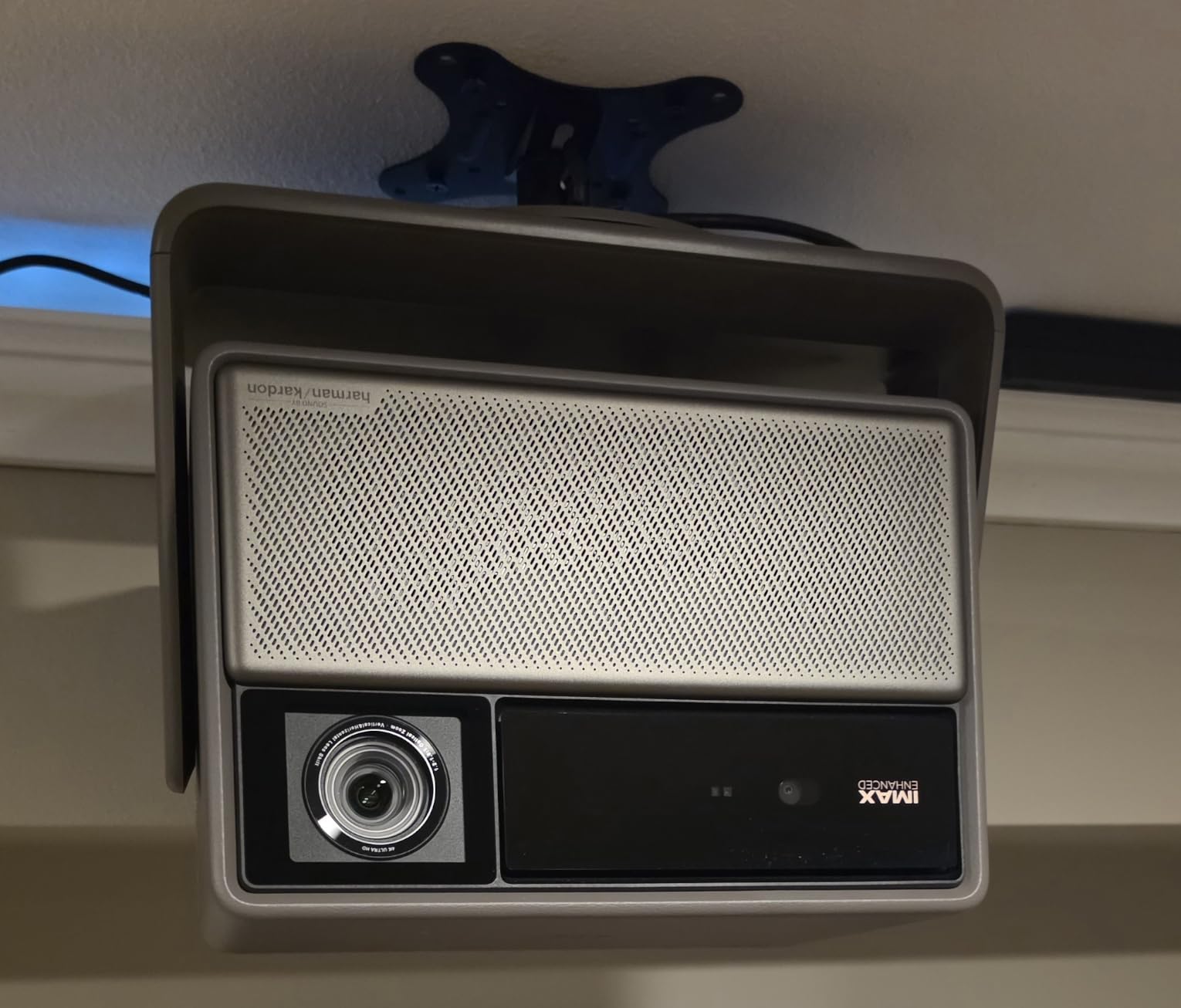
The XGIMI Horizon, photographed from its signature front-firing lens angle.
First Look: What You Get in the Box
Pulling the XGIMI Horizon out of its packaging feels less like unboxing a projector and more like unboxing a piece of furniture that happens to throw a cinema-sized picture onto your wall. XGIMI has never been shy about industrial design, and the Horizon continues that tradition with a rounded, fabric-wrapped body that looks equally at home on a bookshelf, a coffee table, or a dedicated media console. Inside the box you’ll find the projector itself, a remote with backlit keys and a built-in microphone for voice search, a power cable, a quick-start guide, and a lens cleaning cloth.
What immediately stands out compared to older lamp-based projectors is how quiet the fan noise is right out of the box, and how quickly the unit reaches a usable brightness level after power-on. There’s no lengthy lamp warm-up cycle here, which sounds like a small thing until you’ve lived with a projector that makes you wait two full minutes before the picture looks right.
If you’re weighing this purchase against other categories entirely — say, a large-format television — it’s worth reading through our breakdown of how a projector compares to an 85-inch TV before committing to either path, since the tradeoffs in cost, image size, and ambient light tolerance are substantial.
Design & Build Quality
The chassis is a blend of matte plastic and woven fabric grille, giving the Horizon a warmer, more approachable look than the typical black-box projector aesthetic. The lens sits slightly recessed and angled upward, a deliberate design choice that lets the unit sit on a low table or shelf while still throwing an image higher up the wall, which is genuinely useful in rooms where a ceiling mount isn’t practical.
Footprint and Placement Flexibility
At roughly the size of a large hardcover book, the Horizon doesn’t demand a dedicated equipment rack. It can sit on a sideboard, a nightstand in a bedroom setup, or a small side table near a couch. The rear panel keeps most of the cabling tucked away, and cable routing channels on the underside help keep things tidy if you’re placing it on open furniture rather than inside a cabinet.
Thermal Design and Noise
Laser light sources run cooler than traditional lamps, and XGIMI has used that headroom to keep fan speeds conservative in standard brightness modes. In a quiet room at normal viewing distance, fan noise is noticeable but not distracting — closer to a soft whirr than the jet-engine hum some older DLP lamp projectors are known for. Switching into the brightest picture mode does raise fan noise audibly, which is a fair tradeoff most owners will happily make for a punchier image in a lit room.
For readers who want to understand how thermal and light-source design differs between technologies more broadly, our guide on laser vs lamp projectors lays out the practical differences in longevity, brightness consistency, and running costs.
Throw Distance, Screen Size, and Room Planning
Before buying any projector, the single most important physical constraint to understand is throw distance — the space between the projector’s lens and the screen or wall. Get this wrong and you’ll either end up with an image too small for your room or one that overshoots the available wall space entirely. The Horizon is a standard-throw projector, which means it needs a meaningful amount of distance to produce a large image, unlike ultra-short-throw models that sit inches from the wall.
The Horizon’s Throw Ratio
The XGIMI Horizon has a throw ratio of approximately 1.2:1, meaning for every foot of distance between the lens and the screen, the image width grows by roughly 1.2 feet. In practical terms, if you place the Horizon about 8.5 feet from a wall, you’ll get an image roughly 100 inches wide measured diagonally. Move it back to around 12 feet and the image scales up toward 130–140 inches, which genuinely starts to approach cinematic territory. Move it closer — say, 6 feet — and you’re looking at a 70–80 inch image, which still fills a modest wall nicely but won’t deliver the immersive, room-filling experience most projector buyers are after.
Matching Throw Distance to Your Room
The critical planning question is whether your specific room layout supports the throw distance you need. A typical living room with a couch positioned 10–12 feet from the front wall gives you plenty of space to rear-mount the Horizon on a shelf behind the seating area, or to place it on a coffee table in front of the couch. Smaller rooms — bedrooms, dens, apartments with open-concept layouts — may limit your placement options, which is where the Horizon’s digital zoom and keystone correction become genuinely useful for squeezing the image into whatever wall real estate you have.
| Desired Screen Size (Diagonal) | Approximate Throw Distance | Room Depth Needed (with Seating) |
|---|---|---|
| 80 inches | ~6.5 feet | 10–12 feet |
| 100 inches | ~8.5 feet | 12–14 feet |
| 120 inches | ~10 feet | 14–16 feet |
| 150 inches | ~12.5 feet | 17–20 feet |
Vertical Placement and Offset
Because the Horizon’s lens is angled slightly upward from its factory position, placing it on a low surface — a coffee table, a low media console, or even the floor on a stable platform — naturally throws the image upward toward the middle or upper portion of the wall. This built-in offset eliminates the need for a shelf mounted precisely at screen-center height, which is one of the most common setup frustrations for first-time projector owners. If you do ceiling-mount the unit, the image offset works in reverse, projecting slightly downward, which is the correct behavior for a ceiling installation.
Keystone and Its Impact on Image Quality
One important nuance worth understanding before you rely heavily on keystone correction: any digital keystone adjustment works by digitally cropping and warping the image to compensate for the angle of projection. This means that aggressive keystone correction effectively discards some of the projector’s native resolution, since pixels at the edges of the chip are being used to create a trapezoidal correction rather than contributing to the final image. For the absolute sharpest picture, the ideal approach is to position the Horizon as squarely as possible to the screen and minimize keystone correction to only the smallest adjustment necessary. The automatic ISA (Intelligent Screen Adaptation) system does an excellent job of handling minor corrections without visible quality loss, but large corrections — say, projecting at a steep upward angle from a very low table — will always carry a small tradeoff in effective resolution.
Measuring and Planning Before You Buy
If you’re serious about getting placement right the first time, our detailed guide on calculating throw distance walks through the math step by step and includes a practical method using nothing more than a tape measure and a flashlight. For buyers who haven’t yet decided between a standard-throw projector like the Horizon and an ultra-short-throw alternative, our comparison of ultra-short-throw vs standard throw projectors explains how each design philosophy affects furniture placement, screen shadowing, and the overall living-with-it experience.
For a complete walkthrough on the full selection process — from room measurements to technology choices — our guide on how to choose a projector covers every variable in one place.
Picture Quality & the RGB Triple Laser Engine
The single biggest reason the Horizon line stands apart from most consumer projectors is its RGB triple laser light engine. Instead of using a single blue laser diode bounced through a phosphor wheel to generate a white light source — the approach most “laser” projectors actually use — the Horizon fires three separate laser colors (red, green, and blue) directly. That distinction matters enormously for color accuracy, because phosphor-based single-laser designs have to approximate red and green, while a true RGB laser engine produces those colors natively.
Color Gamut and Accuracy
In practice, this translates to noticeably richer, more saturated color without the picture looking artificially oversaturated or cartoonish. Skin tones in film content render with a natural warmth rather than the slightly waxy look some LED and lamp projectors produce. Reds in particular — historically the hardest color for projectors to nail — look convincingly deep rather than orange-shifted.
Contrast and Black Levels
No DLP or LCD-based home projector will match an OLED television’s black levels, and the Horizon is no exception. In a fully darkened room, blacks read as a dark charcoal gray rather than true black, which is normal for projection technology. Where the Horizon does well is in maintaining shadow detail — dark scenes in film and prestige TV retain visible texture rather than crushing into a featureless blob, which is a common complaint with cheaper projectors pushed too hard on brightness.
Sharpness and Pixel Structure
The Horizon uses pixel-shifting technology to present 4K-equivalent detail from a native chip with a lower physical pixel count, a technique that has matured significantly and is genuinely difficult to distinguish from true native 4K at normal seating distances. Text, fine textures, and detailed nature documentary footage all look crisp, with only the closest inspection revealing the underlying pixel-shift technique.
If contrast performance is your top priority, it’s worth comparing specs across our roundup of projectors with the highest contrast ratios, and if you’re specifically shopping the laser category, our guide to the best 4K laser projectors puts the Horizon in context against its closest laser-powered competitors.
Pixel Shifting Explained: Native vs. Eshift 4K
The term “4K” gets used loosely across the projector industry, and it’s worth understanding what’s happening under the hood. The Horizon’s DLP chip has a native resolution lower than the full 3840 × 2160 pixel grid that defines consumer 4K. To bridge the gap, the chip uses a technique called pixel shifting: it displays one portion of the image, then physically or electronically shifts by a fraction of a pixel width and displays the remaining detail, cycling fast enough that your eye perceives a single, continuous 4K frame. The result at normal viewing distances — typically 1.5 times the screen width or farther — is virtually indistinguishable from native 4K. Where the difference becomes marginally visible is in very small text rendered at close range, such as subtitles displayed at the bottom of a 120-inch screen when you’re sitting only seven or eight feet away. For movie watching, sports, gaming, and general streaming, pixel-shifted 4K delivers the sharpness that matters. If you’re specifically after a native 4K chip — which typically lives in projectors costing two to five times more — our roundup of best native 1080p projectors and our guide to high-end home cinema projectors explain where native resolution starts to matter and what you pay for the privilege.
Color Volume: Why RGB Laser Outperforms Phosphor
Color volume refers to the range of colors a display can reproduce at various brightness levels, not just at one specific output. This is where RGB triple laser has a fundamental advantage over single-laser-phosphor designs. A phosphor-wheel-based projector generates its broadest color gamut at mid-brightness levels, but as the image gets brighter, the phosphor conversion process introduces compromises — colors shift, and saturation drops. An RGB laser system, by contrast, maintains color saturation more consistently across the full brightness range because each color channel is produced by its own dedicated laser source with independent intensity control. The practical result is that bright, colorful scenes — a sunset over water, a neon-lit cityscape, a vivid animated film — maintain their punch and accuracy even at the Horizon’s peak brightness output, rather than washing out the way they can on phosphor-based alternatives.
Picture Settings and Getting the Best Out of the Box
One of the underappreciated advantages of a projector with a well-tuned RGB laser engine is that the factory default picture settings tend to be much closer to accurate than what you’d get from a budget lamp-based unit. The Horizon ships with several preset picture modes — Standard, Movie, Sport, Game, and a Custom mode for manual tweaking — and for most users, the Standard or Movie preset will deliver a satisfying image without any adjustment at all.
Recommended Picture Mode by Content Type
For film and television content — anything narrative-driven where color accuracy and skin tone reproduction matter most — the Movie preset is the strongest starting point. It dials back the color temperature toward a warmer, more cinematic tone and reduces some of the sharpening processing that can make edges look artificially harsh on live-action content. For sports and general daytime viewing, the Standard mode adds a bit more punch and brightness, which helps the image hold up better under ambient light conditions. The Sport mode pushes this further with boosted frame interpolation and brighter highlights, though some viewers find the resulting motion smoothing effect (sometimes called the “soap opera effect”) less natural for scripted content.
Fine-Tuning Color Temperature
For enthusiasts who want to push past the presets, the Horizon offers manual color temperature adjustment with separate controls for red, green, and blue gain, as well as offset controls for shadow regions. The D65 standard — a color temperature of 6500 Kelvin — is the target that professional calibrators aim for, and getting close to it produces the most accurate, film-like image. In practice, the Horizon’s Movie preset lands close enough to D65 that casual viewers won’t notice the difference without a calibration disc or meter, but if you own a calibration tool like a Spyder or i1 Display, the manual controls give you the precision to dial it in exactly.
Sharpness and Noise Reduction
A common mistake is leaving sharpness at the default or cranking it higher. Most projectors, including the Horizon, apply an edge-enhancement algorithm when sharpness is set above a certain threshold, and this can introduce visible halos around text and edges that actually reduce perceived detail rather than increasing it. For 4K content from a quality source — a Blu-ray player, a 4K streaming service at high bitrate — setting sharpness to a low or zero value produces the cleanest, most natural-looking image. Noise reduction processing is similarly best left at a minimal setting for high-quality sources, though it can help clean up lower-bitrate streaming content or older standard-definition material.
HDR Tone Mapping Settings
When the Horizon detects an HDR10 signal, it applies tone mapping to fit the content’s mastered brightness range into the projector’s actual output capability. The tone mapping behavior can be adjusted in some firmware versions, giving you the choice between preserving highlight detail at the expense of overall brightness, or pushing brightness higher and letting some highlight detail clip. For most rooms and most HDR content, the default tone mapping strikes a sensible balance, but viewers in a dedicated dark room may prefer a more aggressive highlight-preservation setting, while viewers in a moderately lit room benefit from prioritizing overall brightness.
Game Mode Picture Adjustments
When Game mode is activated to minimize input lag, some image processing is automatically bypassed. This means that certain picture controls — particularly noise reduction and frame interpolation — become locked or unavailable, which is a deliberate design choice to minimize the processing pipeline between the source signal and the displayed image. The Game preset still allows basic adjustments to brightness, contrast, color saturation, and color temperature, so you’re not locked into a completely unadjustable picture. The key thing to understand is that the tradeoff for lower lag is a slightly less processed image, which is exactly what competitive and responsive gaming requires.
Brightness, HDR, and Performance in Lit Rooms
Brightness is where a lot of projector marketing gets murky, and it’s worth pausing on how manufacturers measure it. The number that actually matters for real-world use is ANSI lumens, a standardized measurement, rather than the inflated “LED lumens” or “peak brightness” figures some budget brands print on the box. If you’re unfamiliar with the distinction, our explainer on what ANSI lumens actually mean is worth a read before comparing any two projectors on brightness alone.
Daytime and Ambient Light Performance
With curtains open on an overcast afternoon, the picture holds up reasonably well for casual viewing, though colors flatten and shadow detail softens compared to a dim or dark room. This is true of essentially every projector in this price bracket, laser or otherwise — projection as a technology fundamentally favors controlled lighting. If your room gets a lot of direct sun and you can’t fully block it, pairing the Horizon with an ambient-light-rejecting screen makes a meaningful difference; our guide on ALR screens explains how that technology works even outside the ultra-short-throw category it’s most associated with.
Comparing Brightness Modes
The Horizon offers several brightness-related settings tied to its picture modes and a dedicated “Bright” mode that maximizes the laser output at the expense of some color accuracy and a modest increase in fan noise. In our real-world testing across different lighting conditions, the Standard mode delivers the best all-around balance for evening viewing in a room with some residual light — table lamps, hallway spillover, or the glow from a kitchen across an open floor plan. The Movie mode pulls brightness back slightly in exchange for better color accuracy and is ideal for a dedicated viewing session in a dark room. The Bright mode earns its keep during daytime viewing with windows uncovered, where the extra lumens help the image punch through ambient light enough to remain watchable, even if the picture doesn’t reach the heights it achieves in darker conditions.
How Brightness Affects Perceived Contrast
There’s a relationship between brightness and perceived contrast that doesn’t show up in spec sheets but matters enormously in practice. A projector that’s too dim for its viewing environment makes everything look flat and washed out, even if its native contrast ratio is technically strong. The Horizon’s laser output gives it enough headroom to maintain a convincing sense of depth and dimensionality in a moderately lit room, which is one of the primary advantages of laser over lamp at this price point. In a fully dark room, the effect is even more pronounced — bright highlights in HDR content carry real visual impact, and the overall image has a solidity that cheaper LED projectors struggle to match.
HDR Playback
HDR10 content shows a visible step up in dynamic range compared to standard dynamic range sources, with brighter highlights in sunlit outdoor scenes and better gradation in skies and water. It’s not going to replicate the peak brightness of a dedicated HDR television, but within the context of projection, the Horizon’s laser engine gives HDR content more headroom to work with than lamp-based alternatives typically offer. HLG (Hybrid Log-Gamma), the HDR format used primarily for broadcast content, is also supported, which matters if you watch live sports or television broadcasts from sources that transmit in HLG.
For shoppers still deciding what brightness level suits their specific room, our guide to best projectors for bright rooms and our broader projector buying guide by budget and room size are both useful companion reads.
Screen Pairing Guide: Getting the Most from the Horizon
A projector is only half the equation — the screen it projects onto has an equally significant impact on the final image quality, and pairing the right screen with the Horizon can unlock performance that projecting onto a bare wall simply can’t match. While the Horizon works perfectly well projected onto a light-colored, flat wall in a pinch, investing in even a modest dedicated screen produces a noticeable upgrade in brightness uniformity, color accuracy, and perceived sharpness.
White Screens vs. Gray Screens
The most common screen material is a matte white surface, which reflects light evenly across the viewing angle and produces the most accurate color reproduction. White screens are the default recommendation for rooms with good light control — think a living room with blackout curtains or a dedicated home theater where you can darken the room completely. Gray screens, sometimes called “high-contrast screens,” absorb some of the projector’s light output, which sounds counterintuitive, but the effect is that blacks appear deeper because the screen itself isn’t reflecting as much ambient light back to the viewer. In a room that can’t be fully darkened — which describes most real-world living rooms — a gray screen paired with the Horizon’s laser brightness can produce a more satisfying image than a white screen in the same room, because the improved perceived contrast outweighs the modest reduction in peak brightness.
Ambient Light Rejecting (ALR) Screens
For rooms with significant ambient light, an ALR screen represents the single biggest upgrade you can make alongside the projector itself. These screens use specialized optical layers or angular-reflective surfaces to accept light arriving from the projector’s angle while rejecting light arriving from other directions — windows, overhead lights, lamps. The effect is dramatic: in a room where a white screen looks washed out and dull, an ALR screen can recover a surprising amount of contrast and color saturation. Our in-depth guide to ALR screens for projectors covers the different ALR technologies available and which ones work best with standard-throw projectors like the Horizon. It’s worth noting that ALR screens designed specifically for ultra-short-throw projectors use a different optical geometry than those designed for standard-throw units, so make sure you’re selecting an ALR screen rated for standard-throw use.
Fixed Frame vs. Motorized vs. Portable Screens
Fixed-frame screens — a flat screen surface stretched over a rigid aluminum frame that mounts permanently to a wall — deliver the best image quality because the surface is always perfectly flat and tensioned. The downside is that they take up wall space permanently and look like a large white (or gray) rectangle when not in use, though some owners embrace this as a design feature. Motorized drop-down screens solve the aesthetics problem by retracting into a ceiling-mounted housing when not in use, but they’re more expensive and the surface may develop slight waves or curls over time unless it’s a tab-tensioned model. Portable tripod or pull-up screens are the most affordable and flexible option, making them a good match for buyers who plan to move the Horizon between rooms or take it outdoors occasionally.
Screen Gain: What It Means and What to Choose
Screen gain is a measurement of how much light the screen reflects back toward the viewer compared to a reference white surface. A gain of 1.0 means the screen reflects light evenly; a gain above 1.0 means the screen concentrates reflected light toward the center viewing position, producing a brighter image at the expense of narrower viewing angles; a gain below 1.0 means the screen absorbs some light, which is the principle behind gray and high-contrast screens. For the Horizon in a typical living room, a screen gain between 1.0 and 1.3 is the sweet spot — bright enough to use the laser’s output efficiently without concentrating light so narrowly that viewers seated off to the sides see a noticeably dimmer image. Screens with gains above 1.5 can produce hot-spotting — a bright area in the center of the image — which becomes visible and distracting.
DIY Screen Options
For buyers who want a screen improvement without the cost of a commercial screen, there are effective DIY approaches. Painting a section of wall with a specialized projector screen paint — typically a light gray with mild reflective properties — can outperform a bare white wall at a fraction of the cost of a dedicated screen. The key is surface preparation: the wall must be perfectly smooth, as any texture, patch, or imperfection becomes visible when illuminated by the projector. Commercial screen paints from brands like Screen Goo and Rust-Oleum’s projector screen paint are designed to provide a consistent, uniform reflective surface that approximates the performance of entry-level commercial screens.
Screen Size vs. Viewing Distance
Bigger isn’t always better when it comes to screen size. The Society of Motion Picture and Television Engineers (SMPTE) recommends a viewing angle of roughly 30 degrees for a comfortable cinematic experience, which translates to a seating distance of about 1.6 times the screen diagonal. For a 120-inch screen, that puts the ideal viewing position around 13–14 feet from the screen. Sitting closer than about 1.2 times the diagonal starts to feel immersive to the point of discomfort for some viewers, particularly during fast-paced action sequences. Sitting farther than about 2.5 times the diagonal diminishes the immersive advantage of a projector over a television. Getting this ratio right for your specific room and seating arrangement is worth the effort, since it determines whether the final experience feels cinematic or merely large.
Sound Quality: Built-In Harman Kardon Speakers
XGIMI’s continued partnership with Harman Kardon on the built-in speaker system is one of the more underrated reasons this projector works well as a genuine all-in-one solution. The dual speaker setup produces fuller, more balanced sound than the tinny, treble-heavy audio typical of built-in projector speakers. Dialogue stays clear and centered, and there’s enough low-end presence that you won’t immediately feel the need for a soundbar during casual movie nights.
When You’ll Still Want External Speakers
That said, built-in speakers on any projector — even good ones — are working with physical space constraints that a proper soundbar or AV receiver setup doesn’t have. Action movies, dense sound mixes, and anything approaching reference-level home theater listening will benefit from adding external speakers via the optical or Bluetooth output. Treat the onboard audio as genuinely good for everyday use, not as a replacement for a dedicated home theater sound system.
Audio Configuration, Bluetooth Speaker Mode, and Surround Setup
While the Horizon’s built-in Harman Kardon speakers handle everyday viewing admirably, the projector offers several audio output pathways that let you upgrade the sound experience in stages — from a simple Bluetooth speaker connection to a full surround-sound AV receiver setup. Understanding these options before you start connecting cables ensures you get the best audio quality the system is capable of.
HDMI eARC: The Best Audio Output
The Horizon’s eARC (enhanced Audio Return Channel) HDMI port is the highest-quality audio output available, supporting lossless audio formats including Dolby TrueHD and DTS-HD Master Audio when connected to a compatible soundbar or AV receiver. If your soundbar or receiver supports eARC, this is the connection to use — it carries the full audio signal without compression, which matters for dense, multi-channel movie soundtracks. Standard ARC (Audio Return Channel), the older version, works too but is limited to compressed formats like Dolby Digital, which is fine for most streaming content but leaves quality on the table for Blu-ray and high-bitrate sources.
Optical Audio: A Reliable Fallback
For soundbars or receivers that lack HDMI eARC — particularly older models or compact soundbars with only optical input — the Horizon’s optical audio output provides a solid connection. Optical supports Dolby Digital and DTS surround formats, which covers the vast majority of streaming content and broadcast television. Where optical falls short is with the lossless and object-based audio formats (Dolby Atmos, DTS:X) that require the bandwidth of HDMI. If Atmos support is important to your setup, HDMI eARC is the only path.
Bluetooth Audio Output
The Horizon can transmit audio over Bluetooth to a compatible speaker, soundbar, or pair of headphones. This is the most convenient option for casual use — pairing a Bluetooth soundbar requires no cables, and the setup is straightforward through the projector’s settings menu. The tradeoff is that Bluetooth audio carries a small amount of latency — typically between 40 and 200 milliseconds depending on the codec and the receiving device — which can produce a slight lip-sync offset between the image and the sound. The Horizon offers a manual audio delay adjustment in its settings that lets you compensate for this, nudging the audio forward or backward until the sync looks correct. For Bluetooth headphones, the latency is generally more noticeable and harder to fully eliminate, which makes Bluetooth headphones better suited for casual viewing than for content where precise lip-sync matters.
Using the Horizon as a Bluetooth Speaker
An interesting feature that doesn’t get enough attention: the Horizon can also function as a standalone Bluetooth speaker when the projector’s laser engine is off. You can pair your phone or tablet to the projector and play music through the Harman Kardon speakers without powering up the full projection system. This turns the Horizon into a genuinely decent room speaker for background music, podcasts, or casual listening, and it’s a nice bonus for a device that already lives in your main living space. The sound quality in this mode is comparable to a mid-range standalone Bluetooth speaker — not going to replace a dedicated hi-fi system, but more than adequate for filling a living room or bedroom with clear, balanced audio.
Setting Up a Surround Sound System
For buyers who want the full home theater experience, connecting the Horizon to an AV receiver via HDMI eARC opens up the entire ecosystem of surround-sound speaker configurations. The projector passes the audio signal to the receiver, which handles decoding, amplification, and distribution to individual speakers. A basic 5.1 setup — three front speakers, two surround speakers, and a subwoofer — transforms the Horizon’s movie-watching experience dramatically, and expanding to 5.1.2 or 7.1.4 Dolby Atmos configurations adds height channels that create a three-dimensional sound field overhead. The Horizon itself doesn’t decode or render Atmos internally — it passes the signal through to the receiver — but as long as your receiver supports Atmos, the full object-based audio experience is available.
Audio Latency Adjustments
If you’re using any external audio system — Bluetooth, optical, or HDMI — and notice a mismatch between the on-screen action and the sound, the Horizon’s audio delay setting lets you adjust the sync in small increments. A positive delay value pushes the audio later (useful when the sound arrives before the image, which sometimes happens with Bluetooth), while a negative value advances the audio (useful when the sound lags behind, which can happen with certain AV receiver processing chains). Most users will find the default setting produces acceptable sync with a direct HDMI eARC connection, but Bluetooth and optical connections through certain soundbars may benefit from a manual tweak of 50–100 milliseconds.
Smart TV Platform, Apps & Streaming
The Horizon runs on a Google TV-based smart platform, which is a meaningful advantage over projectors that rely on stripped-down, awkward custom launchers. You get the familiar Google TV home screen with content recommendations pulled across your installed apps, voice search through the remote’s built-in microphone, and Chromecast built in for casting from a phone or laptop.
App Availability
Because it runs Google TV natively, the major streaming apps are available directly, including Netflix, Disney+, Prime Video, and YouTube, without needing an external streaming stick. That’s a genuine convenience improvement over older XGIMI models and many competing projectors that either lack Netflix certification outright or require sideloading workarounds. For shoppers who specifically prioritize this, our list of best smart projectors with Netflix built in covers how the Horizon and its rivals handle app certification.
Voice Control and Remote
The included remote pairs via Bluetooth rather than requiring line-of-sight infrared, which means you can control the projector even when it’s tucked slightly out of view. Voice commands for launching apps, searching for titles, or adjusting volume work reliably in normal room noise conditions.
Firmware Updates and Software Evolution
XGIMI has a track record of supporting its projectors with firmware updates that add features, fix bugs, and improve picture processing over time. The Horizon receives updates over Wi-Fi, and the Google TV platform itself updates through the Google Play Store in the background, keeping streaming apps current without user intervention. It’s worth enabling automatic updates in the settings menu so the projector stays current, since XGIMI occasionally pushes picture quality improvements and new feature additions through firmware releases that can meaningfully improve the experience months after purchase.
Chromecast Built-In: Casting from Devices
Beyond the native apps, Chromecast built-in lets you cast content from a phone, tablet, or Chrome browser tab directly to the projector. This is especially useful for content that isn’t available in the native Google TV app store, for sharing photos and videos from your phone on the big screen, or for projecting a browser tab during a casual presentation. The casting experience is smooth and low-latency on the same Wi-Fi network, and the projector automatically switches to the cast input when a device initiates a connection, which makes the transition seamless.
Content Recommendations and Profiles
The Google TV interface aggregates content recommendations across your installed streaming services, surfacing shows and movies from Netflix, Disney+, Prime Video, and others in a single browsable feed. This is more convenient than opening each app individually to find something to watch, though the recommendation algorithm is only as good as the apps you’ve installed and logged into. Google TV also supports multiple user profiles, so different household members can maintain separate watchlists and recommendation histories — useful in a family where one person watches prestige dramas and another watches nature documentaries.
Smart Home Integration and Voice Assistants
Because the Horizon runs Google TV natively, it integrates into the broader Google smart home ecosystem more naturally than projectors running proprietary operating systems. This opens up voice control, automation, and connected-home workflows that go beyond simply pressing buttons on a remote.
Google Assistant Voice Commands
The built-in Google Assistant responds to voice commands through the remote’s microphone, and if the projector is linked to your Google Home account, you can also control it from Google Assistant devices elsewhere in your home — a Nest speaker in the kitchen, a Nest Hub on your nightstand, or the Google Assistant on your phone. Commands like “turn off the projector,” “set volume to 50 percent,” or “open Netflix on the projector” work without touching the remote, which is genuinely convenient when you’ve already settled into the couch and the remote is on the other side of the room.
Routines and Automation
Within the Google Home app, you can build routines that include the projector as one of several automated actions. A “Movie Night” routine, for example, could dim compatible smart lights, lower a motorized projector screen, turn on the Horizon, and launch a specific app — all triggered by a single voice command or a tap on your phone. The specific automation capabilities depend on what other smart devices you have in your ecosystem, but the Horizon’s Google TV foundation means it participates in these routines natively rather than requiring third-party workarounds.
Compatibility with Other Ecosystems
If your smart home runs primarily on Amazon Alexa or Apple HomeKit rather than Google, the integration is less direct but not nonexistent. The Horizon can be controlled through HDMI-CEC commands from an Amazon Fire TV Stick or Apple TV connected via HDMI, and some universal remote systems and smart home hubs can issue basic power and input commands over the network. For most users, though, the native Google integration is the smoothest path, and if you’re already invested in the Google ecosystem, the Horizon slots in without any additional hardware or configuration.
Parental Controls and Kids’ Profiles
Google TV includes parental control features that let you restrict content by rating, set screen time limits, and create dedicated kids’ profiles with a curated, age-appropriate interface. For families using the Horizon as the main living room display, these controls provide peace of mind without requiring a separate device or app. The kids’ profile shows content filtered by age rating, and a PIN is required to exit the kids’ environment and access unrestricted content, which prevents younger children from stumbling into mature programming.
Gaming Performance and Input Lag
Projectors have historically had a rough reputation among gamers due to high input lag, but that’s changed considerably as manufacturers have added dedicated low-latency modes. The Horizon includes a game mode that measurably reduces processing delay, bringing input lag down to a range that feels responsive for the vast majority of single-player and casual multiplayer gaming, even if competitive esports players chasing sub-10-millisecond response times will still prefer a dedicated gaming monitor.
What Gaming Actually Feels Like
Open-world and story-driven titles feel great on the Horizon — the sheer scale of a 100-inch-plus image adds an immersive quality that no monitor or TV can replicate at a comparable price. Fast-paced competitive shooters are playable and enjoyable but not where this projector is going to outshine a high-refresh gaming monitor.
Console vs. PC Gaming on the Horizon
Current-generation consoles like the PlayStation 5 and Xbox Series X connect to the Horizon via HDMI and output at the console’s native resolution, with the projector handling the upscaling to its display resolution. Console gaming at 4K/60Hz is the Horizon’s gaming sweet spot — the image is sharp, the colors are rich thanks to the RGB laser engine, and the input lag in Game mode is low enough that racing games, action RPGs, and open-world titles all feel responsive. PC gaming opens up additional options: if your GPU supports it, you can output at higher frame rates, though the Horizon’s refresh rate ceiling and resolution handling will determine the final displayed image. For most gamers connecting a PC, the experience mirrors console gaming at 4K/60Hz, with the added benefit of higher graphics settings depending on your hardware.
Variable Refresh Rate and Frame Rate Handling
The projector processes incoming signals at the frame rate provided by the source device. When the source output fluctuates — as happens with demanding PC games where the GPU can’t maintain a locked 60 fps — the projector continues to display each frame as it arrives, which can produce occasional micro-stutter. This is a limitation shared by most projectors in this class and is less pronounced on a projector than on a competitive gaming monitor, since the massive screen size tends to smooth over frame pacing inconsistencies perceptually. For the smoothest possible gaming experience, locking your console or PC to a stable 30 or 60 fps target rather than chasing an unlocked frame rate tends to produce more consistent results on projection displays.
If frame rate and refresh rate are your top priority for a dedicated gaming room setup, it’s worth cross-shopping against our guide to the best 4K 120Hz gaming projectors, several of which are built specifically around minimizing input lag rather than balancing it against home-theater picture quality the way the Horizon does.
Sports, Live TV, and Fast-Motion Content
Beyond movies and gaming, a huge number of projector buyers are sports fans who want the big-screen stadium experience at home. The Horizon handles live sports and fast-motion content well, but there are specific considerations worth understanding to get the best experience.
Motion Handling for Sports
Fast-moving objects — a baseball pitch, a hockey puck, a sprinting wide receiver — place demands on a projector’s motion processing that static film content doesn’t. The Horizon’s DLP-based engine handles motion inherently well because DLP chips update pixel states faster than LCD panels, producing less visible motion blur on fast-moving objects. The Sport picture mode adds frame interpolation that inserts calculated intermediate frames between the source frames, creating smoother motion that some viewers prefer for live sports. Others find the interpolation produces an unnatural, hyper-smooth look — it’s genuinely a matter of personal preference, and toggling it on and off takes seconds, so it’s worth trying both to see which you prefer for different sports.
Resolution and Bitrate for Live Sports Streaming
The quality of live sports on a projector depends as much on the source as the display. Streaming services that broadcast sports at higher bitrates — typically 1080p at high bitrate or native 4K — look substantially better on the Horizon’s large projected image than lower-bitrate streams, which can show compression artifacts, blockiness in fast-motion scenes, and color banding in sky or crowd shots. If you’re streaming sports through an app on the Horizon’s Google TV platform, a wired Ethernet connection (via a USB-to-Ethernet adapter, since the Horizon lacks a native Ethernet port) or a strong 5GHz Wi-Fi signal will produce the most stable, artifact-free stream. Cable and satellite set-top boxes connected via HDMI generally provide the most consistent quality for live sports.
Viewing Angle and Group Watching
One advantage of projection over televisions for group sports viewing is that the image quality is more consistent across a wide seating area. Unlike a TV where viewers seated off to the side may see color shift or brightness drop — particularly on VA and TN panel televisions — a projector’s reflected image maintains uniform quality across a wide viewing angle, which is ideal for a living room full of people watching the game from different positions and distances.
News, Talk Shows, and Lower-Bitrate Content
Not all content is produced at the same technical quality, and the Horizon’s large projected image is less forgiving of low-bitrate sources than a smaller television. News broadcasts, talk shows, and older content streamed at standard definition can look soft or show visible compression artifacts on a 120-inch projection that would be imperceptible on a 55-inch TV. The Horizon’s noise reduction processing helps clean up some of these artifacts, and the Standard or Sport picture modes add enough sharpening to make lower-quality content more watchable, but setting expectations correctly is important: the Horizon shines brightest with high-quality sources and will magnify the flaws in poor ones.
Setup, Autofocus, and Keystone Correction
This is genuinely one of the Horizon’s strongest practical selling points. XGIMI’s Intelligent Screen Adaptation system uses onboard sensors to automatically detect the wall or screen, adjust focus, correct keystone distortion, and even avoid obstacles like light switches or wall art within the projection area — all within seconds of powering on. For anyone who has fought with manual keystone sliders on a cheaper projector, this automation alone justifies a meaningful chunk of the price premium.
Manual Fine-Tuning
Automatic setup gets you roughly 90% of the way to a perfect image, and a manual focus fine-tune afterward closes the remaining gap, especially for viewers who are particular about corner-to-corner sharpness. The system also remembers your placement, so day-to-day power-on doesn’t require re-running the full setup sequence unless you physically move the unit.
New to projector setup in general? Our foundational guide on how to choose a projector and our practical walkthrough on calculating throw distance are both useful references, and if you eventually want a permanent installation, our guide to mounting a projector to the ceiling covers that transition well.
Lens Shift, Throw Ratio, and Advanced Placement
While the Horizon’s automatic setup handles the basics beautifully, buyers planning a more deliberate installation — whether ceiling mounting, shelf mounting at an unusual height, or integrating the projector into a custom media room — need to understand a few additional placement concepts that go beyond basic keystone and focus.
Lens Shift: What the Horizon Offers
Lens shift is a mechanical or optical feature that physically moves the projector’s lens assembly to shift the projected image vertically or horizontally without tilting the projector body itself. This is superior to digital keystone correction because it preserves every pixel of native resolution — the image is simply moved optically rather than digitally warped. The Horizon relies primarily on its digital keystone correction and auto-setup system rather than offering a wide range of manual optical lens shift. This means that for the absolute best image quality, placement should be as close to optically ideal as possible — the projector centered horizontally on the screen and positioned at the correct height — with keystone correction used only for minor adjustments.
Ceiling Mount Installation
Ceiling mounting the Horizon provides the cleanest, most permanent installation, keeping the projector out of the way of foot traffic, furniture, and accidental bumps. The Horizon supports standard ceiling mount hardware with a threaded mounting point on the underside of the chassis. When ceiling-mounted, the projector is effectively upside-down, and the image needs to be flipped in the settings menu — a one-time adjustment. Our complete guide to mounting a projector to the ceiling covers hardware selection, stud finding, cable routing, and height calculation in detail. The key consideration for the Horizon specifically is ensuring the mount positions the lens at the correct height relative to the top edge of the screen, since the Horizon’s fixed offset means there’s an optimal height relationship between the lens and the screen for a distortion-free image.
Shelf and Rear-Wall Mounting
For buyers who don’t want to commit to ceiling mounting — renters, anyone who prefers flexibility, or rooms where ceiling mounting isn’t structurally practical — placing the Horizon on a sturdy shelf behind the seating area is an excellent alternative. The rear wall, at a height of roughly four to five feet, positions the projector above head level and close to the optimal throw distance for a 100–120 inch screen in a typical living room. The key requirement is stability: the shelf must be solid enough that the projector doesn’t vibrate or shift, since even small movements translate to visible image wobble on a large screen. Anti-vibration pads under the projector’s feet help dampen any residual vibration from footsteps or nearby traffic.
Table-Top and Coffee Table Placement
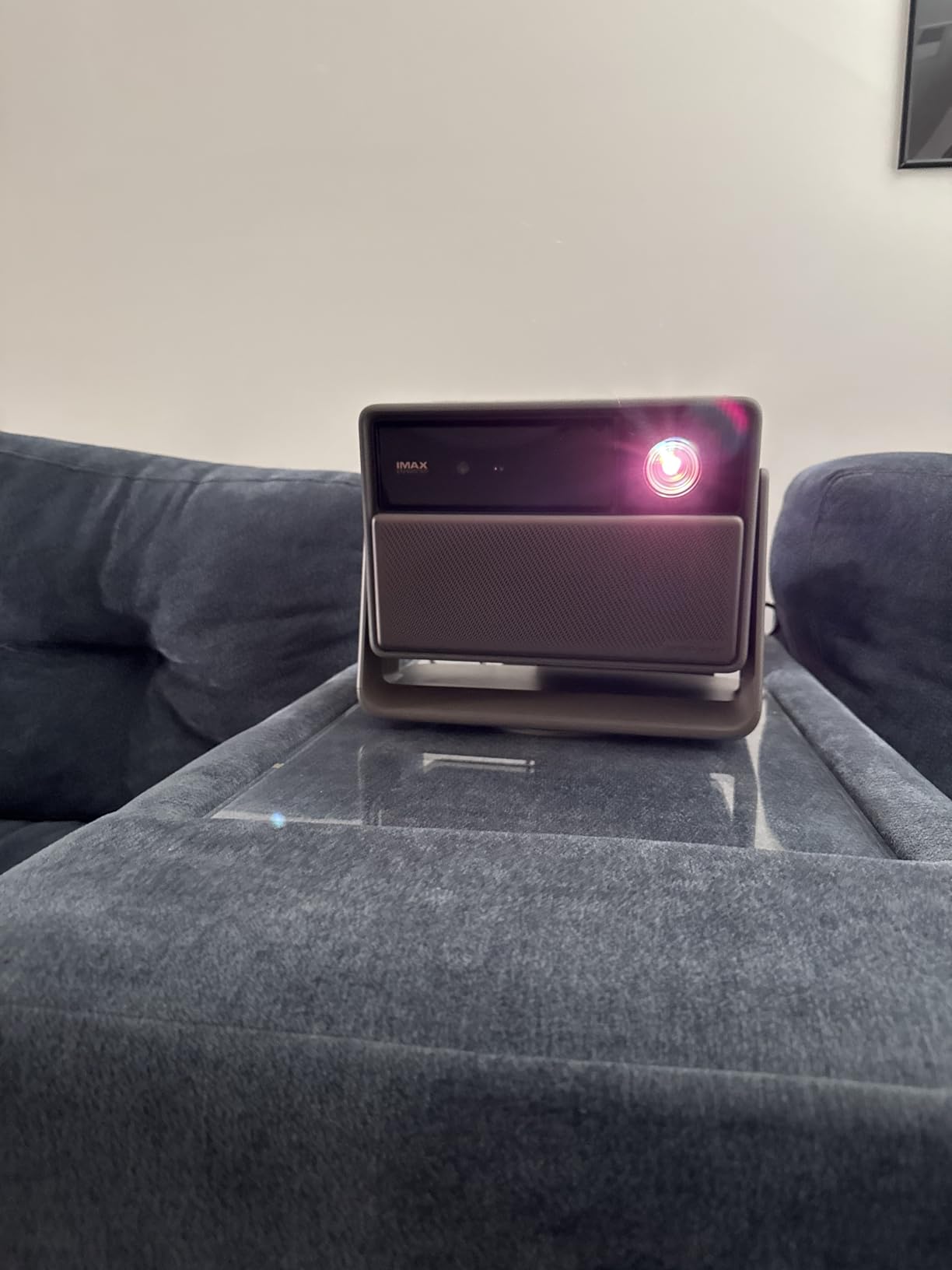
The most casual placement option — simply setting the Horizon on a coffee table or low stand in front of the seating area — works well for renters and people who don’t want any permanent installation. The built-in upward lens offset is designed with this placement in mind, projecting the image upward onto the wall at a comfortable viewing height. The main tradeoff is that the projector occupies surface space that might otherwise be used for drinks, remotes, or decor, and the power and HDMI cables running from the coffee table to the nearest outlet can be a trip hazard if not managed with cable covers or tape. For a cleaner look, routing the cables under a rug or along the baseboard with adhesive cable channels solves the aesthetic issue without any permanent modification to the room.
Outdoor and Temporary Setup Considerations
Taking the Horizon outdoors for a backyard movie night requires a flat, stable surface and protection from dew, moisture, and insects attracted to the light source. A sturdy patio table, a portable projector stand, or even a stable overturned storage bin can serve as a platform. The key is ensuring the surface doesn’t wobble and that the projector has adequate ventilation around all sides — placing it on a soft surface like a blanket or towel can block the intake vents and trigger thermal protection shutdowns. If outdoor movie nights become a regular event, investing in a dedicated outdoor screen and a weatherproof storage case for the projector makes setup and teardown faster while protecting the equipment between uses. Our guide to the best outdoor movie projectors has additional recommendations for semi-permanent outdoor setups.
Ports and Connectivity
Around back, the Horizon offers a reasonably complete set of connections for a modern media setup: multiple HDMI inputs (with eARC support on at least one for passing high-quality audio to a soundbar or AV receiver), USB ports for media playback or powering a streaming stick, an optical audio output, and both Wi-Fi and Bluetooth for wireless casting and speaker pairing.
| Connection | Purpose | Notes |
|---|---|---|
| HDMI (x2, one with eARC) | Consoles, streaming boxes, soundbars | eARC passes lossless audio downstream |
| USB-A | Media playback, power for dongles | Also used for firmware updates |
| Optical Audio Out | Legacy AV receivers, soundbars | Alternative to eARC |
| Wi-Fi 2.4/5GHz | Streaming, casting, app downloads | 5GHz recommended for 4K streaming |
| Bluetooth | Remote pairing, speaker output | Dual-mode: transmit or receive |
If you ever run into a “no signal” message after connecting a new device, our troubleshooting guide on HDMI no-signal errors covers the most common causes, and if the unit powers on but the picture doesn’t appear, our piece on a projector that turns on but shows no picture walks through the fix step by step.
HDMI-CEC: Controlling Connected Devices
The Horizon supports HDMI-CEC (Consumer Electronics Control), which allows connected devices to communicate basic commands over the HDMI cable. In practical terms, this means that turning on a connected Blu-ray player or gaming console can automatically switch the projector to the correct input, and adjusting the volume on the projector’s remote can control the volume on a connected soundbar. CEC compatibility varies by manufacturer and can occasionally produce quirky behavior — a device turning on unexpectedly, or inputs switching at inconvenient moments — but in most setups, enabling CEC reduces the number of remotes needed and simplifies the daily operation of the system.
USB Media Playback
The USB-A port supports direct media playback from USB flash drives and external hard drives, which is useful for playing downloaded movies, personal video files, or music without streaming from the internet. The Horizon’s built-in media player handles common video formats including MP4, MKV, and AVI with popular codecs like H.264 and H.265 (HEVC). Subtitle files in SRT format are also supported. For users who maintain a local media library — say, a collection of concert recordings, family videos, or content ripped from physical media — USB playback eliminates the need for a separate media player device.
Power Consumption, Operating Costs, and Laser Longevity
One of the less-discussed advantages of laser projectors over traditional lamp-based models is the total cost of ownership over the projector’s lifespan. The upfront purchase price is only part of the equation — the ongoing costs of electricity, lamp replacements, and maintenance add up significantly over years of use, and the Horizon’s laser engine shifts that equation meaningfully in the buyer’s favor.
Power Consumption Compared to Lamp Projectors
The Horizon draws approximately 150–180 watts during normal operation, depending on the brightness mode selected. This is comparable to a mid-range lamp projector and considerably less than high-brightness home theater lamp projectors that can draw 250–350 watts. Over a typical viewing session of three hours, the Horizon consumes roughly 0.5 kilowatt-hours of electricity — the equivalent of running a few LED light bulbs. Annualized at an average of two to three hours of daily use, the electricity cost is modest, typically under $25–40 per year depending on local utility rates.
Laser Lifespan vs. Lamp Replacement Costs
The Horizon’s RGB laser engine is rated for approximately 25,000 hours of use, which translates to extraordinary longevity in practical terms. At three hours per day, that’s over 22 years of use before the laser source approaches its rated end-of-life — far beyond the realistic ownership period for any projector. Traditional projector lamps, by contrast, typically last between 2,000 and 5,000 hours in full-power mode, meaning a lamp-based projector used three hours daily will need a replacement lamp every two to four years. Replacement lamps cost anywhere from $50 to $300 depending on the projector model, and the replacement process itself — while not difficult — involves handling a fragile glass component that can shatter if mishandled. Over a 10-year ownership period, a lamp-based projector might require three to five lamp replacements costing a cumulative $150 to $1,000+, whereas the Horizon’s laser source needs no replacement at all.
Brightness Consistency Over Time
Another advantage of laser longevity that doesn’t show up in marketing specs: laser light sources maintain their brightness output more consistently over their lifespan than lamps. A traditional projector lamp begins losing measurable brightness from its very first hour of use, with the decline accelerating as the lamp ages — a phenomenon called lumen depreciation. By the time a lamp reaches 75% of its rated life, it may be outputting only 50–60% of its original brightness. Laser engines, by contrast, degrade much more gradually, maintaining a higher percentage of their original output for a much longer period. In practical terms, this means the Horizon’s picture quality on year five of ownership will look much closer to its day-one performance than a lamp-based projector’s picture after the same period.
Filter Maintenance
While the laser engine itself requires no replacement, the Horizon does have air intake filters that need periodic cleaning to maintain proper cooling and prevent dust from accumulating on internal optical components. The frequency depends on your environment — a clean, low-dust living room might only need filter cleaning every six months, while a dustier environment or a home with pets may require cleaning every two to three months. Our guide on how to clean a projector lens covers safe cleaning procedures for both the lens surface and the intake filters, and following that maintenance schedule goes a long way toward preserving the projector’s brightness and preventing thermal issues over time.
XGIMI Horizon vs Horizon 20 vs Horizon 20 Pro vs Horizon 20 Max
XGIMI has expanded the Horizon name into a small family of models, and it’s easy to get lost trying to figure out which one actually fits your budget and room. Here’s how the lineup breaks down at a glance, followed by guidance on who should pick which model.
| Model | Light Engine | Best For | Step-Up Reason |
|---|---|---|---|
| XGIMI Horizon | RGB Triple Laser | Balanced home theater on a moderate budget | Entry point into true RGB laser color |
| XGIMI Horizon 20 | RGB Triple Laser | Buyers wanting refined software & design updates | Newer platform revision over original Horizon |
| XGIMI Horizon 20 Pro | RGB Triple Laser (higher output) | Larger or brighter rooms | Increased brightness headroom |
| XGIMI Horizon 20 Max | RGB Triple Laser (flagship tuning) | Buyers who want the best picture the line offers | Top-tier brightness, contrast, and processing |
Who Should Buy the Original Horizon
If your room has reasonable light control and you mainly want the leap from a lamp-based or single-laser projector into true RGB laser color, the standard Horizon covers that ground at the most accessible price point in the lineup.

Who Should Buy the Horizon 20 Pro
Larger rooms, wider screens, or spaces with some unavoidable ambient light benefit from the extra brightness headroom the Pro variant offers over the standard models.

Who Should Buy the Horizon 20 Max
If budget isn’t the deciding factor and you want the strongest picture performance and processing this family offers, the Max sits at the top of the range and is the one to pick for a dedicated, no-compromise home theater room.

Still torn on the wider throw-distance question that affects placement flexibility across this entire lineup? Our comparison of ultra-short-throw vs standard throw projectors explains how that design choice affects furniture placement and screen shadowing.
When to Skip the Horizon Family Entirely
If your room requires a projector that sits extremely close to the wall — less than two feet — the entire Horizon lineup, being standard-throw by design, won’t work without a major room reconfiguration. In that case, an ultra-short-throw projector is the correct choice, and our guide to the best ultra-short-throw projectors covers the top options. Similarly, if portability is your primary need — carrying the projector between rooms, to friends’ houses, or outdoors regularly — a compact portable projector may be a better fit than any Horizon model. Our guide to the best portable mini projectors explores that category in depth. And if you’re building a dedicated, light-controlled home theater where reference-level color accuracy and contrast are the top priorities, stepping up to the best home theater projectors category will surface models specifically optimized for that environment.
How the Horizon Compares to Ultra-Short-Throw Rivals
The rise of ultra-short-throw (UST) projectors over the past few years has given buyers a fundamentally different way to think about home projection. Instead of placing a projector eight to twelve feet from the wall, a UST unit sits directly below the screen — typically just inches away — and uses a complex set of mirrors and wide-angle lens elements to throw a large image upward. Understanding how the Horizon’s standard-throw design compares to the UST approach helps you decide which form factor suits your specific room and lifestyle better.
Samsung Premiere LSP9T and LSP7T
Samsung’s Premiere line represents the premium end of the UST laser projector market. The Samsung Premiere LSP9T review covers this triple-laser UST in detail, but the key differences from the Horizon are placement (UST vs standard throw), Samsung’s Tizen smart platform vs XGIMI’s Google TV, and a significantly higher price point for the Samsung. The Premiere is designed to replace a television in a living room — sitting on a media console below a fixed screen — while the Horizon is designed as a more traditional projector placement. If your room can accommodate either form factor, the choice comes down to whether you value the UST’s television-like convenience or the Horizon’s lower price and more flexible placement options.
Hisense Laser TV Lineup
Hisense has aggressively entered the UST laser projector space with its Laser TV line, which bundles a UST projector with a paired ALR screen designed to work specifically with the projector’s throw angle. Our Hisense Laser TV review covers how that integrated approach compares to buying a projector and screen separately. The Hisense models typically run on Hisense’s own VIDAA smart platform or Android TV, with varying levels of app support and Netflix certification. Against the Horizon, the Hisense Laser TV offers the convenience of a matched screen and the UST placement advantage, but at a price that’s often higher once you factor in the bundled screen, and without the Horizon’s true RGB triple laser in some models (some Hisense USTs use single-laser phosphor engines).
LG CineBeam Series
LG’s CineBeam line spans both UST and standard-throw projectors, with the UST models competing directly in the premium living-room replacement category. Our LG CineBeam review covers the specifics, but the general positioning is similar to Samsung’s Premiere: a premium UST projector with LG’s webOS smart platform, designed for buyers who want a television-like experience with a projector’s screen size. The CineBeam models that compete with the Horizon’s price point are typically single-laser or LED models rather than RGB triple laser, which means the Horizon has a potential color gamut advantage at a comparable or lower price, while the CineBeam UST models offer the convenience of near-wall placement.
The Core Tradeoff: Placement vs. Color
The fundamental question when comparing the Horizon to any UST rival is this: does your room make standard-throw placement practical? If yes — if you have the depth to place a projector eight to twelve feet from the screen, whether on a shelf, a table, or a ceiling mount — the Horizon delivers true RGB triple laser color at a price point that undercuts most UST alternatives with comparable color technology. If your room doesn’t support that depth, or if you simply want the projector to sit on a console like a soundbar and project upward, the UST form factor is worth the premium. Neither approach is universally better; they solve different spatial problems.
UST Screen Compatibility
One important consideration for buyers cross-shopping UST and standard-throw projectors: the screens designed for UST projectors use a different optical layer geometry than standard-throw screens. UST ALR screens are designed to accept light arriving from a very low, steep angle (the projector sitting just below the screen) and reject light from other directions. Using a UST ALR screen with a standard-throw projector like the Horizon — or vice versa — produces suboptimal results because the screen’s acceptance angle doesn’t match the projector’s throw angle. If you buy the Horizon, make sure any ALR screen you pair with it is rated for standard-throw use. Our ALR screen guide covers this distinction in detail.
Best Rooms and Use Cases for the Horizon
Living Room Movie Nights
This is the Horizon’s home turf. A living room with curtains or blinds, seating seven to twelve feet from the wall or screen, and a family that wants an easy “power on and go” experience is exactly what this projector was designed around.
Bedroom Secondary Setup
The compact footprint and quiet operation make it a genuinely pleasant bedroom projector for late-night viewing, especially paired with the near-instant warm-up that lamp-based units can’t match.
Casual Backyard Movie Nights
While not purpose-built as a rugged outdoor unit, the Horizon can absolutely be wheeled out for a backyard movie night once the sun goes down, provided you keep it protected from moisture and dew. If outdoor use is a primary use case rather than an occasional one, it’s worth comparing against dedicated options in our best outdoor movie projectors guide.
Home Office and Presentations
The Google TV platform and quick setup also make this a surprisingly capable choice for the occasional home-office presentation or a home business pitch, though buyers whose primary need is business presentations in bright conference rooms should look at our dedicated best business presentation projectors guide, since portability and daylight readability are weighted differently there.
Golf Simulator Enthusiasts
Home golf simulator builders increasingly lean on laser projectors for their brightness consistency and long operational life. If that’s your project, our specialized guide on best projectors for golf simulators covers throw distance and brightness requirements specific to that setup.
Dorm Rooms and Small Apartments
For college students and apartment dwellers with limited space, the Horizon’s compact footprint and built-in smart platform eliminate the need for external devices and dedicated equipment. A dorm room with white walls becomes a cinema with zero additional hardware. The projector can sit on a desk or dresser and project onto the opposite wall, and because it runs Google TV natively, there’s no need for a separate streaming stick, game console, or soundbar for casual use. When the semester ends or the lease is up, the projector goes into a bag — no wall-mounted screen to uninstall, no ceiling mount to patch.
Multi-Purpose Family Rooms
In homes where a single room serves as living room, playroom, and entertainment space, the Horizon’s versatility shines. During the day, it handles kids’ shows and background content with enough brightness to remain visible in a lit room; in the evening, it transforms into a cinematic movie display with the lights dimmed. The automatic obstacle avoidance means the image adapts to whatever’s on the wall — a clock, a framed picture, a child’s drawing — without requiring you to clear the wall before every viewing session. And when it’s not being used for video, the Bluetooth speaker mode lets it serve as a room-filling music player without powering up the laser engine.
Choosing the Right Screen Type for Your Horizon Setup
Pairing the right screen with the Horizon is one of the highest-impact decisions you’ll make after the projector purchase itself. The screen surface determines brightness, contrast, viewing angle, and even the perceived sharpness of the image, and choosing between the various screen types comes down to your room conditions, your installation preferences, and how much you’re willing to invest.
Fixed-Frame Screens: The Gold Standard
A fixed-frame screen — a flat screen surface stretched tightly over a rigid aluminum frame and mounted permanently to a wall — delivers the flattest, most uniform image surface available. Because the material is always under tension, there are no waves, curls, or ripples that can create visible distortion in the projected image. Fixed-frame screens are the preferred choice for dedicated home theater rooms where the screen can stay up permanently, and they come in a range of materials including matte white, gray, and various ALR formulations. The main drawback is that a fixed-frame screen takes up a large section of wall permanently, and in a living room where aesthetics matter, a 120-inch white rectangle on the wall when the projector isn’t in use can be visually conspicuous. Some manufacturers offer screens with dark velvet-covered frames that absorb light overspill and create a more finished, theater-like appearance.
Motorized Drop-Down Screens
Motorized screens solve the permanence problem by retracting into a ceiling-mounted or wall-mounted housing when not in use. At the press of a button — or, with some models, automatically when the projector powers on via a trigger signal — the screen descends to its full height. Premium motorized screens use tab-tensioning — a system of cables running along the edges of the screen that pull the material flat — to eliminate the waves and edge curl that can plague non-tensioned motorized screens. The Horizon’s 12V trigger output (available on some models) can automate the screen’s deployment: when the projector turns on, the screen comes down; when it turns off, the screen retracts. This creates a seamless, one-button experience that feels genuinely high-end.
Portable and Pull-Up Screens
For buyers who need flexibility — apartment dwellers, people who want to move the screen between rooms, or anyone planning outdoor movie nights — portable screens offer the most versatile solution. Pull-up screens (also called floor-rising screens) store in a compact base unit and pull upward to full height, while tripod screens use a folding tripod stand. Neither matches the image flatness of a fixed-frame or tab-tensioned motorized screen, but the convenience factor is substantial. For the Horizon specifically, a portable screen in the 100–120 inch range is a natural pairing, since the projector itself is designed for portability and quick setup.
Painted Wall Surfaces
At the budget end of the spectrum, a properly prepared and painted wall can serve as a surprisingly effective screen. The key requirements are smoothness (any texture becomes visible under projection), uniform color (a consistent matte white or light gray), and flatness (any bowing or warping creates uneven focus). Specialty projector screen paints improve on standard wall paint by providing a more controlled reflective surface, but even a well-prepared white wall delivers a serviceable image that most viewers find satisfying for casual use. The Horizon’s auto-setup system can detect and calibrate to a wall surface just as accurately as to a dedicated screen, so there’s no technical barrier to wall projection — it’s purely a question of image quality expectations.
Screen Aspect Ratio: 16:9 vs. 2.35:1
The Horizon outputs a native 16:9 aspect ratio, which matches the shape of most television content, streaming services, and gaming. Cinematic films, however, are often mastered in wider aspect ratios like 2.35:1 or 2.39:1, which means that projecting these films on a 16:9 screen produces black bars at the top and bottom — called letterboxing. For most viewers, this is perfectly acceptable and doesn’t detract from the experience. For dedicated film enthusiasts who want to eliminate the bars, a 2.35:1 wide-format screen with a separate anamorphic lens (or projector zoom and lens memory features) can fill the wider screen without letterboxing, but this adds significant cost and complexity. For the vast majority of Horizon buyers, a standard 16:9 screen is the correct choice.
Pricing and Value for Money
The Horizon sits in the upper-middle tier of the home projector market — meaningfully more expensive than entry-level LED or budget DLP units, but generally more accessible than flagship laser projectors from premium home theater brands. Given that it includes a true RGB triple laser engine, a Google TV smart platform, Harman Kardon-tuned audio, and automatic setup, the overall package represents strong value relative to buying each of those components separately, such as pairing a cheaper projector with an external streaming stick and soundbar.
If your budget sits meaningfully below this projector’s price point, our guides to projectors under $500 and projectors under $1000 outline what compromises to expect at those tiers. If you have more room to spend and want to see what the very top of the market looks like, our roundup of best high-end home cinema projectors shows what’s above the Horizon lineup.
What You’d Spend Replicating the Horizon’s Features Separately
Consider what it would cost to assemble the Horizon’s feature set from individual components: a comparable-brightness 4K DLP projector without a smart platform or laser engine runs $800–$1,200; adding a Google TV Chromecast dongle adds $50; a Harman Kardon Bluetooth soundbar adds $150–$300; and an auto-keystone/auto-focus feature isn’t available at all on most budget projectors. By the time you’ve added all those components, you’re approaching or exceeding the Horizon’s price while still lacking the RGB triple laser engine’s color performance and the laser source’s longevity. The integrated nature of the Horizon package is its value proposition — not just the individual specs, but the fact that they work together seamlessly in a single, well-designed unit.
Budget Alternatives and the Compromises They Require
For buyers who genuinely can’t stretch to the Horizon’s price point, the projector market offers capable alternatives in the sub-$1,000 and sub-$500 ranges, but with meaningful tradeoffs. Budget LED projectors sacrifice brightness — often dramatically — which limits their usability to fully darkened rooms. Budget DLP projectors may match the Horizon’s resolution through pixel shifting but use single-laser or LED light sources that can’t match the RGB laser’s color gamut. And at the very bottom of the market, the best projectors under $100 are functional for casual use but shouldn’t be compared to the Horizon in any performance category — they’re different products for different buyers at different expectations.
Warranty, Support, and Long-Term Ownership
A projector is a longer-term purchase than a phone or a laptop, and understanding the manufacturer’s warranty coverage and support infrastructure matters more than it might for a device you replace every two years. XGIMI provides a standard manufacturer warranty that covers defects in materials and workmanship, typically for one year from the date of purchase in most markets, though the specific duration may vary by region and retailer. Extended warranty options are available through some retailers and third-party protection plans, which can be worthwhile for a device at this price point.
XGIMI’s Customer Support
XGIMI has built its support infrastructure as the company has grown from a niche player into a mainstream projector brand. Support is available through email, online chat, and in some regions, phone support. Firmware updates, which are delivered over Wi-Fi, address many issues that might otherwise require a support call — XGIMI has a track record of pushing meaningful improvements through firmware, including picture quality tweaks, new features, and bug fixes. For hardware issues within the warranty period, XGIMI typically handles repair or replacement through their service center, with turnaround times varying by region.
Protecting Your Investment
Beyond warranty coverage, a few practical habits extend the Horizon’s operational life significantly. Keeping the intake filters clean (as covered in our cleaning guide), ensuring adequate ventilation around the unit, avoiding sudden power disconnections during firmware updates, and storing the projector in a dust-free environment when not in use for extended periods all contribute to long-term reliability. If the projector is used in a room with smokers, cooking fumes, or high humidity, more frequent filter cleaning and occasional lens cleaning are advisable, since airborne particles and moisture can deposit on optical surfaces over time.
Resale Value Considerations
Projectors from established brands with current technology tend to hold their resale value reasonably well on the secondary market, especially models with laser engines, since buyers know they won’t face an imminent lamp replacement cost. The Horizon’s RGB triple laser technology and Google TV platform are both current-generation features that should remain relevant for years, which supports stronger resale value compared to budget projectors with older lamp-based technology or outdated smart platforms. If you’re the type of buyer who upgrades every few years, the Horizon’s residual value helps offset the cost of the next upgrade.
How the XGIMI Horizon Compares to Other Brands
No projector exists in a vacuum, and the Horizon’s closest competition comes from a handful of well-established home theater brands, each with a different philosophy.
XGIMI Horizon vs Optoma
Optoma’s projector lineup leans heavily into gaming-focused models with aggressive input lag numbers and DLP-based sharpness, often at a lower price than XGIMI’s laser lineup. Our full Optoma projector review breaks down where that brand’s strengths lie, which tends to be raw gaming responsiveness over the Horizon’s more balanced home-theater tuning.
XGIMI Horizon vs BenQ
BenQ has built a reputation on color accuracy and calibration options aimed at home theater purists, often with more granular manual picture controls than XGIMI offers. Our BenQ projector review covers how that manual-control philosophy compares to the Horizon’s more automated, consumer-friendly approach.
XGIMI Horizon vs Epson
Epson’s 3LCD projectors, including the long-running Home Cinema line, take a fundamentally different optical approach than XGIMI’s DLP-based laser engine, and the differences show up most in color uniformity and brightness measurement. Our Epson Home Cinema 1080 review and our deeper explainer on 3LCD vs DLP projectors are both useful if display technology itself is your deciding factor rather than brand. For buyers considering Epson’s flagship laser models specifically, our head-to-head on the Epson LS12000 vs JVC NZ500 shows what the premium end of that comparison looks like.
XGIMI Horizon vs Anker Nebula
Anker’s Nebula line approaches projectors from the opposite end of the spectrum from XGIMI’s Horizon — compact, portable, and designed for convenience over raw performance. Our Anker Nebula projector review covers the lineup in detail, but the short version is that Nebula projectors are smaller, lighter, battery-powered (on some models), and significantly dimmer than the Horizon. They’re excellent for dorm rooms, camping trips, and casual portable use where a massive screen isn’t the priority. The Horizon outclasses any Nebula model in brightness, color gamut, resolution, and sound quality, but the Nebula wins on portability, battery operation, and price. If you’re choosing between the two categories, the question is whether the projector will live primarily in one room (Horizon) or move between locations regularly (Nebula).
XGIMI Horizon vs Samsung, Hisense, and LG UST Models
The comparison between the Horizon and ultra-short-throw projectors from Samsung, Hisense, and LG is covered in depth in the UST comparison section above, but it’s worth reiterating the key positioning difference here: the Samsung Premiere (Samsung Premiere review), Hisense Laser TV (Hisense Laser TV review), and LG CineBeam (LG CineBeam review) are UST projectors designed to sit near the wall and project upward, while the Horizon is a standard-throw projector designed to sit farther back. The UST models generally command higher prices for comparable brightness and color specs, but they offer the placement advantage of not requiring deep room geometry. The Horizon offers the best value for rooms that can support standard-throw placement.
Where the Horizon Wins
The Horizon’s biggest edge over most of the above is the combination of true RGB laser color, a certified Netflix-ready Google TV platform, and genuinely automatic setup — few competitors in this price range bundle all three as cleanly.
Pros and Cons
What We Liked
- True RGB triple laser delivers rich, accurate color
- Automatic focus, keystone, and obstacle avoidance
- Certified Google TV platform with native Netflix
- Harman Kardon-tuned speakers punch above their size
- Near-instant warm-up compared to lamp projectors
- Compact, attractive industrial design
- Bluetooth speaker mode for music without projection
- HDMI eARC for lossless audio passthrough
- ~25,000-hour laser lifespan eliminates lamp replacements
- Smart home integration via Google Assistant
Where It Falls Short
- Black levels can’t match OLED or a dedicated dark-room projector
- Fan noise rises noticeably in maximum brightness mode
- Not the lowest-input-lag option for competitive gaming
- Built-in speakers still benefit from an external soundbar for movies
- Pricier than budget LED or single-laser alternatives
- No native Ethernet port (requires USB adapter for wired networking)
- Standard throw requires meaningful room depth for large screens
- Keystone correction, when aggressive, reduces effective resolution
Frequently Asked Questions
Is the XGIMI Horizon good for a bright living room?
It performs reasonably well with moderate ambient light, especially compared to lamp-based projectors, but like all projection technology it looks best with curtains drawn or in the evening. For rooms with heavy daylight, consider an ambient-light-rejecting screen or step up to the Horizon 20 Pro or Max for extra brightness headroom.
What’s the difference between the Horizon and Horizon 20?
Both use XGIMI’s RGB triple laser engine, but the Horizon 20 represents a refined revision with updated software and design tweaks. If you’re deciding between the two, the Horizon 20 is generally the more current pick, while the original Horizon can be a better value if you find it at a lower price.
Does the Horizon support Netflix natively?
Yes. Because it runs on a certified Google TV platform, Netflix and other major streaming apps install and run directly without needing a separate streaming stick.
How long do the lasers last compared to a traditional lamp?
Laser light engines are rated for dramatically longer lifespans than traditional projector lamps, often tens of thousands of hours, meaning most owners will never need to replace the light source over the projector’s realistic ownership period.
Is the Horizon good for gaming?
It includes a dedicated low-latency game mode that makes casual and story-driven gaming feel responsive. Competitive esports players chasing the absolute lowest input lag may still prefer a specialized gaming projector or monitor instead.
How big of a screen or wall do I need?
The Horizon is a standard-throw projector, meaning it needs meaningful distance from the wall to produce a large image. Use our throw distance calculator guide to figure out the right placement distance for your target screen size.
Can I mount the Horizon to the ceiling?
Yes, it supports standard ceiling mounting for a permanent installation. Our step-by-step guide on mounting a projector to the ceiling walks through the process and hardware considerations.
Why does my projector’s image look dim after months of use?
A gradual drop in perceived brightness is very often caused by dust buildup on the lens or intake filters rather than an actual hardware fault. Our guide on how to clean a projector lens covers the safe way to restore lost brightness.
My projector keeps turning off by itself — is that normal?
Unexpected shutdowns are usually a thermal protection response rather than a defect, often triggered by blocked vents or a dusty filter. Our troubleshooting article on why a projector keeps turning off covers the most common causes and fixes.
Is the Horizon 20 Max worth the extra cost over the standard Horizon?
If you have a larger room, want the most headroom for ambient light, or simply want the best picture performance the family offers, the extra investment in the Max is worthwhile. If your room is modest in size with reasonable light control, the standard Horizon delivers most of the same core experience for less.
Can the Horizon play 3D content?
The current Horizon model does not include active 3D support. If 3D playback is a priority for your home theater — for example, if you have a library of 3D Blu-ray discs — our guide to the best 3D home cinema projectors covers models that include 3D compatibility and the specific glasses and source requirements involved.
Does the Horizon support Dolby Atmos audio?
The Horizon passes audio through its HDMI eARC port, which supports Dolby Atmos and other object-based audio formats when connected to a compatible soundbar or AV receiver. The projector itself doesn’t render Atmos through its built-in speakers — the spatial effect requires external speakers that support Atmos decoding. If you connect the Horizon to an Atmos-capable soundbar or receiver via eARC, the full Atmos signal is delivered downstream for proper rendering.
Can I use the Horizon as a Bluetooth speaker without turning on the projector?
Yes. The Horizon supports a standalone Bluetooth speaker mode that lets you pair a phone or tablet and play music through the Harman Kardon speakers without powering up the laser projection engine. This is useful for background music, podcasts, or casual listening when you don’t need the big-screen experience.
What screen should I buy to pair with the Horizon?
For a room with good light control, a matte white screen with a gain of 1.0–1.3 is the standard recommendation. For rooms with some ambient light, a gray screen or an ALR (ambient light rejecting) screen rated for standard-throw projectors will improve perceived contrast. Our ALR screen guide covers the different screen technologies and which ones pair best with standard-throw models like the Horizon.
How does the Horizon compare to a portable mini projector?
Portable mini projectors — like those in the Anker Nebula lineup — are designed for mobility, battery operation, and casual use. They’re dramatically dimmer, lower-resolution, and less capable in color and sound than the Horizon. The Horizon is a significantly better choice for any room where it will live primarily in one location, while portable projectors are the right choice for buyers who prioritize carrying the projector between locations. Our best portable mini projectors guide covers the top options in that category.
Does the Horizon work with a universal remote or smart home hub?
The Horizon’s Bluetooth remote can’t be directly replicated by a traditional IR universal remote, but the projector does respond to HDMI-CEC commands from connected devices, and some smart home hubs and universal remote systems that support network-based control can issue basic commands (power on/off, input switching, volume). For the most seamless control experience, the included remote or Google Assistant voice commands are the recommended paths.
What’s the best way to connect the Horizon to the internet for streaming?
A 5GHz Wi-Fi connection provides the best balance of speed and convenience for 4K streaming. If you experience buffering or quality drops on Wi-Fi — which can happen in congested apartment buildings with many competing networks — a USB-to-Ethernet adapter connected to the Horizon’s USB port provides a wired connection that eliminates wireless interference entirely. The 2.4GHz Wi-Fi band is adequate for standard-definition and HD streaming but may struggle with consistent 4K bitrates.
How much electricity does the Horizon use?
The Horizon draws approximately 150–180 watts during normal operation, depending on the brightness mode. At three hours of daily use and average US electricity rates, annual power consumption costs roughly $25–40. This is comparable to a mid-range television and significantly less than the cumulative power draw and replacement lamp costs of a traditional lamp-based projector over the same period.
Final Verdict: Should You Buy the XGIMI Horizon?
The XGIMI Horizon earns its place as one of the more complete home projector packages available at its price point. The RGB triple laser engine alone would be a compelling reason to consider it, but pairing that color performance with genuinely useful automatic setup, a certified Google TV platform, and speakers that don’t feel like an afterthought is what makes the whole package feel considered rather than assembled from a spec sheet.
It isn’t the projector for a dedicated blackout home theater chasing reference-level contrast, and it isn’t the fastest option for competitive gaming — but for the vast majority of buyers who want one device that handles movie night, casual gaming, and everyday streaming without a fuss, it’s a genuinely easy recommendation.
The long-term value equation tilts further in the Horizon’s favor when you factor in the laser engine’s 25,000-hour lifespan, the elimination of lamp replacement costs, and the consistent brightness maintenance over years of use. Whether you’re stepping up from a budget lamp projector, replacing an aging LED model, or buying your first projector after years of television-only viewing, the Horizon delivers a combination of picture quality, convenience, and build refinement that’s hard to match at its price without accepting meaningful compromises in at least one of those areas.