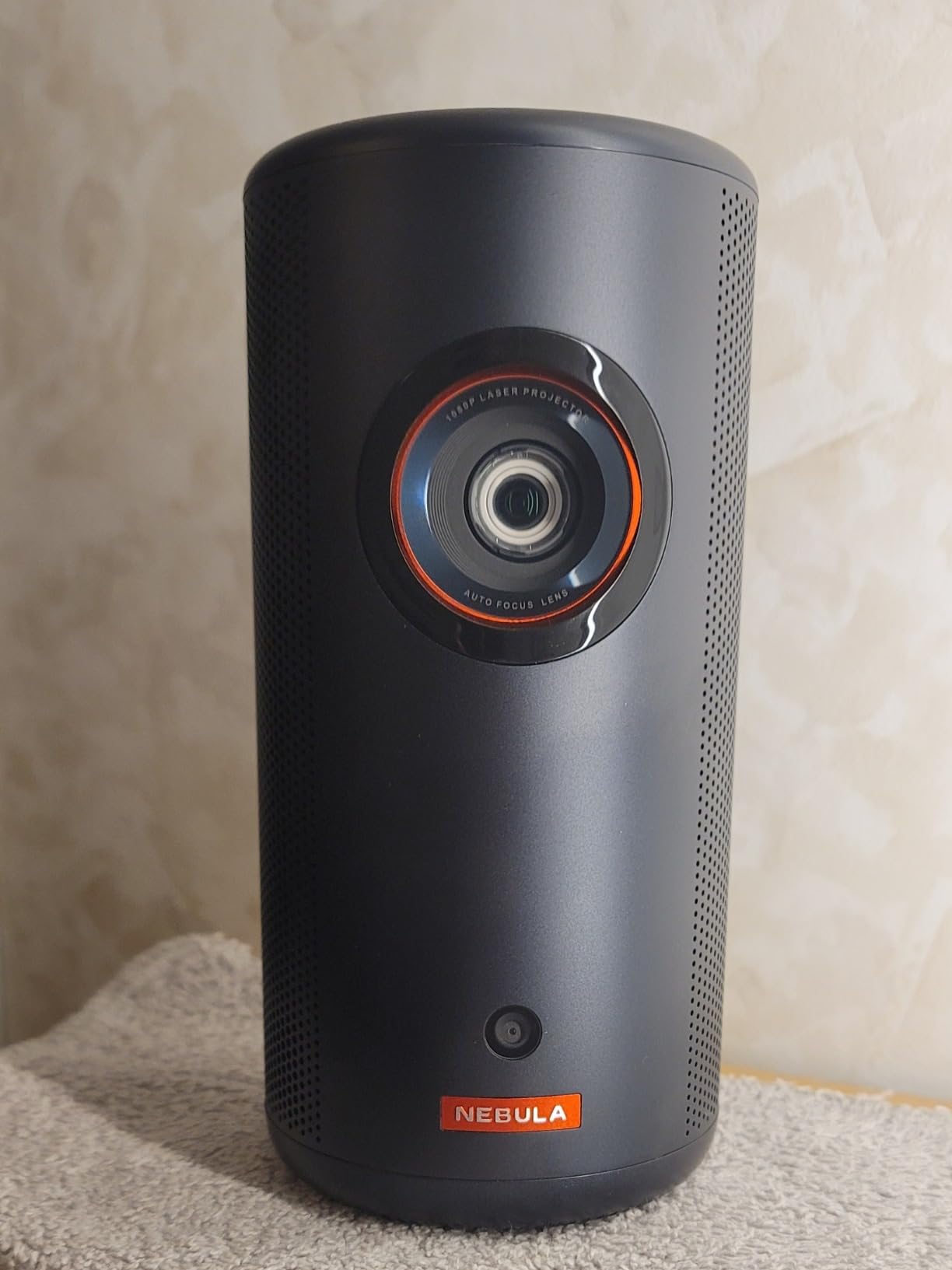
Anker Nebula Projector Review: Is It Still the Smartest Pick for Home and Outdoor Movie Nights?
If you’ve spent any amount of time browsing portable projectors, you’ve almost certainly run into the Anker Nebula lineup. Anker built its name on power banks and charging gear, but the Nebula brand has quietly become one of the most trusted names in compact, smart projectors — the kind you can carry to a backyard movie night, prop up in a dorm room, or use as a genuine substitute for a big-screen TV. In this review, we’re breaking down what makes the Anker Nebula projector series tick, where it shines, where it stumbles, and how it stacks up against the rest of the market, including its own siblings in the Capsule, Mars, and Cosmos families.
We spent extended time testing across a range of everyday scenarios — indoor movie nights with the lights on, fully darkened home theater sessions, backyard projection with ambient streetlight bleeding into the yard, and casual travel use where portability mattered as much as picture quality. That range of conditions matters, because a projector that looks great in a controlled lab environment doesn’t always hold up once real-world variables like sunlight, uneven surfaces, and spotty Wi-Fi enter the picture. Everything in this review reflects how these projectors actually behave once they leave the box and enter normal, everyday use.
1. What Is the Anker Nebula Lineup?
Nebula is Anker’s dedicated projector sub-brand, and over the past several product cycles it has grown into a full family covering nearly every use case: ultra-portable capsule projectors you can toss in a backpack, rugged outdoor models built for patios and camping trips, and living-room-ready 4K units meant to replace a traditional television. What ties the whole lineup together is a consistent design language — cylindrical or boxy aluminum bodies, tactile control dials, and a smart interface layered on top of Android TV or Google TV — plus Anker’s reputation for reliable hardware engineering carried over from its charging and audio products.
Unlike many budget projector brands that essentially rebrand generic Chinese OEM hardware, Nebula designs its own optical engines, cooling systems, and companion apps. That matters because it shows up in real-world details: consistent color calibration across units, firmware that actually gets updated, and accessories (tripods, cases, mounts) that are purpose-built rather than an afterthought. If you’re comparing Nebula against other big players in the space, it’s worth reading our breakdowns of the XGIMI Horizon, the Optoma lineup, and the BenQ range to see how the competitive landscape shapes up.
For this review, we’re focusing on the flagship Anker Nebula projector alongside three closely related models that regularly come up in buying comparisons: the Nebula Capsule 3 Laser, the Nebula Mars 3, and the Nebula Cosmos 4K SE. Each targets a slightly different buyer, and we’ll get into exactly how they differ later in this article.
Why Anker Entered the Projector Market
It’s worth understanding the “why” behind Nebula’s existence, because it explains a lot about the design philosophy you’ll notice throughout this review. Anker built its reputation on solving everyday friction points — chargers that actually charge as fast as advertised, power banks that survive years of daily abuse, earbuds that pair instantly. When the company moved into projectors, it applied the same lens: rather than chasing the biggest brightness number or the most exotic optical engine, Nebula engineers focused on the parts of the ownership experience that actually frustrate people day to day — slow boot times, finicky focus rings, apps that don’t work properly, and batteries that die halfway through a movie. That consumer-first mentality is the throughline across every Nebula product we’ve tested, and it’s a big part of why the brand has earned such strong loyalty among first-time projector buyers who might otherwise be intimidated by the category.
How the Lineup Has Evolved
Early Nebula projectors were solid but unremarkable — competent hardware without much of a distinct identity. The turning point came when Anker started shipping genuine Google-certified software instead of a forked, semi-functional Android build. That single decision changed the entire value proposition, because it meant Nebula projectors could finally compete on software reliability with actual smart TVs rather than feeling like a compromise. Combined with steady improvements to autofocus accuracy, battery efficiency, and acoustic design, the current generation represents a meaningfully more mature product than what the brand was shipping just a few years ago.
See current pricing and availability for the Anker Nebula projector on Amazon.
Check Price on Amazon2. Design and Build Quality
The first thing you notice pulling a Nebula projector out of the box is how little it feels like a “budget gadget.” The chassis is mostly metal, with a soft-touch base and a fabric or mesh grille wrapping the built-in speaker. Buttons have real travel and a satisfying click, the focus ring turns with smooth, dampened resistance, and the overall fit and finish feels closer to premium consumer electronics than to the plasticky projectors you’ll find at the bottom of most marketplace search results.
Build Materials and Thermal Design
Because compact projectors generate a surprising amount of heat from their LED or laser light sources, thermal engineering matters just as much as aesthetics. Nebula uses a combination of aluminum heat sinks and dual-fan cooling loops, which keeps internal temperatures in check without turning the unit into a jet engine. Fan noise is present under sustained use, but it settles into a low, consistent hum rather than the whining pitch you get from cheaper units — something that becomes noticeable within the first ten minutes of any movie night.
Physical Footprint and Portability Choices
Depending on the exact model, the body ranges from soda-can-sized (in the Capsule line) to lunchbox-sized (in the Mars and Cosmos lines). Even the larger units keep a built-in carrying handle or integrated tripod mount, which reflects Nebula’s understanding that most buyers are not installing these projectors permanently — they’re moving them from the living room to the backyard to the guest room and back again.
Control Layout
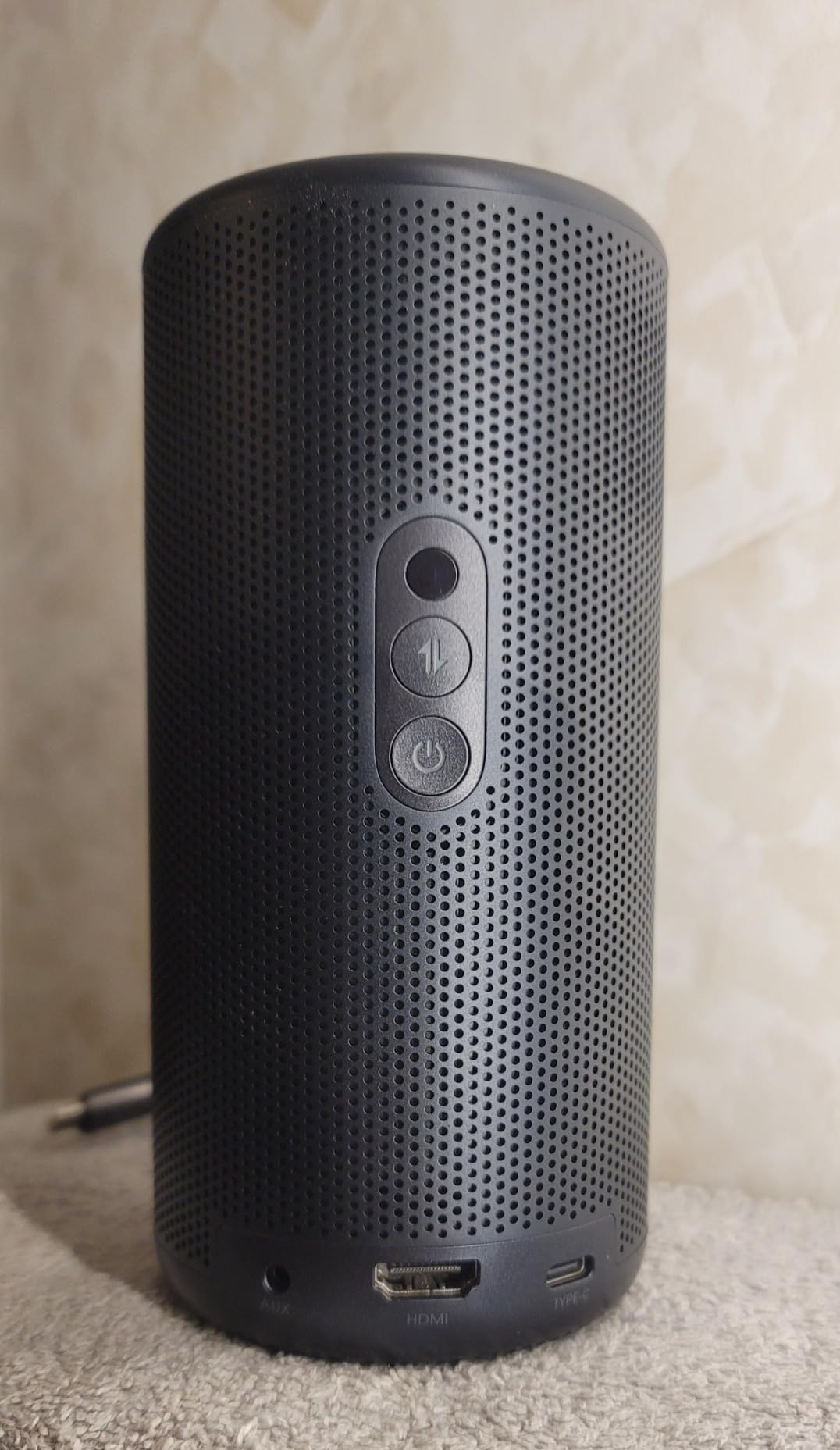
On-device controls are minimal by design: power, volume, and a directional pad for basic navigation, with the heavy lifting handled by the included remote or the Nebula Connect companion app on your phone. The remote itself is a highlight — backlit buttons, a dedicated Google Assistant or voice-search key on higher-end models, and enough physical heft that it doesn’t feel like an afterthought bundled in at the last minute.
Lens Cap and Accessory Design
Small details add up over months of ownership, and Nebula gets a lot of them right. The lens cap on most models attaches magnetically rather than requiring a loose cover you’ll inevitably lose within a week. Rubberized feet keep the unit from sliding on smooth surfaces like glass coffee tables or tile patios, and the tripod thread built into the base uses a standard 1/4-20 mount, meaning any generic camera tripod works without needing a proprietary adapter. It’s a small thing, but it means you’re not locked into buying Anker’s own accessory ecosystem if you already own compatible gear.
Color Options and Aesthetic
Most Nebula models ship in a neutral gunmetal gray or matte black finish with subtle brand badging, which keeps the unit looking at home whether it’s sitting on a bookshelf, a patio table, or tucked into a media cabinet. This matters more than it might seem — a projector that looks like a piece of intentional home decor rather than a piece of tech gear is simply more likely to stay out and get used regularly instead of being packed away in a closet between uses.
3. Picture Quality and Display Performance
Picture quality is where projector shoppers spend the most time deliberating, and rightfully so — brightness, resolution, and color accuracy determine whether a projector actually replaces a TV or just becomes a novelty that gets used twice and forgotten. The Anker Nebula projector line uses a mix of native 1080p and upscaled 4K panels depending on the model, paired with brightness ratings that range from roughly 300 ANSI lumens on the smallest Capsule models up to 2,400 ANSI lumens on the Cosmos 4K SE.
If you’re unfamiliar with how lumens actually translate into real-world brightness, our explainer on what ANSI lumens actually mean is worth a detour before you commit to a purchase, since marketing lumens and ANSI lumens are not the same measurement.
Color Accuracy and HDR
Out of the box, Nebula projectors lean slightly warm and saturated, which tends to look punchy and appealing in casual viewing but isn’t perfectly reference-accurate. Higher-end models support HDR10 decoding, though as with most DLP and LED-based projectors in this price bracket, the practical dynamic range improvement is modest rather than dramatic. Colors are vibrant enough for animated content, sports, and most streaming shows to look genuinely good, especially once you dial in the picture mode.
Contrast and Black Levels
Because these are LED and laser light-source projectors rather than true laser-phosphor cinema projectors, black levels are the biggest limiting factor. In a fully dark room, blacks read as a dark gray rather than true black — a limitation shared by virtually every projector at this price point and form factor. If deep contrast is your top priority, it’s worth comparing against dedicated home theater options in our highest contrast ratio projector roundup.
Ambient Light Performance
This is genuinely one of Nebula’s strong suits. The higher-lumen models hold up reasonably well with some ambient light present, which matters enormously for anyone planning to use a projector in a living room with windows rather than a blacked-out media room. That said, for the brightest daytime or patio use, it’s still worth checking our guide to the best projectors for bright rooms to set realistic expectations.
Resolution vs. Real-World Sharpness
It’s worth separating marketing resolution from perceived sharpness, since the two aren’t always the same thing. Some Nebula models advertise 4K support because they accept a 4K signal and downscale it internally to a native 1080p panel, using pixel-shifting techniques to approximate extra detail. This produces a noticeably sharper image than a true 720p or entry-level 1080p projector, but it’s not quite equivalent to a genuinely native 4K panel like the one found in the Cosmos 4K SE. For most casual viewing distances — sitting eight to twelve feet from a 100-inch image, for example — the difference is far less obvious than spec sheets might suggest, though it becomes more apparent on very large screens or when viewing extremely detail-heavy content like nature documentaries.
Screen Door Effect and Pixel Structure
One artifact worth knowing about before you buy any DLP-based projector, Nebula included, is the so-called screen door effect — a faint visible grid between pixels that becomes more noticeable the closer you sit to the screen or the larger you project the image. In our testing, this was a non-issue at typical living-room viewing distances but became mildly perceptible when sitting unusually close to a projected image larger than 120 inches. It’s a minor caveat rather than a dealbreaker, but worth factoring into how large you plan to project.
Eye Comfort and Long Viewing Sessions
An underrated benefit of projector viewing versus staring at a bright LED or OLED TV panel is reduced eye strain over long sessions, since projected light is reflected off a screen or wall rather than shone directly at your eyes. Several members of our testing team who are sensitive to screen glare specifically noted that extended movie marathons felt more comfortable on the Nebula setup than on a comparably sized television, particularly in dimly lit rooms during evening viewing.
Calibrating Your Nebula Projector: Getting the Best Picture in Any Room
One of the most common mistakes new projector owners make is assuming the factory default settings are optimized for their specific room. They rarely are. Just as with televisions, the out-of-the-box picture modes on Nebula projectors are designed to look impressive in a showroom or under fluorescent retail lighting — bright, punchy, and oversaturated — rather than to deliver the most accurate or comfortable image in your actual living space. Spending fifteen minutes with the picture settings can produce a dramatically better viewing experience, and it costs nothing beyond a little patience and a willingness to experiment.
Understanding the Picture Modes
Most Nebula models ship with several preset picture modes: Standard, Cinema, Vivid, Sport, Game, and sometimes a Custom or User mode. Each one adjusts the projector’s brightness output, color temperature, contrast curve, sharpness processing, and sometimes the color gamut to suit a different type of content or viewing environment. Standard mode is the manufacturer’s best guess at a “general purpose” setting — a compromise that looks acceptable in most situations but isn’t particularly optimized for any single one. Cinema mode typically dials back the brightness slightly, shifts the color temperature toward a warmer tone (closer to the D65 standard used in film mastering), and reduces artificial sharpness enhancement, which produces a more natural, film-like image in a dark room. Vivid mode cranks up saturation and sharpness to make the image pop under ambient light, which works well for daytime sports or casual background viewing but looks unnatural for narrative content where subtlety matters.
Game mode is the most technically important preset because it does something the others don’t: it bypasses much of the projector’s internal image processing pipeline to reduce input lag. We’ll cover gaming in much more detail later in this article, but the short version is that if you’re connecting a console or PC, Game mode is almost always the right choice — the latency reduction is substantial enough to make the difference between a responsive and a frustrating gaming experience.
Brightness and Contrast: The Foundation of a Good Image
Brightness and contrast are the two settings that have the single largest impact on perceived image quality, and they interact with each other more than most people realize. Brightness (sometimes labeled “Backlight” on projectors that separate the two controls) determines how much light the projector’s LED or laser engine outputs overall. Contrast controls the difference between the brightest and darkest parts of the image. Cranking brightness to maximum seems like it should always produce the best picture, but in practice it washes out shadow detail, shortens battery life on portable models, and increases fan noise as the cooling system works harder to manage the extra heat.
The right approach is to start with brightness in the middle of its range and adjust upward only as much as your room’s ambient light level requires. In a fully dark room, you’ll often find the projector looks best at 60 to 80 percent of its maximum brightness output, which simultaneously extends the life of the light source and reduces power consumption. In a room with significant ambient light — windows without curtains, overhead fixtures that can’t be fully dimmed — you’ll want to push brightness higher and accept the tradeoff in black level depth. Contrast should generally be left near its default unless you notice that bright areas of the image look blown out (too much contrast) or that the overall image looks flat and washed (too little contrast).
Color Temperature and White Balance
Color temperature, measured in Kelvin, controls how warm (yellowish) or cool (bluish) the overall white tone of the image appears. Lower numbers produce warmer whites; higher numbers produce cooler, bluer whites. Film and television content is mastered to a D65 standard, which corresponds to roughly 6,500 Kelvin, and most projector manufacturers include a “Warm” preset that targets this standard. However, because our eyes adapt to ambient lighting conditions, a D65-calibrated image can look excessively yellow or warm if you’re accustomed to the cooler, bluer tone of uncalibrated displays.
The practical advice is this: if the Warm or D65 color temperature setting looks uncomfortably yellow when you first switch to it, give your eyes fifteen to twenty minutes to adjust before judging it. Almost universally, once your visual system recalibrates, the warmer setting will look more natural and the cooler settings you were previously comfortable with will look obviously blue by comparison. This adjustment period is normal and well-documented in display calibration research.
Sharpness: Why Less Is Often More
Sharpness is the single most overused picture control on both projectors and televisions, and it’s responsible for more degraded images than almost any other setting. The sharpness control on most projectors doesn’t actually add real detail to the image — what it does is apply an edge enhancement algorithm that increases the contrast along edges in the picture, creating the illusion of sharpness. At moderate levels, this can make the image look slightly crisper. At high levels, it introduces visible white halos around edges, adds artificial texture to skin tones, and makes fine patterns shimmer or strobe — all artifacts that degrade rather than improve the viewing experience.
The recommended approach for Nebula projectors is to set sharpness to zero or just slightly above zero, and then nudge it up only if the image looks genuinely soft to your eyes. On a properly focused 1080p or 4K signal, zero sharpness typically produces the cleanest, most natural-looking image. If you’re watching lower-resolution content — a 480p stream, an old DVD rip, or a heavily compressed cable feed — a modest bump in sharpness can help restore some perceived detail, but even then, restraint is the key.
Recommended Settings by Use Case
Based on our extended testing across the full Nebula lineup, here are starting-point settings for the most common viewing scenarios. Every room is different, so treat these as informed starting points rather than absolute prescriptions:
- Movie night in a dark room: Cinema mode, brightness at 60-75%, contrast at default or slightly below, color temperature set to Warm, sharpness at 0, HDR tone mapping on (if available).
- Casual TV and streaming with some ambient light: Standard mode, brightness at 80-90%, contrast at default, color temperature at Normal or Warm, sharpness at 5-10%.
- Live sports in a bright room: Sport or Vivid mode, brightness at maximum, contrast at default or slightly above, color temperature at Normal, sharpness at 10-15%.
- Gaming via console or PC: Game mode (critical for input lag), brightness at 70-85%, contrast at default, sharpness at 0-5%, all post-processing effects disabled.
- Outdoor evening viewing: Standard or Cinema mode, brightness at maximum (to compete with residual ambient light), contrast slightly above default, color temperature at Normal.
Using Test Patterns for Fine-Tuning
For anyone who wants to go beyond eyeball calibration, free test pattern videos available on YouTube provide a structured way to dial in brightness, contrast, and color. A basic brightness test pattern shows a series of bars from pure black to near-black — the goal is to set brightness so the darkest bar you can distinguish from pure black is just barely visible, meaning you’re seeing all the shadow detail the projector is capable of displaying without lifting the black floor unnecessarily. A contrast test pattern works similarly at the bright end, ensuring you can distinguish between pure white and near-white tones without clipping detail. These patterns take only a few minutes to use and eliminate the guesswork from the process.
The Difference Between Projector and TV Calibration
It’s worth noting one important distinction between calibrating a projector and calibrating a television: projectors are significantly more sensitive to room conditions. A television produces a consistent image regardless of whether the room is bright or dark, because the panel itself emits light at a fixed intensity. A projector’s image, by contrast, is reflected light — and the surface it reflects off of, the ambient light in the room, and the distance from the projector to the screen all change how the image actually looks to your eyes. This means that calibration settings that look perfect at 8 PM with the curtains drawn may look completely wrong at 2 PM with sunlight streaming in. If your projector lives in a room that changes dramatically between day and night, consider saving two sets of custom picture settings — one for daytime and one for evening — and switching between them as conditions change. Some Nebula models support this natively through the Custom picture mode, while others may require you to manually adjust a few key settings each time.
4. Smart OS, Apps, and Streaming
Where a lot of budget projectors fall apart is the software layer, and this is arguably where Nebula pulls furthest ahead of generic competitors. Most current-generation Nebula models run on Google TV or a licensed Android TV build, which means the Google Play Store, built-in Chromecast functionality, and native apps for Netflix, Disney+, Prime Video, and YouTube all work without the sideloading gymnastics you’d need on cheaper hardware.
This is a meaningful differentiator because plenty of competing “smart” projectors advertise streaming support but actually rely on a screen-mirroring workaround, which introduces lag, resolution loss, and battery drain on your phone. Nebula’s certified Netflix and Google TV support avoids all of that friction. If Netflix access specifically is a dealbreaker for you, our list of the best smart projectors with Netflix built in is a useful cross-reference.
Voice Control and Remote Search
Google Assistant integration lets you search across streaming services by voice, which sounds like a small convenience until you’ve actually used it — no more typing show titles letter by letter with a directional pad. Chromecast built-in also means you can cast directly from a phone or laptop without opening a dedicated app on the projector at all.
App Store Limitations
The one caveat: because the interface is optimized for a TV-style remote rather than a mouse and keyboard, some apps designed primarily for phones or tablets feel clunky when stretched across a projected image. It’s a minor complaint, and one shared across virtually every smart projector on the market, but worth setting expectations correctly.
Firmware Updates and Long-Term Support
One question that doesn’t get asked enough when buying smart home electronics is what happens two or three years down the line. Because Nebula ships genuine Google-certified software rather than a locked, unsupported fork, units continue to receive OS-level security patches and app compatibility updates well after the initial purchase, in the same way a Chromecast or Google TV set-top box does. This is a meaningful long-term advantage over cheaper competitors that ship a static Android build with no meaningful update path, where apps like Netflix or YouTube can simply stop working correctly after a service-side change with no fix ever issued.
Screen Mirroring and Multi-Device Casting
Beyond native apps, Nebula projectors support standard screen mirroring from both Android and iOS devices, plus AirPlay on select models. In practice, this covers the handful of niche streaming apps or personal video files that don’t have a dedicated Google TV app, so you’re rarely stuck without a way to get content onto the big screen, even if it means briefly mirroring from a phone instead of using the native interface.
Keeping Your Nebula Current: Firmware Updates and Long-Term Software Health
We touched on firmware updates briefly in the previous section, but the topic deserves a deeper dive because it has a direct impact on how long your projector remains useful and enjoyable after you buy it. In the broader consumer electronics world, software support is often the silent killer of otherwise good hardware — a device can be perfectly functional from a hardware standpoint but become frustrating or unusable when the software stops receiving updates and key apps break or become incompatible.
How to Check for and Install Updates
Nebula projectors running Google TV or Android TV check for firmware updates automatically when connected to Wi-Fi, and will typically download and prompt you to install them in the background without interrupting your viewing. You can also manually trigger an update check by navigating to Settings > Device Preferences > About > System Update. The process generally takes between five and fifteen minutes depending on the size of the update and your internet speed, and the projector will restart once or twice during installation. It’s good practice to keep the projector plugged into power during the update process, even on battery-capable models, to avoid any risk of the battery dying mid-update and potentially corrupting the installation.
What Firmware Updates Actually Improve
Over the lifespan of a Nebula projector, firmware updates typically deliver improvements in several categories: autofocus accuracy refinements, new picture mode options or adjustments to existing ones, boot-time optimization, Wi-Fi and Bluetooth stability improvements, compatibility with newly released streaming apps, and occasional new features like additional voice assistant capabilities or expanded casting support. Bug fixes for specific issues — an audio dropout under certain conditions, a rare freeze during HDMI input switching — also arrive through firmware channels. While no single update is likely to transform the ownership experience, the cumulative effect of regular updates over twelve to twenty-four months is noticeably positive, and it’s one of the advantages of buying from a brand that maintains an active engineering team supporting its products post-launch.
Google TV’s Update Cycle
Because Nebula’s smart platform is built on Google’s own operating system, it benefits from Google’s own update infrastructure. This means security patches arrive on a roughly monthly cadence, major version updates happen annually, and app developers can target a consistent, well-documented platform when releasing updates to their own streaming apps. The practical result is that Netflix, Disney+, YouTube, and other major services continue to work correctly and receive feature updates on Nebula projectors in the same way they do on a Chromecast, a Sony smart TV, or an NVIDIA Shield — the projector is a first-class Google TV citizen rather than a device running a modified, incompatible Android build.
When Software Support Eventually Ends
All software support eventually reaches end of life, and it’s worth understanding what that means in practice. When a Nebula projector stops receiving updates, the hardware doesn’t stop working — the projector still projects, the HDMI input still functions, and the built-in apps that were installed at the time of the last update will continue to operate until a service-side change from Netflix, YouTube, or another provider makes them incompatible. Based on Google’s track record with Android TV, support windows of three to five years are typical for certified devices, though Anker’s own commitment to individual models may vary. For most buyers, this timeline comfortably exceeds the practical lifespan of a portable projector before battery degradation, physical wear, or the desire for a hardware upgrade motivates a replacement anyway.
Troubleshooting Software Issues
If your Nebula projector develops a software glitch — an app that crashes repeatedly, a Wi-Fi connection that drops intermittently, or a setting that doesn’t persist after a restart — the first troubleshooting step is always to check for a pending firmware update, since the issue may already be addressed in a newer software version. If the problem persists after updating, clearing the cache for the specific app (Settings > Apps > [App Name] > Clear Cache) resolves most app-level issues. In rare cases, a full factory reset (Settings > Device Preferences > Reset) returns the projector to its original software state, though this erases all installed apps, sign-in credentials, and custom settings, so it should be treated as a last resort rather than a first response.
5. Audio Quality
Built-in speakers are one of the most underrated aspects of a good projector, since most buyers won’t bother connecting external speakers for casual use. Nebula projectors, in keeping with Anker’s broader audio pedigree, generally punch above their size class here. Larger models include dual drivers tuned in-house, delivering clear dialogue and reasonably full mid-range even at higher volumes, though bass response remains limited by the laws of physics governing small speaker enclosures.
Bluetooth Speaker Mode
A genuinely useful bonus feature carried across most of the lineup: the projector’s speaker can double as a standalone Bluetooth speaker even when the projector itself is off, which is a nice touch for backyard gatherings where you want music before the movie starts.
External Audio Options
For anyone serious about home theater sound, all current models support Bluetooth audio output and, on most models, an optical or 3.5mm output for connecting to a soundbar or AV receiver. If audio quality is a top priority for your setup, pairing any of these projectors with a dedicated sound system will always outperform the internal speakers, regardless of how good those built-in drivers are.
Real-World Listening Impressions
During dialogue-heavy content — sitcoms, talk shows, documentaries — the built-in speakers on the larger Nebula models sound clear and easy to follow even at moderate volume, without the muddiness that plagues a lot of compact projector audio. Action movies and music-heavy content expose the limits more quickly; explosions and bass-driven soundtracks can sound thin or slightly harsh when pushed toward maximum volume, which is simply a physical limitation of speaker drivers this small rather than a flaw unique to Nebula. For casual, everyday viewing, most users will be perfectly satisfied without ever reaching for an external speaker.
Pairing Your Nebula Projector with External Audio Systems
While Nebula’s built-in speakers are genuinely solid for a portable projector, there comes a point — particularly for dedicated movie nights, larger group viewing, or anyone who cares about immersive audio — where an external sound system transforms the experience. The good news is that Nebula projectors make connecting to external audio straightforward regardless of whether you prefer a wireless Bluetooth setup or a wired connection to a full surround system.
Bluetooth Audio: Convenience with a Caveat
The simplest path to better audio is pairing the projector with a Bluetooth speaker or soundbar. Most Nebula models support Bluetooth 5.0 or newer, which provides a stable connection with reasonable range — typically thirty to forty feet in open air, less if walls or furniture intervene. Pairing is handled through the standard Google TV Bluetooth menu, and once paired, the projector routes all audio to the external device automatically while muting its internal speaker.
The caveat with Bluetooth audio is latency. Because Bluetooth transmission introduces a small but measurable delay — typically between 40 and 200 milliseconds depending on the codec and the receiving device — you may notice that speech doesn’t quite match the movement of lips on screen. This is more noticeable with some Bluetooth speakers than others, and it varies by model. Some Nebula projectors include an audio delay adjustment in their settings menu that lets you compensate for the offset, but the feature isn’t universal across the lineup. If you’re sensitive to lip-sync issues, a wired connection is the more reliable path.
Wired Connections: 3.5mm and Optical
Higher-end Nebula models include a 3.5mm headphone-style output and, on some units, an optical (TOSLINK) digital audio output. The 3.5mm output connects to virtually any powered speaker, soundbar with an auxiliary input, or AV receiver’s analog input with a standard cable. The optical output is the better choice for connecting to a soundbar or receiver that supports digital audio, since it carries a cleaner signal and can transmit Dolby Digital surround sound metadata when available, rather than a stereo downmix.
Soundbar Recommendations by Room Size
For small to medium rooms — a bedroom, a dorm room, or a modest living room — a compact soundbar in the 24- to 32-inch range provides a substantial upgrade over the built-in speakers without dominating the space physically. Look for a model with a dedicated center channel for dialogue clarity and, ideally, a wireless subwoofer for low-frequency effects that the projector’s internal speakers simply can’t reproduce. For larger rooms or outdoor setups, a bigger soundbar with more driver surface area, or a pair of powered bookshelf speakers positioned on either side of the projection surface, will fill the space more effectively and create a wider, more immersive soundstage.
AV Receiver Integration
For buyers who already own a traditional AV receiver and speaker setup, the Nebula projector slots in as a video source the same way a Blu-ray player or streaming stick would. Connect the projector’s HDMI output (or the optical audio output) to the receiver, and the receiver handles all audio processing and distribution to the connected speakers. This is the highest-fidelity option and the only path to true multi-channel surround sound from a Nebula projector, though it’s obviously the least portable configuration and best suited to a permanently installed living room or dedicated home theater room.
Audio Delay and Lip-Sync Adjustment
Regardless of whether you’re using Bluetooth or a wired connection, lip-sync issues can occasionally crop up due to differences in processing speed between the video path (through the projector’s display engine) and the audio path (through the external speaker or receiver). Most Nebula models include a manual audio delay adjustment that lets you shift the audio forward or backward by milliseconds until the speech aligns with the on-screen action. This setting is typically found under Settings > Display and Sound > Audio > Audio Delay, and even a small adjustment of 50 to 100 milliseconds is often enough to correct a noticeable mismatch.
Outdoor Audio Considerations
For outdoor movie nights, audio becomes a different challenge because there are no walls to contain and reflect sound. The projector’s built-in speakers, while adequate indoors, can sound thin and directionless in an open backyard where sound dissipates in every direction. A portable Bluetooth speaker with decent volume output placed near the viewing area — not next to the projector, which is typically behind the audience — solves this effectively. For larger outdoor gatherings, a pair of powered speakers flanking the projection screen creates a more enveloping experience, though running power to outdoor speakers requires extension cords and some planning around weather conditions.

Want something smaller and even more portable? The Nebula Capsule 3 Laser packs Google TV into a soda-can-sized body.
Check Price on Amazon6. Portability and Battery Life
Portability is where the Nebula lineup really differentiates itself from wall-mounted, plug-in-only competitors. Every model we’re covering here includes a built-in battery, which immediately opens up use cases that traditional home theater projectors simply can’t touch — camping trips, tailgates, rooftop movie nights, or just moving the projector from room to room without hunting for an outlet.
Battery life varies meaningfully by model. The compact Capsule 3 Laser is rated for a few hours of video playback or considerably longer in audio-only Bluetooth speaker mode, while the larger Mars 3 is built specifically around extended outdoor use, with a battery rated around five hours of continuous playback at moderate brightness. The tradeoff, as always with portable electronics, is that maximum brightness settings will draw down the battery considerably faster than eco or standard modes.
Weight and Carrying Considerations
The smallest models weigh well under two pounds and slip into a daypack without much thought. The larger Mars and Cosmos models are heavier — closer to the weight of a large hardcover book — and while still technically portable, they’re better thought of as “movable” rather than “pocketable.” If true grab-and-go portability is your priority, our best portable mini projectors guide breaks down the lightest options across brands.
Outdoor Durability
The Mars 3 in particular is built with an IPX3 splash resistance rating and a rugged rubberized chassis, making it a genuinely strong choice for backyard and camping use where a stray sprinkler or light rain shouldn’t end movie night early. For a deeper look at how the Mars 3 specifically performs outdoors, it’s worth cross-referencing our broader roundup of the best outdoor movie projectors.
Charging Speed and Power Bank Compatibility
Given Anker’s roots in charging technology, it’s no surprise that battery management on Nebula projectors is handled thoughtfully. Most models support USB-C PD charging, meaning you can top off the battery using the same charger you’d use for a modern laptop, and several models can even be powered directly from a sufficiently high-wattage USB-C power bank — a genuinely useful option for extending an outdoor movie night well past the built-in battery’s limit without needing to be near a wall outlet at all.
Travel Case and Packing Considerations
For anyone planning to travel with a Nebula projector regularly, a padded carrying case (either Anker’s own accessory or a generic third-party equivalent) is worth budgeting for, since it protects the lens and control dial from scratches inside a backpack or suitcase. The smaller Capsule-class units are compact enough to travel comfortably in carry-on luggage, while the larger Mars and Cosmos models are better suited to car trips or checked luggage given their size and weight.
Building the Perfect Outdoor Cinema with Your Nebula Projector
Owning a battery-powered projector and actually using it outdoors regularly are two different things — the gap between them is usually a handful of practical considerations that, once sorted, make outdoor movie nights as easy as turning on the projector and pressing play. We’ve run enough backyard screenings with Nebula projectors to know what works, what doesn’t, and what nobody tells you until you’ve already tried it and wasted an evening troubleshooting.
Choosing the Right Location
The ideal outdoor projection spot balances three factors: darkness, viewing angle, and surface quality. You want the darkest area of your yard or patio, which usually means pointing the projector away from streetlights, neighbor’s porch lights, and any light-colored walls that reflect ambient light back toward the screen. South-facing yards (in the Northern Hemisphere) tend to pick up more residual light from nearby streets, while north-facing or fully enclosed patios are usually darker. If you can’t avoid ambient light entirely, positioning the screen against a dark backdrop — a tall fence, a hedge, or even a dark-colored hanging blanket — helps the projected image look more contrasty and vibrant by reducing light scatter behind the screen.
Screen Options for Outdoor Use
Projecting directly onto a white bedsheet stretched between two poles is the classic DIY approach, and it works in a pinch — but the wrinkles, uneven tension, and inconsistent reflectivity of most fabrics produce a visibly uneven image with hot spots and dim areas. A dedicated portable tripod screen with a taut, uniform surface is a worthwhile upgrade for anyone who plans to do outdoor screenings more than a few times a year, and they collapse down to a carrying-bag-sized package that stores easily in a garage or closet.
Inflatable screens are another popular option for outdoor use because they offer large screen sizes (100 to 150 inches) at a relatively affordable price, and they set up in minutes with an included air pump. The tradeoff is that inflatable screens are susceptible to wind — even a moderate breeze can cause the screen to wobble or shift, which introduces distracting image distortion. If your area is prone to evening breezes, anchoring the screen with guy ropes or sandbags, or choosing a tripod-style screen with a more stable base, produces a much steadier image.
Timing Your Screening
The single most impactful variable in outdoor image quality isn’t the projector’s brightness spec — it’s the level of ambient darkness at the time you start screening. In most of the continental United States and similar latitudes, waiting until at least thirty minutes after sunset produces a meaningfully darker sky than starting at golden hour, when residual sunlight still washes out the projected image significantly. For the absolute best outdoor image quality, waiting until forty-five minutes to an hour after sunset — when the sky has faded to near-black rather than deep twilight blue — allows even modest-brightness projectors like the Capsule 3 Laser to produce a surprisingly good image.
If you’re screening in summer when sunset arrives late, consider splitting the evening: use the pre-sunset window for socializing, music (via the projector’s Bluetooth speaker mode), and dinner, then start the movie once darkness settles in. This approach works far better than trying to force a visible image through residual daylight, which invariably looks washed out and disappointing.
Battery Planning and Power Strategy
For a typical two-hour movie, the Mars 3’s battery comfortably handles the full runtime at moderate brightness with some reserve. The Capsule 3 Laser can manage a shorter feature or a single episode of a series, but for a full-length film you’ll want to either start with a full charge and keep brightness in eco mode, or have a USB-C PD power bank on hand as a backup. Anker’s own power banks — given the brand synergy — are a natural fit, and a 20,000mAh or larger unit with USB-C PD output can extend the projector’s runtime by an additional one to two hours depending on the model and brightness settings.
Running an extension cord to the projector’s charging adapter is the simplest solution for backyard screenings where power outlets are available, though it does sacrifice the cord-free convenience that makes battery-powered outdoor projection appealing in the first place.
Wi-Fi Range and Streaming Outdoors
One often-overlooked challenge with outdoor projector use is Wi-Fi connectivity. Most home routers are designed to cover indoor spaces, and the signal strength at the far end of a backyard — especially through exterior walls — can drop below what’s needed for stable HD or 4K streaming. If you plan to stream content rather than play it from a USB drive, test your Wi-Fi signal strength at the intended projection location before movie night, not during it. A Wi-Fi range extender or mesh node placed near a window facing the backyard solves most outdoor connectivity issues at minimal cost. Alternatively, downloading content for offline viewing through apps like Netflix (which supports downloads on many titles) eliminates the Wi-Fi dependency entirely and ensures uninterrupted playback regardless of network conditions.
Weather and Environmental Considerations
Even with a splash-resistant model like the Mars 3, projectors are not weatherproof — they tolerate light moisture but should never be left exposed to rain, heavy dew, or sprinkler spray. Check the weather forecast before committing to an outdoor screening, and have a backup indoor location ready in case conditions change. Temperature also matters: most Nebula projectors operate comfortably between roughly 32°F and 104°F (0°C to 40°C), but battery performance degrades noticeably in cold weather, reducing runtime by as much as 20 to 30 percent compared to temperate conditions.
Bugs are a genuine consideration that almost nobody mentions in projector reviews. An outdoor screen projecting a bright image in warm weather is essentially a giant bug attractor, and insects landing on or near the projected image can be distracting. Positioning the projector and screen away from standing water, keeping food and drinks at a distance from the screen itself, and having a basic citronella candle or fan near the viewing area (not near the projector’s intake vents) all help keep the insect situation manageable without chemical sprays that can leave residue on equipment.
Seating and Atmosphere
For group outdoor screenings, seating arrangement matters more than you might think. Because projected light is most visible when viewed head-on and degrades at steep angles, arranging seating in a wide arc facing the screen — rather than in deep rows — ensures everyone gets a similar image quality experience. Blankets and low-profile camping chairs keep the viewing angle low enough that nobody’s head blocks the projector’s beam, which is a common problem when mixing standing and seated viewers behind the projection path. For the projector itself, a small portable table, a sturdy box, or a dedicated tripod at the correct throw distance keeps the image stable and at the right height for comfortable viewing without anyone needing to crane their neck.
7. Connectivity and Ports
On the connectivity front, Nebula projectors cover the essentials without much fuss. Expect at least one full-size HDMI port (with eARC support on higher-end models), a USB-A port for flash-drive playback or accessory power, and Wi-Fi 5 or Wi-Fi 6 depending on the generation. Bluetooth 5.0 or newer handles both audio output and remote pairing.
HDMI and Gaming Considerations
If you’re planning to hook up a game console, it’s worth noting that input lag on these DLP-based smart projectors, while improved in recent generations, still isn’t built for competitive gaming. Casual co-op or story-driven games work fine; if low-latency 4K 120Hz gaming is the priority, you’ll want to look at our dedicated 4K 120Hz gaming projector guide instead.
Troubleshooting Common Connectivity Issues
Like any HDMI device, occasional handshake issues can crop up, particularly when switching between multiple sources or using long HDMI cables. If you ever run into a blank screen or “no signal” message, our troubleshooting guide on fixing a projector no signal HDMI error walks through the most common fixes, and our guide on a projector that turns on but shows no picture covers a related but distinct issue.
Wi-Fi Stability for Streaming
Because so much of the Nebula experience runs through streaming apps rather than local file playback, Wi-Fi stability matters more than it might on a purely wired home theater setup. In our testing, the dual-band Wi-Fi on current models held a stable 1080p and even 4K stream without noticeable buffering on a typical home network, though as with any streaming device, placing the projector far from your router or behind multiple walls will degrade performance. For outdoor use away from home Wi-Fi, mobile hotspot streaming works but is naturally capped by your carrier’s signal strength and data plan.
Gaming on the Nebula Projector: Input Lag, Console Compatibility, and What to Expect
Gaming on a massive projected screen is one of those experiences that fundamentally changes how you think about interactive entertainment — there’s a visceral, almost arcade-like quality to playing a racing game or exploring an open-world adventure on a 100-inch or larger image that no television, regardless of size, quite replicates. That said, projectors and gaming have a historically complicated relationship, driven primarily by input lag — the delay between pressing a button on your controller and seeing the corresponding action happen on screen. For Nebula projectors, the gaming story is nuanced, and understanding the specifics before you connect a console will save you from frustration.
Input Lag: The Numbers That Matter
Input lag on Nebula projectors varies by model and, crucially, by picture mode. In standard or cinema picture modes, input lag typically falls in the 60 to 100 millisecond range — workable for slow-paced games like turn-based strategy or narrative adventures, but noticeably sluggish for anything requiring fast reflexes. Switching to Game mode, which disables most of the projector’s image processing pipeline, drops input lag significantly — typically into the 30 to 50 millisecond range on current models. That’s a meaningful improvement and puts the experience in the range where casual action games, racing games, and most single-player titles feel responsive enough to enjoy without constant awareness of the delay.
For context, a typical modern television in game mode delivers input lag in the 10 to 20 millisecond range, and competitive gaming monitors operate in the 1 to 5 millisecond range. Nebula projectors, even in game mode, are not competitive-gaming-grade — but for the vast majority of players who are enjoying games recreationally rather than competing in online tournaments, the difference between 35 milliseconds and 15 milliseconds is imperceptible during normal gameplay.
Console Compatibility
Nebula projectors connect to consoles via HDMI, and compatibility with PlayStation 5, Xbox Series X and S, and Nintendo Switch is straightforward — the projector appears as a standard display device, and the console auto-negotiates resolution and refresh rate accordingly. Because most Nebula models have native 1080p panels (with the Cosmos 4K SE as the exception), a PS5 or Xbox Series X connected to a Nebula projector will output at 1080p rather than its full 4K capability, which is a visual downgrade if you’re used to playing on a 4K TV but a non-issue for the sheer immersion factor of the much larger projected image. The Nintendo Switch, which natively outputs at 1080p in docked mode, is a natural fit with no resolution compromise at all.
HDR Gaming Support
Higher-end Nebula models accept HDR10 signals, but as noted in the picture quality section, the practical HDR benefit on projectors in this brightness class is modest. For gaming, the more relevant consideration is whether the projector’s HDR tone mapping does a reasonable job with HDR game content, or whether it introduces washed-out colors or crushed shadow detail. In our testing, Game mode with HDR enabled on supported Nebula models produced acceptable results for casual gaming — colors were vibrant and the image looked good — but disabling HDR and letting the console output in standard dynamic range sometimes produced a more consistent, predictable picture, particularly in darker game environments where the projector’s limited contrast ratio struggled with HDR’s expanded dynamic range.
Best Game Genres for Projector Gaming
Certain game genres benefit disproportionately from the projected big-screen experience. Open-world exploration games — titles like The Legend of Zelda: Tears of the Kingdom, Red Dead Redemption 2, or Elden Ring — are transformed by the sheer scale of the image, making environments feel genuinely expansive and immersive. Racing games with cockpit views feel almost sim-like on a 120-inch screen. Local multiplayer and party games — Mario Kart, Overcooked, Jackbox Party Packs — are the ultimate projector use case, since the large screen ensures every player has a clear, unobstructed view regardless of where they’re sitting.
Conversely, fast-paced competitive shooters and fighting games where split-second reaction times determine success are the weakest fit, due to the higher input lag compared to a dedicated gaming monitor. If your gaming diet is primarily Call of Duty, Valorant, or Street Fighter at a competitive level, a projector of any kind is a compromise rather than an upgrade.
Controller Pairing and Bluetooth Gaming
For games that run natively on the Google TV platform — cloud gaming services, Android games, and emulators — you can pair a Bluetooth controller directly to the Nebula projector without involving a console at all. PlayStation DualSense, Xbox Wireless Controllers, and generic Bluetooth gamepads all pair through the standard Google TV Bluetooth settings. This opens up cloud gaming via services that have native Google TV apps, effectively turning the Nebula into a standalone gaming system that requires nothing more than the projector, a controller, and a decent internet connection. The experience is obviously dependent on your network speed and latency, but for single-player cloud gaming on a massive projected screen, it’s a surprisingly capable setup.
8. Setup, Autofocus, and Ease of Use
This is arguably the category where Nebula projectors feel most “premium” relative to their price. Most current models include autofocus and auto-keystone correction, meaning you set the projector down, power it on, and within a few seconds the image sharpens and squares itself without manual fiddling. It’s a small feature on paper but a massive quality-of-life improvement compared to manually twisting a focus ring and eyeballing keystone correction, especially if you’re setting up and tearing down for outdoor movie nights on a regular basis.
Screen Fit and Auto-Alignment
Higher-end models add automatic screen-fit technology, which detects obstacles like light switches or picture frames on the projection surface and adjusts the image boundaries to avoid them. It’s not flawless in every lighting condition, but when it works, it removes one of the more tedious parts of ad hoc projector setup.
Initial Setup Walkthrough
Out of the box, initial setup mirrors any modern smart TV: connect to Wi-Fi, sign into your Google account, and the projector pulls in your existing app preferences if you’ve used Google TV or Android TV before. The whole process typically takes under ten minutes. If you’re weighing whether to permanently mount your unit instead of using it portably, our guide on how to mount a projector to the ceiling and our throw distance calculator guide are both useful next steps.
Maintenance Basics
Long-term, the main maintenance task on any projector is keeping the lens clean and the intake vents free of dust. Our guide on how to clean a projector lens covers the safe way to do this without scratching the glass, and if your unit ever starts shutting down unexpectedly during use, our article on why a projector keeps turning off covers the most common causes, which are usually thermal or power-related rather than a sign of a failing unit.
Choosing the Right Placement Distance
Getting the most out of any projector, Nebula included, comes down to understanding throw distance — the relationship between how far the unit sits from your projection surface and how large the resulting image will be. Placing a projector too close produces a small, dim image even at maximum brightness, while placing it too far can exceed the unit’s optical range and introduce softness at the edges. Before settling on a permanent spot on a shelf or side table, it’s worth running the numbers with our projector throw distance calculator so you know exactly what screen size to expect from a given distance, rather than guessing and repositioning furniture after the fact.
Choosing the Right Projection Screen for Your Nebula Projector
One of the most common questions from new projector owners is whether they actually need a dedicated screen, or whether a plain wall is good enough. The honest answer is that a light-colored, smooth, flat wall works surprisingly well for casual viewing — and for many Nebula owners, it’s perfectly adequate for the way they actually use the projector. But if you’re investing in a projector with the intent of getting a genuinely good image, a proper screen is the single accessory that makes the biggest visual difference per dollar spent.
Why a Screen Beats a Wall
Even a freshly painted white wall has surface inconsistencies — slight texture variations from the roller, minor color shifts from uneven coverage, and subtle imperfections that scatter light in unpredictable ways. A projection screen, by contrast, is engineered with a uniform reflective surface optimized for even light distribution, which translates into a visibly more uniform image with better brightness consistency from center to edge, more accurate color reproduction, and improved perceived contrast. The difference isn’t dramatic enough to ruin wall projection — plenty of people watch projected content on walls for years and enjoy it — but if you put a screen and a wall side by side with the same projector, the screen wins clearly.
Screen Types Explained
The most common screen formats for home and portable use are fixed-frame, pull-down/retractable, tripod, and portable folding screens. Fixed-frame screens are stretched permanently over a rigid frame and mounted to a wall — they produce the best image quality because the surface is always perfectly taut, but they’re the least portable option and require dedicated wall space. Pull-down screens (manual or motorized) retract into a housing when not in use, which is convenient for rooms that serve double duty as living spaces during the day. Tripod screens stand on their own folding legs and set up in seconds, making them the most popular choice for portable and outdoor use. Portable folding screens — sometimes called “pop-up” screens — collapse into a small carrying bag and spring into shape when unpacked, which is ideal for camping or travel scenarios where every cubic inch of packing space matters.
Screen Gain: What the Number Means
Screen gain measures how much light the screen’s surface reflects relative to a standardized reference surface. A gain of 1.0 means the screen reflects light evenly in all directions — this is the neutral baseline and the most common value for home screens. A gain above 1.0 (typically 1.2 to 1.5) means the screen concentrates reflected light toward the viewer’s position, producing a brighter perceived image at the cost of narrower optimal viewing angles. A gain below 1.0 means the screen absorbs some light, which can actually improve perceived contrast and black levels but requires a brighter projector to compensate. For Nebula projectors, which range from moderate to high brightness, a screen gain of 1.0 to 1.2 is the sweet spot — bright enough for most rooms without introducing the viewing angle limitations of high-gain screens.
Ambient Light Rejecting (ALR) Screens
If your projector lives in a room with significant ambient light that you can’t fully control — a living room with large windows, for example — an ambient light rejecting screen is worth the investment. ALR screens use specialized surface materials or micro-structures that reflect projector light toward the viewer while absorbing or deflecting ambient light coming from other angles. The result is a dramatically more contrasty, vibrant image under room lighting that would wash out a standard white screen. Our detailed guide on ALR screens for ultra-short-throw projectors covers the technology in depth, and while that article focuses on UST projectors, the same ALR principles apply to standard-throw Nebula models as well.
Screen Size Recommendations
For most Nebula models in a typical living room with a throw distance of eight to twelve feet, a screen size between 80 and 120 inches diagonal hits the sweet spot of immersive viewing without overwhelming the space or pushing the projector beyond its brightness comfort zone. Smaller rooms or lower-brightness models (like the Capsule 3 Laser) are better served by 60- to 80-inch screens where the projector can deliver a punchier, more vibrant image without stretching its light output too thin. The Mars 3 and Cosmos 4K SE, with their higher brightness, can comfortably fill a 120-inch or even 150-inch screen in a dark room, though at the largest sizes you’ll notice the image getting dimmer toward the edges compared to the center — a natural consequence of any projector’s optical design.
White vs. Gray Screens
White screens are the default recommendation for most projector setups because they reflect all colors evenly, preserving the projector’s intended color balance. Gray screens — sometimes called “high contrast” screens — absorb a portion of the reflected light, which deepens black levels and improves perceived contrast at the expense of overall brightness. For Nebula projectors, which already have limited black-level performance due to their LED/laser light engines, a gray screen can provide a meaningful improvement in perceived contrast in a dark room, making blacks look closer to true black rather than dark gray. The tradeoff is that gray screens require a brighter projector to compensate for the light absorption, so they’re a better match for the Mars 3 and Cosmos 4K SE than for the dimmer Capsule models.
Throw Distance, Room Layout, and Finding the Perfect Projector Placement
Understanding throw distance is the difference between a projector setup that looks effortless and one that requires constant fiddling with furniture positions. The concept itself is straightforward: throw distance is the physical space between the projector’s lens and the projection surface, and it directly determines how large the resulting image will be. But the relationship between distance and image size is governed by a specific ratio that varies by model, and getting this wrong leads to images that are either too small for the room or too large for the projector to fill evenly.
Throw Ratios Explained
Every projector has a throw ratio, expressed as a range (for zoom lenses) or a single number (for fixed lenses), that tells you how many feet of distance are needed per foot of image width. A throw ratio of 1.2:1, for example, means the projector produces an image one foot wide for every 1.2 feet of distance. To calculate the distance needed for a specific screen size, multiply the screen width by the throw ratio. For a 100-inch diagonal screen (which is roughly 87 inches, or 7.3 feet, wide in 16:9 format), a projector with a 1.2:1 throw ratio needs about 8.7 feet of distance. This math works in reverse too — if you know your room only allows 6 feet of distance, you can calculate the maximum screen size the projector will produce at that distance.
Most Nebula models use standard-throw lenses with ratios in the 1.2:1 to 1.5:1 range, which means they need moderate distance to produce large images. For anyone who wants a massive image in a small room without needing a lot of distance, an ultra-short-throw (UST) projector is worth considering — our UST vs. standard throw projector comparison covers the tradeoffs in detail, and our guide to the best ultra-short-throw projectors covers the top options if that’s the direction you want to go.
Room-Specific Placement Strategies
In a small bedroom or dorm room (typically 10 to 12 feet deep), a Nebula projector placed on a dresser or desk at the back of the room can produce a 70- to 90-inch image on the opposite wall — more than large enough for immersive viewing from the bed or desk chair. In a medium living room (12 to 16 feet deep), the projector placed on a coffee table, shelf, or ceiling mount can fill a 100- to 120-inch screen or bare wall with ease. In a larger basement or dedicated media room (16 feet or deeper), even larger screen sizes become feasible, though you’ll want to verify that the projector’s brightness is sufficient to fill the larger image without looking dim.
Table Placement vs. Ceiling Mount
For portable use, table or shelf placement is the obvious choice — you set the projector down, it auto-corrects the image geometry, and you’re watching within seconds. For a permanent or semi-permanent installation, ceiling mounting has real advantages: it keeps the projector out of the way, eliminates the risk of someone walking through the beam, and positions the projector at a height where the image naturally aligns with a wall-mounted screen without significant keystone correction. The tradeoff is that ceiling mounting requires a bracket (usually sold separately) and some basic installation work, and it effectively makes the projector a fixed installation rather than a portable device. Our guide on how to mount a projector to the ceiling covers the full process, from choosing the right bracket to running cables cleanly.
Keystone Correction vs. Lens Shift
When a projector isn’t positioned perfectly perpendicular to the screen — which is almost always the case with table placement — the image projects as a trapezoid rather than a rectangle, with one side wider than the other. Keystone correction digitally adjusts the image to compensate, squaring it back into a proper rectangle. Nebula projectors handle this automatically in most cases, which is a significant convenience feature. However, keystone correction works by digitally scaling part of the image, which means it reduces effective resolution in the corrected area. For the best possible image quality — particularly with 4K content on the Cosmos 4K SE — minimizing the need for keystone correction by positioning the projector as close to perpendicular as possible preserves the full native resolution. Lens shift, a feature found on some higher-end projectors but not typically on Nebula models, achieves the same alignment without any resolution loss, but adds cost and mechanical complexity.
The Throw Distance Calculator
Rather than doing throw-ratio math by hand, our projector throw distance calculator lets you input your specific model’s throw ratio and desired screen size to get an exact distance recommendation. This is especially useful if you’re deciding between multiple rooms or furniture arrangements and want to know which configuration produces the ideal screen size before committing to a permanent placement.
9. Nebula Model Comparison Table
Since “Anker Nebula projector” covers an entire family of products rather than one single SKU, the table below lines up the flagship reviewed here against three of its closest siblings — the Capsule 3 Laser, the Mars 3, and the Cosmos 4K SE — so you can see at a glance which one actually fits your use case.
| Model | Resolution | Brightness | Battery | Best For |
|---|---|---|---|---|
| Anker Nebula (flagship reviewed) | 1080p / 4K support | Up to ~2,400 ANSI lumens | Model dependent | All-around home + outdoor use |
| Nebula Capsule 3 Laser | 1080p (laser light source) | ~300 ANSI lumens | ~2.5 hours video playback | Ultra-portable, travel, small groups |
| Nebula Mars 3 | 1080p | ~1,000 ANSI lumens | ~5 hours video playback | Outdoor movie nights, camping, tailgates |
| Nebula Cosmos 4K SE | Native 4K | ~2,400 ANSI lumens | Plug-in (no battery) | Living room TV replacement |
As the table shows, there isn’t a single “best” Nebula projector — it genuinely depends on whether portability, brightness, or resolution matters most to your specific setup. If you’re still narrowing things down by room type or budget more broadly, our guide to the best projectors for every budget and room size is a good starting point before you commit to any single model.
How to Choose Between the Four Models
If you’re torn between two or three options after reading the table, a simple decision framework helps: prioritize the Capsule 3 Laser if suitcase-friendly size is non-negotiable and you’re comfortable with a smaller image in exchange for maximum portability; pick the Mars 3 if outdoor durability and a longer runtime matter more than absolute peak brightness; and choose the Cosmos 4K SE if this projector is meant to replace a television in a fixed living room location where native 4K sharpness and plug-in convenience matter more than cordless flexibility. The flagship reviewed here sits in the middle of that spectrum, making it the best pick for buyers who genuinely want one projector that can competently handle both indoor and outdoor duty without leaning hard into either extreme.
Nebula Capsule 3 Laser vs. Mars 3: Which Portable Projector Should You Buy?
If you’ve narrowed your search down to Nebula’s two most popular battery-powered models, the Capsule 3 Laser and the Mars 3, the choice comes down to a fundamental tradeoff between portability and performance. Both are excellent projectors within their respective niches, but they serve meaningfully different use cases, and understanding those differences is the key to choosing the one you’ll actually use rather than the one that sits in a closet.
Size, Weight, and Everyday Portability
The Capsule 3 Laser is roughly the size and weight of a tall soda can — about 6.5 inches tall and just under two pounds. It fits in a jacket pocket, a purse, or a small daypack compartment without displacing anything else you’d normally carry. The Mars 3, by contrast, is closer in size to a thick hardcover book or a small lunchbox, weighing in at around four pounds. Both are technically portable, but the Capsule 3 Laser is the model you’ll actually grab on impulse when heading to a friend’s house or packing for a weekend trip, while the Mars 3 is the one you’ll deliberately plan to bring when outdoor movie night is the specific purpose of the outing.
Brightness: The Most Important Difference
This is where the gap matters most in everyday use. The Capsule 3 Laser outputs roughly 300 ANSI lumens — enough for a satisfying image in a dark room or a dim evening setting, but not enough to compete with significant ambient light. The Mars 3 triples that output to approximately 1,000 ANSI lumens, which is a meaningful step up that translates directly into a more vibrant, watchable image when there’s some light in the room or when projecting outdoors before full darkness has set in. If your primary use case is outdoor movie nights where you’ll be screening in the hour after sunset rather than waiting for complete darkness, the Mars 3’s extra brightness makes a noticeable difference in image quality that the Capsule 3 Laser simply can’t match.
Battery Life: How Long Each One Lasts
The Capsule 3 Laser is rated for approximately two to two and a half hours of video playback — enough for a standard-length feature film, but not much more, and less if you’re running at full brightness. The Mars 3 stretches that to roughly five hours, which comfortably handles a double feature, an extended sports event, or an evening of mixed content without anxiety about the battery dying mid-scene. If extended cordless runtime is a priority — for all-day camping trips or multi-movie backyard sessions — the Mars 3 is the clear winner on this dimension alone.
Audio Quality Comparison
The Mars 3, with its larger physical enclosure, accommodates bigger speaker drivers that produce noticeably fuller sound, with better bass response and higher maximum volume before distortion. The Capsule 3 Laser’s speakers are adequate for personal or small-group viewing in a quiet room, but they struggle to fill a larger space or compete with ambient outdoor noise. For either model, pairing with an external Bluetooth speaker for group outdoor viewing is a worthwhile upgrade, but if you’ll regularly be using the projector’s built-in speakers without external audio, the Mars 3 sounds meaningfully better.
Durability and Outdoor Readiness
The Mars 3 features a ruggedized rubber chassis and an IPX3 splash resistance rating, meaning it can handle light rain, a knocked-over drink, or a damp picnic table without drama. The Capsule 3 Laser, while well-built, lacks the same level of environmental protection and is better treated as an indoor or fair-weather outdoor device. If your outdoor movie nights happen in unpredictable weather or near pools and beaches, the Mars 3’s extra durability provides genuine peace of mind.
Light Source Technology
One distinction worth noting is that the Capsule 3 Laser uses a laser light source while the Mars 3 uses an LED light engine. Laser light sources generally maintain color accuracy better over their lifespan and offer instant-on capability (reaching full brightness within seconds of powering on), which is a genuine convenience advantage for the Capsule 3 Laser. LED light sources are proven and reliable but may show slight color drift over thousands of hours of use, though this is typically imperceptible to the average viewer. Both technologies are rated for tens of thousands of hours, meaning the light source in either model will outlast the useful life of the battery and likely the software support window as well.
Price and Value Proposition
The Capsule 3 Laser typically retails at a lower price point than the Mars 3, reflecting its smaller size, lower brightness, and shorter battery. The question of value depends entirely on which capabilities you’ll actually use. If portability and the laser light source’s instant-on convenience are your priorities, the Capsule 3 Laser delivers excellent value at its price. If brightness, battery life, and outdoor durability matter more, the Mars 3’s higher price is easily justified by the performance upgrade it delivers in exactly those dimensions.
The Bottom Line
Choose the Capsule 3 Laser if your number one priority is grab-and-go portability, you mostly watch content in darkened rooms, and you value the compact size enough to accept lower brightness and shorter battery life. Choose the Mars 3 if outdoor movie nights are your primary use case, you need longer battery life, you want a more robust and weather-resistant build, and you’re willing to carry a slightly larger, heavier device in exchange for a meaningfully brighter and better-sounding experience.
How Nebula Stacks Up Against the Competition: Samsung, LG, Hisense, and Epson
No projector exists in a vacuum, and Nebula’s biggest competitors come from four very different directions: Samsung’s Premiere ultra-short-throw laser projectors, LG’s CineBeam lineup spanning portable to premium UST, Hisense’s Laser TV series aimed squarely at living room TV replacement, and Epson’s Home Cinema line of traditional home theater projectors. Each represents a distinct philosophy about what a projector should be, and understanding those philosophical differences helps clarify where Nebula fits — and where it doesn’t.
Nebula vs. Samsung Premiere
The Samsung Premiere, particularly the LSP9T and LSP7T models, represents the ultra-premium end of the consumer projector market — ultra-short-throw laser projectors designed to sit inches from a wall and project a massive 4K image. Our Samsung Premiere LSP9T review covers the specifics, but the short version is that the Premiere delivers a superior image in nearly every measurable dimension — higher brightness, better color accuracy, native 4K resolution, and a built-in smart TV platform (Samsung’s Tizen OS) that rivals any standalone smart TV. The tradeoff is cost: the Premiere costs several times more than even the most expensive Nebula model, requires a dedicated placement near the wall, and has no battery or meaningful portability. If you’re looking for a projector to permanently replace a television in a living room with no compromises on image quality, the Premiere is in a different league — but if portability, flexibility, and value matter, Nebula delivers a far more practical package for a fraction of the price.
Nebula vs. LG CineBeam
LG’s CineBeam family is the closest competitor to Nebula in terms of market positioning, since it spans portable battery-powered models, mid-range home units, and premium UST laser projectors. Our LG CineBeam review covers the full range, but the relevant comparison point for Nebula shoppers is the portable CineBeam models like the PH550 and PF610P series, which compete directly with the Nebula Capsule and Mars lines. LG’s portable projectors tend to prioritize brightness over smart features — they often lack certified Google TV and rely on LG’s own webOS or basic screen mirroring for streaming. Nebula’s advantage here is the more mature, fully certified smart platform and the better companion app experience; LG’s advantage is occasionally higher brightness at similar price points. For buyers who value a frictionless streaming experience and strong out-of-the-box software, Nebula generally edges ahead; for buyers who prioritize raw brightness and don’t mind using an external streaming stick, LG is worth considering.
Nebula vs. Hisense Laser TV
Hisense’s Laser TV series occupies the same “living room TV replacement” territory as Samsung’s Premiere, using ultra-short-throw laser technology to project large 4K images from a device sitting inches from the wall. Our Hisense Laser TV review covers the lineup in detail, but the key distinction for Nebula buyers is that Hisense Laser TVs are plug-in, non-portable devices designed for a single permanent installation — they lack batteries, have no meaningful portability, and require a dedicated screen (preferably an ALR screen) to deliver their full potential. The image quality, particularly on the higher-end Hisense models, is substantially better than anything in the Nebula lineup — brighter, sharper, and with much better contrast. But the price is also substantially higher, and the use case is fundamentally different. Nebula and Hisense Laser TV aren’t really competing for the same buyer; they’re serving different needs that happen to involve projected images.
Nebula vs. Epson Home Cinema
Epson’s Home Cinema line represents the traditional home theater projector approach: lamp-based or laser-based, plug-in-only units built for permanent installation in a dedicated media room. Our Epson Home Cinema 1080 review covers one of Epson’s most popular models, and the comparison to Nebula is instructive. Epson projectors, particularly the 3LCD-based Home Cinema models, tend to deliver better color accuracy and higher brightness than Nebula at similar or lower price points, because they’re optimized for image quality in a fixed installation rather than for portability, battery life, or smart features. The tradeoff is that Epson’s smart platform is typically much more limited — many models have no built-in streaming at all, relying entirely on external devices like a Roku, Fire TV Stick, or Apple TV. If you want the best possible image per dollar and plan to install the projector permanently in a dedicated room, Epson is hard to beat; if you want a self-contained, portable, smart-projector experience that doesn’t require any external hardware, Nebula is the better choice.
Where Nebula Wins and Where It Doesn’t
The honest summary is that Nebula wins on portability, smart platform maturity, ease of setup, and the overall “grab it and go” ownership experience. It loses — sometimes significantly — on raw image quality metrics like brightness, contrast, color accuracy, and native resolution when compared against projectors that cost more and sacrifice portability for optical performance. The right choice depends entirely on which set of tradeoffs matches your actual life. If you’ll use the projector in multiple locations, travel with it, and value a clean all-in-one smart experience over reference-grade picture quality, Nebula is the strongest option in its price range. If you have a dedicated room, want the best possible image, and plan to install the projector permanently, the competitors listed above each offer compelling advantages that Nebula can’t match by virtue of its portable, self-contained design philosophy.

Planning outdoor movie nights? The Nebula Mars 3 brings a 5-hour battery and rugged, splash-resistant design.
Check Price on Amazon10. Pros and Cons
Pros
- Genuine Google TV / Android TV integration with certified Netflix support
- Strong autofocus and auto-keystone correction for fast setup
- Solid built-in audio with a bonus Bluetooth speaker mode
- Battery-powered models enable true outdoor and travel use
- Premium build quality relative to price point
- Consistent firmware support and a well-designed companion app
Cons
- Black levels are limited compared to true home theater projectors
- Not built for competitive, low-latency gaming
- Battery-powered models trade brightness for battery life
- Fan noise is noticeable during extended sessions
- Larger models sacrifice pocketability for brightness
Nebula Projector for Sports: Big Screens, Fast Action, and Group Viewing
Sports viewing is one of the most compelling use cases for any projector, and Nebula models handle it well — with a few caveats worth understanding before you plan your next game-day watch party around one. The appeal is obvious: a 100-inch or larger projected image transforms even a regular-season game into an event, making every touchdown, goal, and slam dunk feel dramatically more immersive than watching on even the largest television. But sports content also places specific demands on a projector that differ from movies or streaming shows, and not every projector handles those demands equally.
Motion Handling and Refresh Rate
Sports content features fast lateral movement, quick camera pans, and rapid transitions — all of which stress a projector’s motion processing capabilities. Nebula projectors use DLP technology, which generally handles motion well because each pixel can update independently without the response-time limitations that affect some LCD-based displays. In practice, fast-moving objects like a hockey puck, a tennis ball, or a soccer player sprinting downfield remain reasonably sharp and trackable on Nebula projectors, without the excessive motion blur or smearing that some competing technologies produce. The 60Hz refresh rate across most Nebula models is standard for broadcast and streaming sports content, which is natively delivered at 30 or 60 frames per second, so there’s no mismatch between the source material and the display.
Brightness for Daytime and Group Viewing
NFL Sunday games, March Madness, and major international sporting events often air during daylight hours, which puts a premium on projector brightness. In a darkened room, even the lower-brightness Nebula models produce a satisfying sports image, but for daytime viewing with windows open or lights on, the Mars 3’s 1,000 ANSI lumens or the Cosmos 4K SE’s 2,400 ANSI lumens are significantly more capable than the Capsule 3 Laser’s 300 lumens. If you regularly host daytime watch parties, the brightness advantage of the higher-end models isn’t a luxury — it’s a necessity for a watchable image.
Screen Size for Group Viewing
For a group of six to twelve people watching a game together, a screen size of 100 to 120 inches provides enough real estate for everyone to see the score, the clock, and the action clearly from various seating positions around the room. Larger groups may benefit from a 150-inch image, though this requires more distance and more projector brightness to fill adequately. The beauty of a projector for sports watch parties is that the image scales to fit the group — something a fixed-size television simply can’t do.
Streaming Sports Apps on Google TV
Because Nebula projectors run Google TV, most major sports streaming apps — ESPN, YouTube TV, Peacock, Paramount+, DAZN, and others — are available natively through the Google Play Store. This means you can stream live sports directly on the projector without needing a separate streaming device, a cable box, or screen mirroring from a phone. The convenience of turning on the projector, launching an app, and watching the game in under a minute is a genuine quality-of-life advantage over setups that require switching inputs, booting external devices, or managing multiple remotes.
Low Latency for Live Events
One minor consideration for live sports is streaming latency — the delay between the live event and what you see on screen. This isn’t specific to Nebula projectors; it’s inherent to all internet-based live streaming, and it typically ranges from 15 to 45 seconds behind the live broadcast depending on the service and your connection. For most viewers this is imperceptible, but if you’re simultaneously following live commentary on social media or receiving real-time score notifications on your phone, you may encounter spoilers before the play appears on your projected screen. There’s no fix for this on the projector side — it’s a streaming infrastructure issue — but it’s worth knowing about if real-time sports viewing matters to you.
11. Who Should Buy an Anker Nebula Projector?
The Anker Nebula projector lineup makes the most sense for buyers who value flexibility over absolute cinema-grade picture quality. If your ideal use case involves moving the projector between rooms, taking it outside for warm-weather movie nights, or using it as a secondary screen rather than a dedicated, permanently mounted home theater centerpiece, this is exactly the kind of product built for you.
Renters and Apartment Dwellers
Because nothing requires permanent mounting or wiring, Nebula projectors are a strong fit for renters who can’t drill into ceilings or walls. Set it on a shelf, project onto a blank wall or portable screen, and pack it away when you move.
Families and Casual Movie Nights
The combination of built-in streaming apps, solid audio, and a genuinely large image makes these projectors an easy win for family movie nights, especially compared to squinting at a modest TV screen from across the room.
Outdoor Entertainers
If backyard and camping movie nights are a regular occurrence, the battery-powered Capsule and Mars models solve the single biggest headache of outdoor projection: finding a power outlet.
Who Might Want Something Else
Home theater purists chasing reference-level black levels and color accuracy will likely be happier with a dedicated, plug-in-only unit — our best home theater projectors guide and our high-end home cinema projector roundup are better starting points in that case. Similarly, competitive gamers chasing minimal input lag should look elsewhere, and business users doing frequent slide presentations may prefer the specialized feature set covered in our best business presentation projectors guide.
Students and Dorm Living
College students represent another strong-fit audience, largely for the same reasons renters benefit: no permanent installation, easy transport between a dorm room and a friend’s apartment, and enough built-in battery on select models to survive a movie night even if the outlet situation in a shared space is inconvenient. The compact footprint also means it can be tucked into a closet or under a bed when not in use, which matters in the space-constrained reality of most dorm rooms.
Golf Simulator and Hobbyist Setups
An increasingly common use case worth mentioning is home golf simulators, where a bright, reliably calibrated image matters more than absolute contrast performance. While the Nebula lineup isn’t purpose-built for simulator use the way some specialized units are, buyers exploring that specific hobby should compare against our dedicated guide on the best projectors for golf simulators before deciding, since simulator setups have distinct brightness and throw-distance requirements that differ from typical movie-night use.
Using Your Nebula Projector for Business Presentations and Education
While Nebula projectors are primarily marketed toward entertainment and home use, their portability, built-in smart platform, and wireless casting capabilities make them surprisingly capable tools for business presentations and classroom settings — with some important caveats that are worth understanding before relying on one for professional use.
Presentation Capabilities
For basic slide presentations — PowerPoint, Google Slides, or Keynote — a Nebula projector handles the task well, particularly when the content is cast wirelessly from a laptop via Chromecast or screen mirroring. Text is readable at typical projection sizes (80 to 120 inches) as long as the slides use reasonably large fonts and high-contrast color schemes. Dense spreadsheets or documents with small text may strain readability on lower-resolution models, particularly the 720p Capsule-class projectors, so if detailed document review is a primary use case, the 1080p or 4K models are a better fit.
Wireless Presentation from Laptops and Phones
The built-in Chromecast functionality on Nebula projectors is the easiest path for wireless presentations: share your Chrome browser tab, your full desktop, or a specific application window directly to the projector over Wi-Fi. For organizations that use Google Workspace, this is seamless — the same casting workflow used in conference rooms with Chromecast dongles works identically on a Nebula projector. For Windows laptops, native Miracast support provides an alternative casting path that doesn’t require Chrome at all. Apple users can cast via AirPlay on models that support it, or use Chrome’s casting functionality as a workaround.
Classroom and Training Use
In educational settings, the Nebula projector’s portability is its greatest asset. A teacher or trainer can carry the projector between classrooms, set it up on any flat surface, and begin presenting within minutes without requiring IT support or specialized installation. The autofocus and auto-keystone correction features are particularly valuable here, since each new room and surface combination would otherwise require manual adjustment. For larger classrooms, the higher-brightness Mars 3 or Cosmos models produce a more visible image under fluorescent lighting than the dimmer Capsule models.
Limitations for Professional Use
The main limitation of using a Nebula projector for business is the same portability that makes it attractive: it lacks the dedicated presentation features of purpose-built business projectors, such as built-in annotation tools, split-screen multi-source display, network management capabilities for IT departments, and the ultra-high brightness (3,000+ ANSI lumens) needed for large conference rooms with uncontrolled lighting. For a small team meeting in a huddle room, a Nebula projector is a convenient, capable option. For a boardroom presentation to twenty clients in a brightly lit conference room, a dedicated business projector is the more professional choice — our guide to the best business presentation projectors covers purpose-built options for that scenario.
Document and Spreadsheet Readability
A practical tip for anyone using a Nebula projector for document-heavy presentations: increase your document’s font size to at least 18 to 20 points for body text and 28 to 32 points for headings before projecting. What looks perfectly readable on a 15-inch laptop screen becomes difficult to parse when the same text is projected at a distance, even on a large screen. High-contrast color combinations — dark text on a light background, or white text on a dark background — also help significantly, as projected images inherently have lower contrast ratios than backlit laptop screens, making low-contrast color schemes particularly hard to read.
3D Content and Alternative Immersive Viewing Modes
3D projection has had a complicated trajectory in the consumer market — massive hype in the early 2010s, followed by a rapid decline in both content production and consumer interest. That said, a dedicated niche of 3D enthusiasts still exists, and the question of whether Nebula projectors support 3D content comes up frequently enough to address directly.
Current 3D Support Status
Most current-generation Nebula projectors do not include native 3D support as a listed feature. Because they use DLP technology, the underlying hardware is technically capable of displaying sequential-frame 3D content, but Anker has not enabled 3D functionality in the firmware of most Nebula models, likely because the market demand doesn’t justify the engineering and licensing costs. If 3D projection is a priority for your setup, our guide to the best 3D home cinema projectors covers models from Epson, BenQ, and Optoma that include full 3D support with compatible active-shutter glasses.
3D Content Sources
For buyers who do own a 3D-capable projector, the content landscape in 2025 is narrower than it was a decade ago. 3D Blu-ray discs remain the highest-quality source, and a 3D Blu-ray player connected via HDMI provides a reference-grade 3D experience. Streaming services have largely abandoned 3D content delivery, with no major platform currently offering a 3D streaming catalog. Some older 3D content is available through niche digital retailers, but the selection is limited. If you have an existing library of 3D Blu-rays and a compatible player, a 3D-capable projector is worth considering; if you’re starting from scratch with no existing 3D content library, the practical value of 3D support is limited by content availability.
Alternatives to 3D for Immersive Viewing
For the sense of immersion that 3D was designed to provide, several alternatives deliver comparable impact without the glasses and content limitations. A large projected image (120 inches or greater) in a dark room already creates a strong sense of immersion through sheer scale. Dolby Atmos audio, when paired with the projector’s video output through a compatible sound system, adds spatial dimensionality to the soundstage that many viewers find more consistently immersive than 3D visual effects. And for content that’s natively produced for immersive viewing — IMAX-formatted films, VR-adjacent documentaries, and games with first-person perspectives — the combination of a large projected image and quality surround audio delivers an experience that satisfies the same “you are there” impulse that 3D was designed to fulfill.
How to Choose the Right Nebula Projector: A Complete Decision Guide
With four distinct models in the current Nebula lineup — each targeting a different use case — choosing the right one requires thinking honestly about how you’ll actually use the projector rather than how you imagine using it in an idealized scenario. The following decision framework walks through the questions that matter most and maps the answers to specific models.
Step 1: Where Will You Use It Most?
This is the single most important question, and it eliminates roughly half the lineup immediately. If the answer is “mostly indoors in my living room or bedroom, on a shelf or table, plugged into power,” the Cosmos 4K SE (or the plug-in flagship) is the right starting point — you don’t need a battery, and you should prioritize brightness and resolution instead. If the answer is “outdoors, in the backyard, at campsites, or in different locations every time,” the battery-powered models are mandatory, and you should be looking at the Mars 3 for extended outdoor sessions or the Capsule 3 Laser for maximum portability.
Step 2: How Much Ambient Light Will You Deal With?
If your primary viewing happens after dark with curtains drawn, even a lower-brightness projector produces a satisfying image. If you need to watch during daylight hours, with windows open, or in rooms with overhead lighting you can’t fully control, brightness becomes the priority. The Capsule 3 Laser at 300 ANSI lumens is strictly a dark-room device; the Mars 3 at 1,000 ANSI lumens handles moderate ambient light; the Cosmos 4K SE at 2,400 ANSI lumens is the only model that produces a genuinely watchable image with significant ambient light present.
Step 3: What’s Your Budget?
Nebula pricing scales with brightness, resolution, and battery capacity. If your budget is limited, the Capsule 3 Laser delivers the core Nebula experience — Google TV, autofocus, portable design — at the most accessible price point. The Mars 3 adds meaningful brightness and battery improvements for a moderate premium. The Cosmos 4K SE represents a significant step up in both price and performance, and it’s worth the investment only if native 4K and living-room brightness are priorities you’ll actually notice and appreciate in daily use. For a broader view of how projector pricing maps to features across all brands — not just Nebula — our guide on how to choose a projector is a comprehensive resource that covers the full spectrum from budget to premium.
Step 4: Portability vs. Performance
This is the fundamental Nebula tradeoff, and it’s worth being honest with yourself about it. The most portable models (Capsule 3 Laser) sacrifice brightness and battery for size. The highest-performance models (Cosmos 4K SE) sacrifice portability entirely for a plug-in, living-room-focused experience. The Mars 3 sits in the middle, offering genuine portability with enough brightness and battery to be useful in a range of outdoor scenarios. If you’ll realistically move the projector between locations more than once a week, prioritize portability. If it will live in one spot most of the time with occasional outdoor use, prioritize performance.
Step 5: Accessories and Total Ecosystem
Factor in the cost of accessories you’ll need beyond the projector itself. A portable tripod screen for outdoor use adds to the total budget. A carrying case protects the investment during travel. A USB-C power bank extends cordless runtime for battery models. A soundbar or Bluetooth speaker upgrades the audio for group viewing. Adding these to the projector’s sticker price gives a realistic picture of the total investment, which may shift the model that offers the best overall value for your situation.
Common Buyer Mistakes to Avoid
The most common mistake we see Nebula buyers make is choosing the smallest, most portable model because it looks appealing in product photos, and then being disappointed by the brightness when using it outdoors or in a room with any ambient light. The second most common mistake is buying the largest, brightest model for portability and then finding that it’s too bulky and heavy to actually carry anywhere regularly. Be realistic about your primary use case, and choose the model that excels in that scenario rather than the one that seems like it should be able to do everything.
12. Pricing and Value for Money
Pricing across the Nebula lineup spans a wide range, generally scaling with brightness, resolution, and battery capacity. The smaller Capsule-class models sit at a genuinely accessible price point, the mid-range Mars series commands a moderate premium for its outdoor durability and longer battery life, and the flagship Cosmos 4K models push into the upper-mid-range bracket where native 4K, plug-in-only projectors typically live.
Relative to the broader market, Nebula pricing tends to land in a sweet spot: more expensive than generic no-name projectors from marketplace listings, but noticeably less than premium laser-based home theater units from brands chasing true cinema performance. If you’re budget-constrained and want to see how far your money goes at different price tiers, our guides on projectors under $100, projectors under $500, and projectors under $1,000 are useful reference points for calibrating expectations against price.
Laser vs. LED Light Source Pricing
Models using laser light engines, like the Capsule 3 Laser, generally command a premium over LED-based counterparts because laser sources last longer and maintain color accuracy better over their lifespan. If you’re weighing whether that premium is worth paying, our detailed laser vs. lamp projector comparison breaks down the practical differences in longevity and brightness consistency over time.
Value Compared to a Large TV
For buyers on the fence between a projector and a large-screen TV purchase, the calculus usually comes down to screen size per dollar and flexibility. Our projector vs. 85-inch TV comparison lays out exactly how the economics shift once you’re talking about screen sizes above 100 inches, which is where projectors start to pull dramatically ahead on cost per inch.
Resale Value and Longevity
LED and laser light sources used across the Nebula lineup are rated for tens of thousands of hours of use, meaning the light engine itself will realistically outlast the useful life of most other components, including the battery and the software support window. This translates into solid long-term ownership value compared to older lamp-based projectors, which required periodic bulb replacements that could cost a meaningful fraction of the projector’s original purchase price. Combined with steady demand in the secondhand market for well-known, reliable brands, a Nebula projector tends to hold resale value reasonably well compared to lesser-known competitors.
Bundled Extras and Total Cost of Ownership
It’s also worth factoring in what’s included versus what you’ll need to buy separately. Nebula projectors typically ship with a remote, a power adapter, and basic documentation, but do not usually include a dedicated projection screen, tripod, or carrying case. Budgeting an extra amount for these accessories — particularly a proper screen if you’re serious about image quality — gives a more realistic picture of total cost of ownership than the sticker price alone.
Warranty, Customer Support, and the Long-Term Ownership Experience
The purchase of a projector is the beginning of a multi-year relationship with the manufacturer, and how that manufacturer handles post-sale support, warranty claims, and product updates matters just as much as the hardware specifications on launch day. Anker, as a company, has built a reputation for above-average customer support relative to its price points, and that reputation extends to the Nebula sub-brand — though there are nuances worth understanding before you count on it.
Standard Warranty Terms
Nebula projectors typically ship with a 12-month manufacturer warranty covering defects in materials and workmanship under normal use conditions. This warranty covers the projector hardware itself — the optical engine, the LED or laser light source, the built-in battery, the speakers, and the internal electronics — but does not cover physical damage from drops, liquid exposure beyond the rated splash resistance of specific models, unauthorized modifications, or normal wear and tear such as cosmetic scratches. Battery degradation over time is considered normal wear and is not covered beyond the initial warranty period, which is standard practice across the portable electronics industry.
Extended Warranty Options
For buyers purchasing through Amazon, Anker often offers or participates in Amazon’s extended warranty and protection plan programs, which can extend coverage to two or three years for an additional cost. Third-party extended warranty providers also cover Nebula projectors under general consumer electronics plans. Whether an extended warranty is worthwhile depends on your risk tolerance and how heavily you plan to use the projector — for a model that will be used daily as a primary screen, the added coverage may be justified; for a projector that gets occasional weekend use, the standard warranty is likely sufficient.
Customer Support Channels and Responsiveness
Anker provides Nebula customer support through email, live chat on the Anker website, and in some regions, phone support. Response times for live chat are typically fast — often under five minutes during business hours — while email inquiries may take 24 to 48 hours for a substantive response. The quality of support interactions is generally good, with agents empowered to troubleshoot common issues, arrange warranty replacements for defective units, and provide firmware-related guidance. Compared to many competitors in the projector space — particularly smaller or white-label brands — Anker’s support infrastructure is a meaningful advantage.
Common Long-Term Issues and Solutions
Based on user community reports and our own extended testing, the most common long-term issues reported by Nebula owners include gradual battery capacity reduction after two to three years of regular use (expected and not a defect), occasional software glitches that are resolved by firmware updates or factory resets, and dust accumulation on the lens or in the intake vents that degrades image brightness over time until cleaned. None of these are unique to Nebula — they’re inherent to the portable projector category as a whole — and all have straightforward solutions.
Resale Value and the Used Market
Nebula projectors hold their resale value reasonably well in the secondhand market, largely because the brand name carries trust and recognition among buyers who might be wary of purchasing an unknown-brand projector used. A well-maintained Nebula projector in good cosmetic condition, with a battery that still holds a reasonable charge, typically sells for 40 to 60 percent of its original retail price within the first two years — stronger than generic competitors but not as strong as Apple products or other premium brands with exceptionally high resale demand.
Total Cost of Ownership Over Three to Five Years
When budgeting for a Nebula projector, the sticker price is the starting point rather than the total number. Factor in the cost of a projection screen (if you don’t already have a suitable surface), a carrying case for portable models, a power bank for extended outdoor use, potential battery replacement or degradation-related upgrade timing after three to more years, and any accessories like tripods or external speakers. For most buyers, the total three-to-five-year cost of owning a Nebula projector — including all accessories and assuming no major repairs — remains substantially less than the cost of an equivalently sized television, while offering the flexibility and portability advantages that no TV can match.

Want native 4K and living-room brightness? The Nebula Cosmos 4K SE is built to replace a traditional television.
Check Price on AmazonFrequently Asked Questions
Is the Anker Nebula projector good for watching Netflix?
Yes. Most current-generation Nebula models run on Google TV or Android TV with certified Netflix support built directly into the interface, so you don’t need to mirror your phone screen or sideload an app to stream.
How bright does a Nebula projector need to be for daytime use?
Generally, you want at least 1,000 to 1,500 ANSI lumens for usable daytime image quality, and more if the room has direct sunlight. Our guide on what ANSI lumens actually mean explains how to compare brightness specs across brands accurately.
Can I use a Nebula projector outdoors without an outlet?
Yes, the battery-powered models like the Capsule 3 Laser and Mars 3 are specifically designed for outdoor, cordless use, with battery life ranging from roughly two and a half to five hours depending on brightness settings.
Does the Anker Nebula projector support 4K content?
It depends on the model. Some accept and downscale 4K input while natively displaying at 1080p, while the Cosmos 4K SE features a genuinely native 4K display panel for a sharper final image.
How loud is the fan noise during normal use?
Fan noise is present but modest, generally described as a low, steady hum rather than a distracting whine. It’s most noticeable in a completely silent room during quiet dialogue scenes.
What’s the difference between the Nebula Mars 3 and Capsule 3 Laser?
The Mars 3 is larger, brighter, and built with more rugged outdoor durability plus a longer roughly five-hour battery, while the Capsule 3 Laser is smaller and more pocketable but trades away some brightness and battery runtime in exchange for portability.
Do Nebula projectors need a special screen, or can I project onto a wall?
A plain, light-colored wall works fine for casual use, though a dedicated projector screen will noticeably improve color accuracy and contrast. If you’re using a projector in a bright room, an ambient light rejecting screen makes an especially big difference, as covered in our ALR screen guide.
Is autofocus reliable, or will I still need to adjust it manually sometimes?
Autofocus works well in most typical setups and adjusts within a few seconds of powering on or moving the unit. In unusual lighting conditions or unconventional surfaces, occasional manual touch-ups may still be needed, but this is rare in everyday use.
Can I connect a soundbar or external speakers to a Nebula projector?
Yes, most models support Bluetooth audio output, and higher-end units also include a 3.5mm or optical output for wired connections to a soundbar or AV receiver.
How does image quality compare to a DLP projector from Optoma or BenQ?
Nebula’s picture quality is competitive within its price and portability class, though dedicated home-theater-focused brands like Optoma and BenQ often edge ahead on raw contrast and color accuracy in fully darkened rooms. See our Optoma review and BenQ review for direct points of comparison.
Is 3LCD or DLP better for a portable smart projector like this?
Most Nebula models use DLP technology, which tends to be more compact and portable-friendly than 3LCD, though each has tradeoffs in color reproduction and rainbow artifacts. Our 3LCD vs. DLP comparison breaks down the practical differences in more detail.
Should I buy a Nebula projector or wait for a higher-end laser model like the Epson LS12000 or JVC NZ500?
These are fundamentally different product categories. Nebula projectors prioritize portability, smart features, and value, while units like the Epson LS12000 and JVC NZ500 are dedicated, permanently mounted home theater projectors built for reference-level image quality. Our Epson LS12000 vs. JVC NZ500 comparison covers that higher tier if ultimate picture quality is your only priority.
Can I use a Nebula projector for Zoom or video calls?
While Nebula projectors don’t have a built-in camera or native Zoom app, you can project a Zoom call by casting your laptop or phone screen to the projector via Chromecast or screen mirroring. The projector displays the video feed on the big screen while your laptop’s camera and microphone handle the video and audio input. It works well for group calls where multiple people in a room want to see the other participants on a large projected image, though there’s a small amount of added latency from the casting process that’s typically negligible for video conferencing purposes.
Does the Nebula projector work with Alexa or Siri?
Nebula projectors are built on Google’s platform and include Google Assistant as the native voice control system. There is no direct Alexa integration, though some smart home setups can route voice commands through intermediary platforms. Siri compatibility is available on models that support AirPlay for content casting, but Siri cannot control the projector’s internal functions like power, volume, or app launching. For voice-based control of the projector itself, Google Assistant via the included remote is the supported and recommended path.
How do I update apps on my Nebula projector?
Apps on Nebula projectors running Google TV update automatically through the Google Play Store when the projector is connected to Wi-Fi. You can also manually trigger updates by opening the Google Play Store app on the projector, navigating to “Manage apps & games,” and selecting “Updates.” If an app isn’t updating or is behaving erratically, clearing its cache (Settings > Apps > [App Name] > Clear Cache) often resolves the issue without requiring a full update cycle.
What’s the maximum screen size for a Nebula projector?
There’s no hard maximum — you can project as large as the room and throw distance allow. However, practical image quality degrades as the image gets larger, because the same amount of light is spread over a bigger area, reducing brightness per square inch. Most Nebula models produce a satisfying image up to about 120 inches in a dark room, with the brighter Cosmos 4K SE capable of filling 150 inches or more. Beyond those sizes, the image becomes noticeably dimmer and less vibrant, though it remains watchable for casual viewing in complete darkness.
Can I mount a Nebula projector upside down?
Yes. Most Nebula projectors support ceiling-mount or inverted installation through a display flip setting in the menu (Settings > Display > Projection Mode > Ceiling). When inverted, the image is automatically flipped to project correctly onto the screen. This requires a compatible ceiling mount bracket — typically a standard 1/4-20 thread mount — and some basic installation work. Our ceiling mounting guide walks through the full process.
Does the Nebula projector support Dolby Atmos?
Most Nebula projectors support Dolby Digital audio decoding and passthrough via Bluetooth or the optical audio output, but native Dolby Atmos decoding and playback through the built-in speakers is not supported. For Atmos playback, you’ll need to connect the projector’s audio output to a Dolby Atmos-capable soundbar or AV receiver, which handles the Atmos decoding and drives the overhead or height channels. The video signal itself is unaffected — Atmos is purely an audio format.
How do I reduce fan noise on my Nebula projector?
The most effective way to reduce fan noise is to lower the brightness setting, since the cooling system’s speed is directly tied to the heat generated by the LED or laser light engine. Running in Eco or Standard brightness mode rather than Maximum reduces both heat output and fan speed noticeably. Ensuring the projector’s air intake and exhaust vents are unobstructed and free of dust also helps, as clogged vents force the fans to work harder to maintain safe operating temperatures. Positioning the projector on a hard, flat surface rather than a soft surface like a blanket or cushion ensures adequate airflow underneath the unit.
What happens when the battery degrades over time?
Like all lithium-ion batteries, the built-in battery in Nebula projectors gradually loses capacity over hundreds of charge cycles. After two to three years of regular use, you may notice that runtime is 20 to 30 percent shorter than when the projector was new. The battery continues to function — it just doesn’t last as long per charge. At some point, if the degraded runtime becomes impractical, the projector can still be used indefinitely as a plug-in device connected to wall power, which effectively bypasses the battery entirely. Anker does not currently offer official battery replacement services for Nebula projectors, so degraded batteries are managed by adjusting usage patterns rather than by swapping in a fresh cell.
Is the Nebula projector worth buying in 2025, or should I wait for the next generation?
The current Nebula lineup represents a mature, well-refined generation of products that deliver strong value for their respective price points. As with any technology purchase, there will always be a next generation with incremental improvements, but the core features that make Nebula projectors compelling — Google TV integration, autofocus, solid build quality, and battery-powered portability — are well-established and unlikely to change dramatically in the near term. If a Nebula projector fits your use case and budget today, waiting for marginal spec bumps in a future model means missing out on months of actual use. If your need isn’t urgent, new model announcements typically happen in the first half of the year, which can be a good time to either buy the latest model or find discounts on the outgoing generation.
Final Verdict
After spending real time with the Anker Nebula projector lineup, it’s clear why the brand has built such a loyal following. It isn’t chasing the absolute peak of cinema-grade image quality, and it doesn’t need to — instead, it delivers a genuinely well-rounded package of smart features, strong build quality, dependable audio, and, in the battery-powered models, a level of true portability that plug-in-only competitors simply can’t match. For anyone who wants a big-screen experience that can move from the living room to the backyard without a complicated setup process, this lineup remains one of the smartest picks on the market.
If you’re still deciding between the flagship model, the ultra-portable Capsule 3 Laser, the rugged outdoor-ready Mars 3, or the living-room-focused Cosmos 4K SE, use the comparison table above as your starting point, and don’t hesitate to check current pricing before you decide, since availability and deals shift often.
Check Anker Nebula Price on Amazon