How to Connect a Phone to a Projector: Every Working Method, Step by Step
You have a great screen in your pocket and a huge one on the wall, and the only trouble is getting one to talk to the other. This guide walks through wired and wireless options for Android phones and most other handsets, including USB, HDMI, casting and the quirks of small LED mini projectors.
1. Pick the Right Method Before You Start
There is no single way to connect a phone to a projector, because phones and projectors vary widely. Some projectors have HDMI only, some have built-in casting, and some cheap LED mini models accept little more than a USB stick. Choosing the method that fits your hardware saves an hour of frustration.
As a rule, a cable gives you the most reliable picture and zero lag, which matters for video and presentations. Wireless is more convenient for photos and casual streaming but depends on your Wi-Fi and the projector’s software.
| Method | Best for | Lag | Difficulty |
|---|---|---|---|
| USB-C to HDMI cable | Newer Android phones | None | Easy |
| USB-C dock or HDMI adapter | Charging while projecting | None | Easy |
| Wireless casting | Streaming and photos | Low to moderate | Medium |
| USB tethering or media playback | Basic mini projectors | Varies | Medium |
Need a cable that just works? See USB-C to HDMI options.
Shop USB-C to HDMI Cables2. What You Need to Connect Your Phone to a Projector
The basic kit is small: your phone, a projector, and either a cable or a working Wi-Fi network. If you are choosing a projector for the first time, our guide on how to choose a projector covers the specs that matter.
- A phone that supports video output (see the next section).
- A USB-C to HDMI cable, or a USB-C hub with an HDMI port.
- An HDMI cable if you use a hub or adapter.
- A power source for the projector and, ideally, a charger for the phone.
- Optional: a Chromecast-style dongle or a projector with built-in casting.
Build a complete phone-to-projector kit.
Shop Hubs and Adapters3. Step 1: Check Whether Your Phone Can Output Video
Not every phone can send video over its charging port. Many recent Android phones support DisplayPort Alt Mode over USB-C, but some budget models and a few flagships do not. Check your phone’s spec sheet for terms like “DisplayPort”, “video out” or “HDMI output”.
If your phone lacks video out, you can still use wireless casting or a dedicated streaming stick, both covered below.
No video output? A streaming stick solves it.
Shop Streaming Sticks4. Step 2: Connect with a USB-C to HDMI Cable
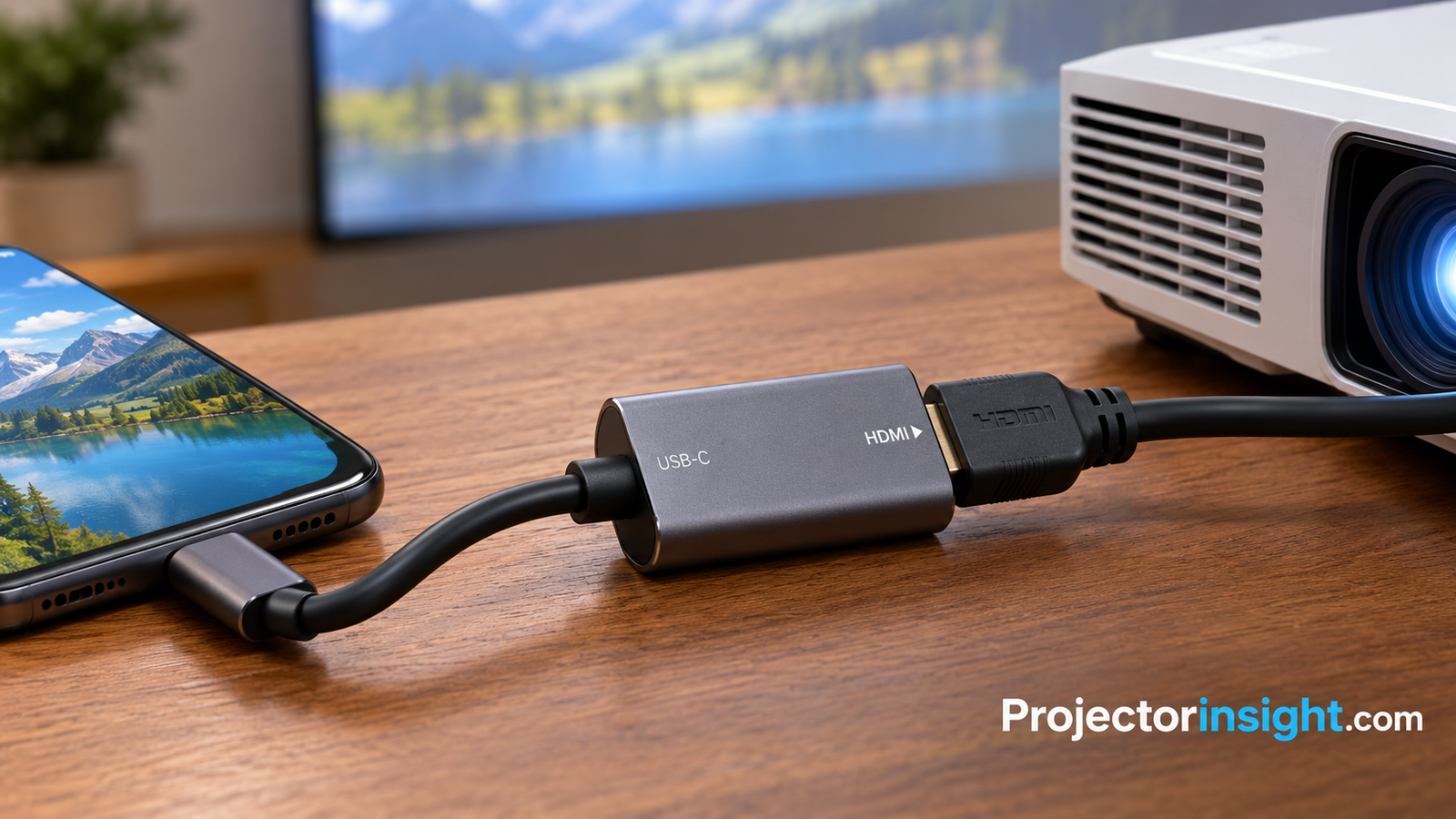
This is the simplest wired route. Plug the USB-C end into your phone and the HDMI end into the projector. On most supported phones the screen mirrors automatically.
If you searched for how to connect a projector to a phone using USB, this is what most people actually mean: USB-C carrying video, not file transfer.
Ready to plug in? Grab a reliable cable.
Shop USB-C to HDMI Adapters5. Step 3: Use an HDMI Adapter, Hub or MHL Cable
If you want to charge the phone while projecting, use a USB-C hub with HDMI and power pass-through. Older phones with micro-USB may need an MHL or SlimPort adapter, though these are increasingly rare.
Pros
- Phone charges while you watch
- Stable, lag-free picture
- Works with any HDMI projector
Cons
- Extra gear to carry
- Cheap hubs can overheat
Project and charge at the same time.
Shop USB-C Hubs6. Step 4: Switch the Projector to the Right Input
Nothing appears until the projector listens to the right port. Press Source or Input on the remote and pick HDMI 1 or HDMI 2 to match where you plugged in. If you see a “no signal” screen, our fix guide on projector no signal HDMI error will help.
Projector remote lost? Replacement remotes and cables.
Shop Projector Accessories7. Step 5: Connect Wirelessly with Casting or Screen Mirroring
If your projector is a smart model, look for Google Cast, Miracast or a similar mirroring feature. On Android, open Quick Settings and tap Cast or Smart View, then choose your projector. Both devices must be on the same Wi-Fi network for most casting tools.
Popular smart options are covered in our reviews of the XGIMI Horizon and Anker Nebula. Prefer built-in streaming apps? See the best smart projectors with Netflix.
Pros
- No cables to trip over
- Quick for photos and video
Cons
- Possible lag and dropouts
- Some apps block mirroring
Add casting to any HDMI projector.
Shop Casting Dongles8. Step 6: USB Tethering, Mini Projectors and LED Models
Small LED mini projectors are the trickiest. Many have a companion app, a proprietary mirroring mode, or only a USB port meant for media files. Check the manual for phrases like “Wi-Fi mirroring”, “Miracast” or “Type-C input”.
Portable options are compared in our list of the best portable mini projectors, and if your budget is tight, check the best projectors under 100 dollars.
Looking for a mini projector that works with phones?
Shop Mini Projectors9. Getting Sound to Work
Most HDMI connections carry audio, but tiny projector speakers are weak. Pair a Bluetooth speaker or soundbar for a real boost. Our walkthrough on how to connect a speaker to a projector covers wired and Bluetooth setups.
| Audio option | Connection | Note |
|---|---|---|
| Projector speaker | HDMI | Fine for quiet rooms |
| Bluetooth speaker | Wireless | Can add slight delay |
| Soundbar | HDMI ARC or 3.5mm | Best for movies |
Upgrade your projector sound.
Shop Speakers10. Troubleshooting Common Problems
Black screen or no signal
Reseat cables, confirm the input source, and try another HDMI port. See projector turns on but no picture for deeper fixes.
Picture cuts out
Use a shorter or better cable, and make sure the projector is not overheating. If it powers off, read why does my projector keep turning off.
Wrong orientation or blurry image
Enable auto-rotate on the phone, then clean the lens with our guide to cleaning a projector lens.
Streaming apps show black
Some services block mirroring due to copy protection. Use the app’s own cast button or a streaming stick instead.
Replace a faulty cable in seconds.
Shop HDMI Cables11. The Best Projector Types for Phone Use
If you connect a phone often, choose a projector with HDMI, USB-C input or built-in casting. Portable models suit travel, while brighter models suit daytime, which you can explore in projectors for bright rooms. For outdoor nights, see outdoor movie projectors.
| Use case | Look for | Guide |
|---|---|---|
| Travel | Compact, battery, casting | Portable |
| Movie nights | 1080p, good contrast | Native 1080p |
| Small budget | HDMI, basic casting | Under 500 |
Compare projectors that pair well with phones.
Shop Smart Projectors12. Tips for a Better Phone Projection Experience
- Turn on Do Not Disturb so notifications stay off the wall.
- Set screen timeout to a longer duration or keep the screen awake.
- Lock orientation to landscape for video.
- Use a tripod or stand to keep the projector level, or see how to mount a projector to the ceiling.
- Dim the room and pick a smooth wall or a proper screen.
Also worth reading if you use other devices: connecting an iPhone and connecting a laptop or Mac.
Finish your setup with a stand and screen.
Shop Screens and StandsFrequently Asked Questions
How do I connect my phone to a projector?
Use a USB-C to HDMI cable if your phone supports video out, or cast wirelessly using Cast, Smart View or Miracast.
How do I connect a projector to a phone with USB?
Use USB-C carrying DisplayPort video through a USB-C to HDMI cable. A plain charging cable will not send video.
Can I connect a phone to a projector with HDMI?
Yes, using a USB-C to HDMI cable, or an adapter or hub plus a standard HDMI cable.
Why is my phone not showing on the projector?
Your phone may lack video out, the input source may be wrong, or the cable may be faulty. Test another cable and port.
Do I need Wi-Fi to connect a phone to a projector?
No. A wired HDMI connection works without any network.
How do I use a mini LED projector with my phone?
Check for Miracast, Wi-Fi mirroring or Type-C input in the manual, then follow its pairing steps.
Can I charge my phone while projecting?
Yes, with a USB-C hub that supports power pass-through.
Why is there no sound?
Check the volume on both devices and the projector’s audio output setting, or add a Bluetooth speaker.
Is wireless casting laggy?
It can be. For gaming or fast video, use a cable for the lowest delay.
Why does Netflix show a black screen?
Copy protection can block mirroring. Cast from inside the app or use a streaming device.
What cable length is best?
Short cables are more reliable, and a few meters is usually fine with a quality cable.
What projector is best for phone use?
Look for HDMI, casting support and enough brightness for your room. Our budget and room size guide is a good start.
Conclusion
Connecting a phone to a projector comes down to three things: knowing whether your phone outputs video, choosing between cable and wireless, and selecting the right input. Start with a USB-C to HDMI cable for the most dependable result, and move to casting when convenience matters more.
Ready to project from your phone tonight?
Shop Phone-to-Projector Gear