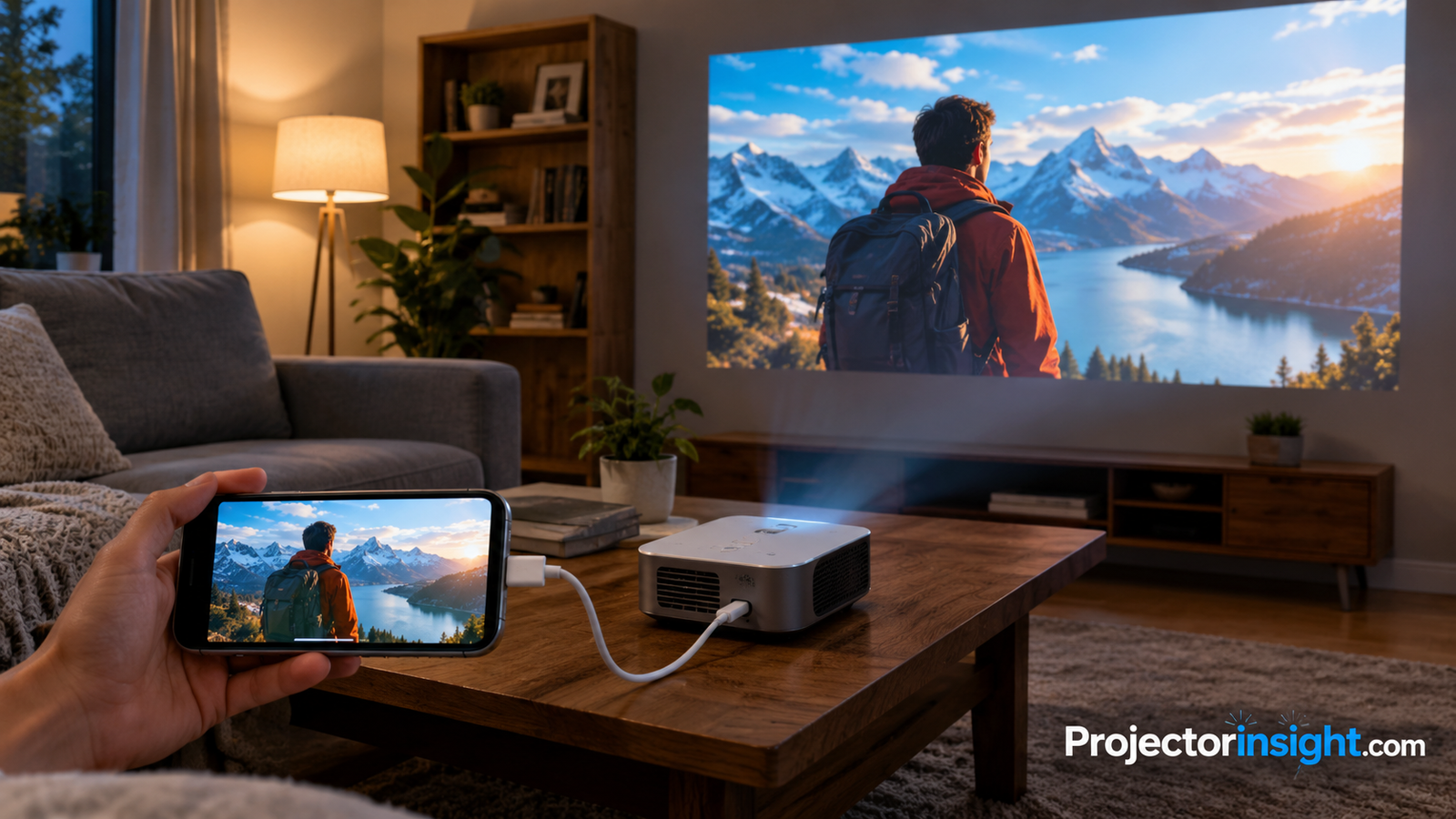
How to Connect an iPhone or iPad to a Projector: Wired and Wireless Methods That Work
You have a great movie on your phone, a blank wall, and a projector on the shelf. Getting them talking should take minutes, not an evening. This guide covers every practical way to connect an iPhone or iPad to a projector, wired or wireless, and explains why each one works so you can pick the right method for your room.
1. What You Need Before You Start
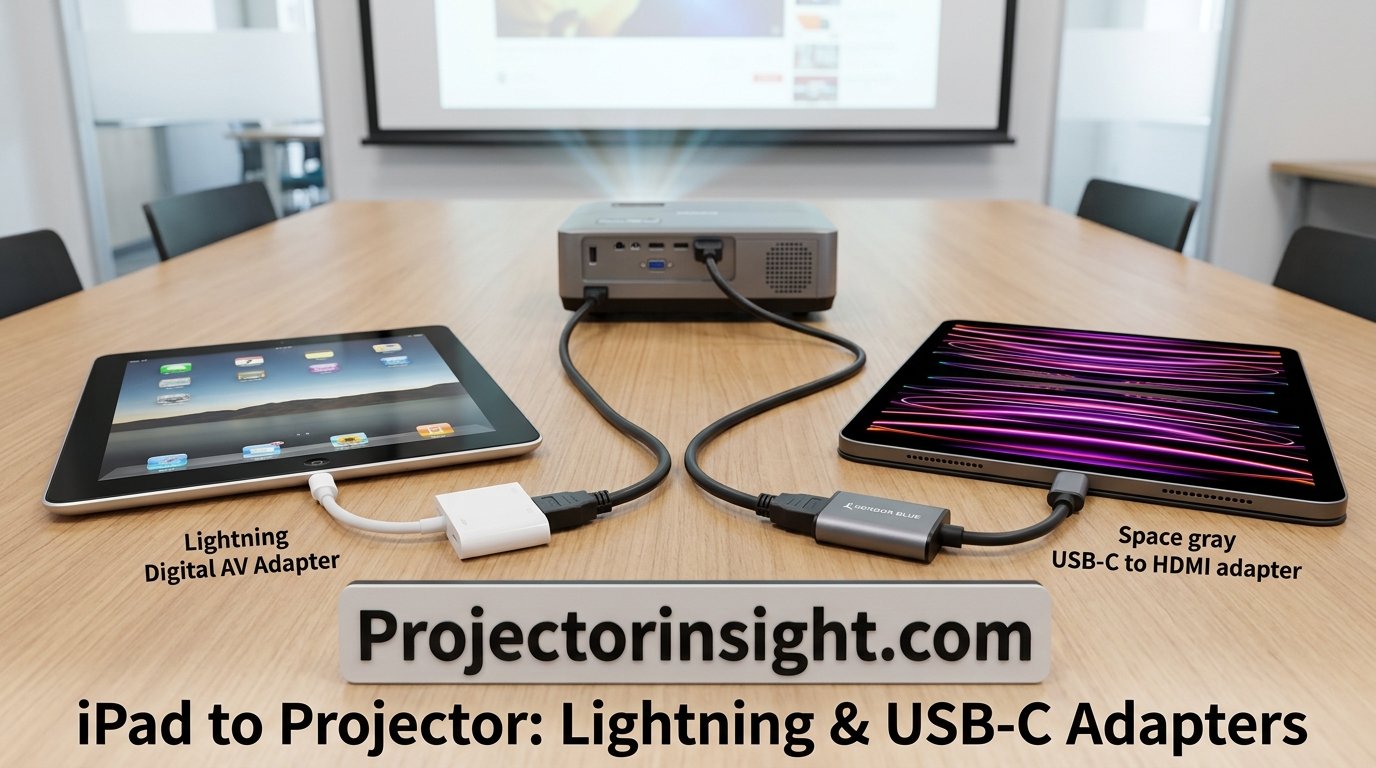
Every method depends on three things: your device’s port type, your projector’s inputs, and how far the phone sits from the projector. Older iPhones and iPads use Lightning. Newer iPhones and most current iPads use USB-C. Check the bottom edge of your device before buying anything.
On the projector side, look for an HDMI port. Nearly every model has one. If you are still choosing a projector, our guide on how to choose a projector walks through inputs and features worth caring about. For a general laptop or phone walkthrough, see how to connect a phone to a projector.
| Your device | Port | Wired option |
|---|---|---|
| iPhone 14 and older | Lightning | Lightning Digital AV Adapter |
| Newer iPhones | USB-C | USB-C to HDMI adapter or cable |
| iPad (Lightning) | Lightning | Lightning Digital AV Adapter |
| iPad Air, Pro, mini, newer iPad | USB-C | USB-C to HDMI adapter or cable |
2. How to Connect an iPhone to a Projector with a Lightning Adapter
Wired is the most dependable route. It adds almost no lag, needs no Wi-Fi, and handles protected apps better than most wireless setups. Here is the full process, step by step.
Step 1: Plug the adapter into your iPhone
Push the Lightning end of the adapter firmly into the charging port. Keep the phone unlocked.
Step 2: Connect an HDMI cable to the adapter
Use a standard HDMI cable. Longer runs above ten feet can drop signal, so choose a quality cable if the projector sits far away.
Step 3: Plug the cable into the projector
Insert the other end into an HDMI port and note the port label, such as HDMI 1.
Step 4: Select the correct input
Power on the projector, press Source or Input on the remote, and choose the HDMI port you used. Your iPhone screen should appear within seconds.
If you see a black screen after all this, jump to fixing the projector no signal HDMI error.
3. How to Connect an iPad to a Projector Using USB-C
Recent iPads with USB-C support video output natively. That means a simple USB-C to HDMI cable is often enough, with no special certified adapter required. The steps mirror the iPhone process, but there is one bonus: on many iPad models, connecting a display can extend your workspace instead of just mirroring, which is helpful for presentations.
Step 5 (iPad): Plug in and confirm the display
Presenters can pair this with a portable screen. See the best business presentation projectors for suitable models.
4. How to Connect an iPhone to a Projector Wirelessly with AirPlay
Wireless mirroring uses AirPlay and needs a receiver, either built into the projector or plugged into it. Both devices must be on the same Wi-Fi network.
Step 6: Open Control Center and tap Screen Mirroring
Swipe down from the top-right corner (or up from the bottom on older devices), then tap the two overlapping rectangles icon.
Step 7: Pick your projector and enter the code
Choose the projector’s name from the list. If a four-digit code appears on the projected image, type it on your phone.
5. Projectors with Built-In AirPlay
Some smart projectors include AirPlay directly, which removes the need for extra hardware. Brands such as XGIMI, Anker Nebula and several from Optoma and LG offer it on selected models. Always confirm on the product page, because support varies by model.
- No cables or dongles
- Quick setup
- Clean, portable footprint
- Depends on Wi-Fi strength
- Slight delay for gaming
- Protected apps may block mirroring
6. Using a Streaming Stick or Apple TV
If your projector has no wireless features, add a streaming device to its HDMI port. Apple TV supports AirPlay natively. Many Roku, Fire TV and Google TV devices also accept AirPlay casts. Smart-focused models are listed in our roundup of smart projectors with Netflix.
7. Screen Mirroring vs Casting Apps
Mirroring copies everything on your screen. Casting sends just the video stream, so your phone can lock or multitask while playback continues. Tap the AirPlay icon inside apps like YouTube or Photos for casting. Mirroring suits slideshows and apps without cast support, while casting delivers better quality and saves battery.
| Feature | Mirroring | Casting |
|---|---|---|
| Shows phone screen | Yes | No |
| Phone free to multitask | No | Yes |
| Battery use | Higher | Lower |
Compact options are compared in best portable mini projectors.
8. Choosing the Right Adapter
Cheap adapters often fail with streaming apps. Look for HDCP support and buy from sellers with clear return policies. Apple’s own adapter is the safest for Lightning. For USB-C, a cable that lists 4K support and HDCP works well for most people.
| Type | Best for | Watch out for |
|---|---|---|
| Official Lightning AV | Reliable streaming | Higher price |
| Third-party Lightning | Budget setups | Netflix may fail |
| USB-C to HDMI cable | Newer iPhone and iPad | Confirm 4K and HDCP |
| USB-C hub | Charging while projecting | Runs warm |
9. Getting Sound Right
Wired connections send audio through HDMI, so the projector speaker plays it. Built-in speakers are usually weak. For a better result, pair a Bluetooth or wired speaker; our guide to connecting a speaker to a projector covers it. Wireless AirPlay lets you send audio to an AirPlay speaker at the same time.
10. Netflix, Disney+ and Protected Video
Streaming services use copy protection called HDCP, and some block mirroring from adapters that do not comply. If the screen goes black while audio continues, try Apple’s official adapter, a different HDMI cable, or open the app directly on a smart projector or streaming stick instead of mirroring.
11. Troubleshooting Common Problems
- No signal: Check the input source and reseat cables. See the no signal guide.
- Turns on but no image: Follow this walkthrough.
- AirPlay device missing: Confirm same Wi-Fi network, and disable VPN.
- Laggy wireless video: Move closer to the router or use 5 GHz Wi-Fi.
- Blurry image: Clean the lens using these steps.
- Shuts off mid-movie: Read why projectors keep turning off.
12. Best Projectors for iPhone and iPad Users
Pick by how you watch. For movie nights, browse home theater projectors. For daytime use, try bright-room projectors. For tight budgets, start with projectors under 500 dollars, and for backyards, see outdoor movie projectors.
| Use case | Look for | Connection |
|---|---|---|
| Movie nights | High contrast, 1080p+ | HDMI or AirPlay |
| Travel | Small size, battery | AirPlay |
| Presentations | Bright lamp, HDMI | USB-C cable |
| Backyard | Lumens, built-in speaker | Wireless |
Frequently Asked Questions
How do I connect my iPhone to a projector?
Use a Lightning or USB-C to HDMI adapter and an HDMI cable, or mirror wirelessly with AirPlay if your projector or streaming stick supports it.
How do I connect an iPhone to a projector wirelessly?
Join both devices to the same Wi-Fi, open Control Center, tap Screen Mirroring, and select the projector.
How do I connect an iPad to a projector?
Use a USB-C to HDMI cable for newer iPads or a Lightning AV adapter for older ones. AirPlay works too.
Do all projectors support AirPlay?
No. Many need a streaming stick or Apple TV, so check specifications first.
Why is my iPhone not showing on the projector?
The most common causes are the wrong input source, a loose cable, or an adapter that lacks HDCP support.
Can I charge my iPhone while projecting?
Yes. Official Lightning adapters have a spare charging port, and USB-C hubs can pass power through.
Why does Netflix show a black screen?
Copy protection blocks some adapters. Use an official adapter or open Netflix on a smart device attached to the projector.
Is wired or wireless better?
Wired has less delay and is more stable. Wireless is more convenient for casual viewing.
Can I use Bluetooth to connect my iPhone to a projector?
Bluetooth carries audio only, not video, so use it for speakers rather than screen sharing.
Why is there lag when I mirror wirelessly?
Weak Wi-Fi is usually to blame. Use 5 GHz, sit closer to the router, or switch to a wired connection for gaming.
Do I need special apps?
Not for AirPlay or wired HDMI. Some third-party projectors offer companion apps for extra features.
Conclusion
For the most dependable picture, go wired with the correct adapter. For convenience, choose AirPlay through a smart projector or streaming stick. Either way, matching your device port, checking HDCP support and selecting the right input solves nearly every problem.
Pingback: How to Connect a Phone to a Projector: All Methods