How to Get Sound from a Projector to Speakers (Wired and Wireless)
Every practical way to connect speakers to a projector, from a simple AUX cable to Bluetooth, optical, and HDMI audio extractors, with step-by-step diagrams.
1. Why Projector Sound Is Such a Common Headache
You finally hang the screen, dial in the focus, and press play. The picture is huge and gorgeous. Then the dialogue comes out of a speaker that sounds like a tin can at the bottom of a well. It is one of the most common disappointments in home projection, and it is not your imagination. Most projectors ship with small built-in speakers, typically between two and ten watts, that are squeezed inside a chassis packed with fans, lenses, and light engines. The manufacturer’s priority is a bright, sharp image and quiet cooling, not concert-hall audio.
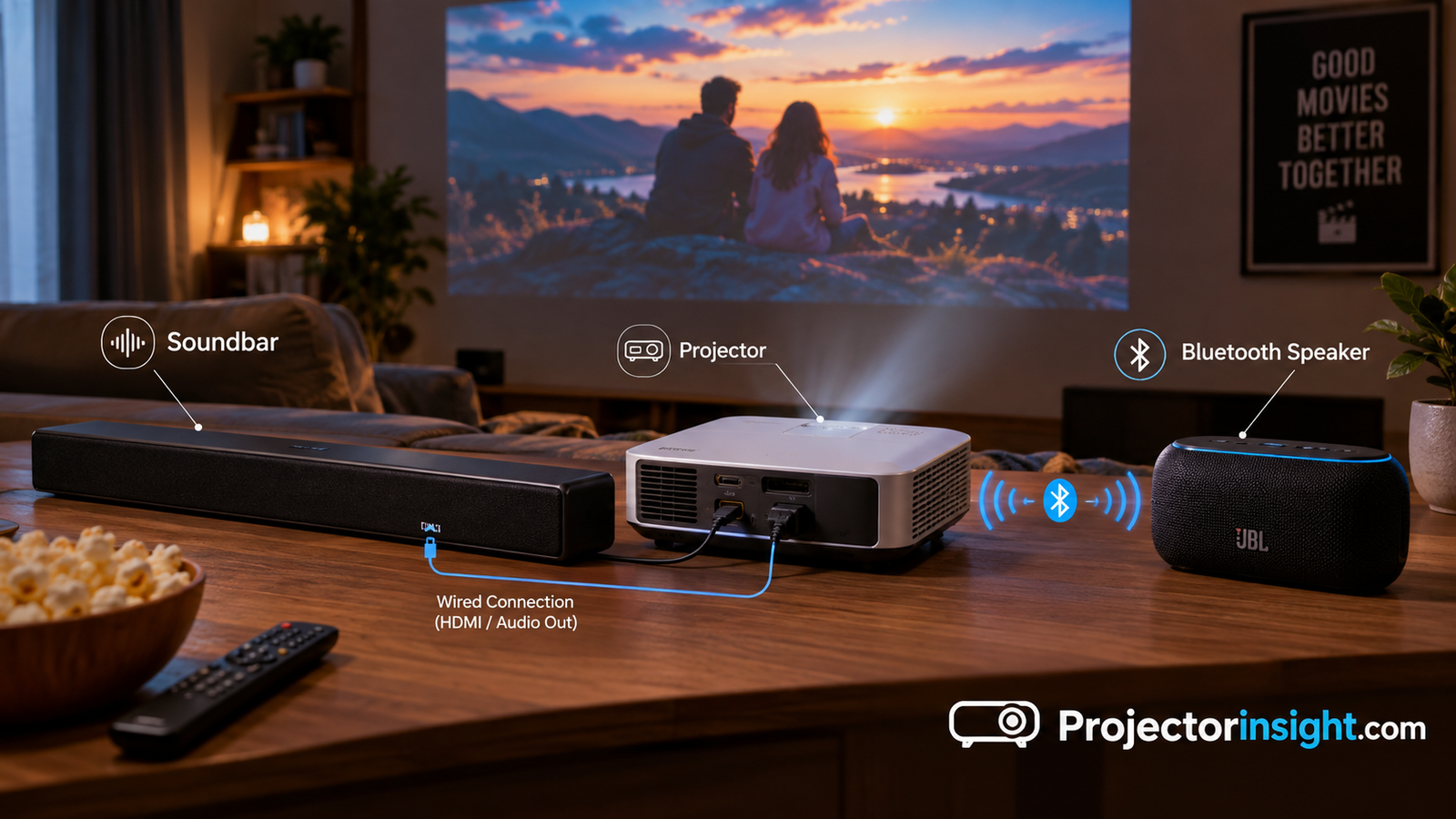
The good news is that learning how to connect a speaker to a projector is easier than most people assume. There are five practical routes, and one of them will match whatever gear you already own. You can go fully wired with a cheap cable, pair a Bluetooth speaker in under a minute, add a small transmitter to a projector that lacks Bluetooth, route audio through HDMI ARC, or use an optical cable to feed a soundbar or receiver. Each has trade-offs in sound quality, delay, cost, and cable clutter.
This guide walks through every method step by step, explains which ports to look for, and helps you decide between a soundbar, a portable Bluetooth speaker, or a full surround system. If you are still shopping for the projector itself, our guide to choosing a projector covers the fundamentals, and the best projectors for every budget and room size roundup shows what is available at each price point.
Before we begin, one mindset shift will save you a lot of frustration: picture and sound travel separate paths inside your setup. Your streaming stick or laptop sends video and audio together over HDMI. The projector then decides what to do with the audio, either playing it through its own speakers, passing it along to an output port, or ignoring it. Every method below is simply a different answer to the question, “Where does the audio go after it leaves the projector or the source?”
Upgrade Your Projector Audio
Browse popular speakers and soundbars that pair well with home projectors.
2. Know Your Ports: What Your Projector Can Actually Output
Before buying anything, spend two minutes looking at the back and side of your projector. The connectors you find decide which methods are open to you. Manufacturers do not always label ports clearly, so here is how to identify each one.
3.5mm Audio Out (Headphone Jack)
A small round jack, usually marked with a headphone icon or the words “Audio Out.” This is the most common audio output on budget and mid-range projectors, and it carries an analog stereo signal. It works with powered speakers, soundbars with an AUX input, and Bluetooth transmitters.
Optical (TOSLINK) Out
A small square port that may glow red when active. Optical carries digital audio and is found on many mid-range and premium models. It suits soundbars and receivers, and it avoids the ground-loop hum that sometimes plagues analog cables.
HDMI ARC or eARC
Some projectors have an HDMI port labeled ARC. It lets the projector send audio back out through HDMI to a soundbar or receiver. It is rare on projectors compared with TVs, but it does exist on higher-end and laser models.
Built-in Bluetooth
Many smart and portable projectors can act as a Bluetooth transmitter, sending audio straight to a speaker. Check the settings menu under Sound or Bluetooth. Note that some projectors only receive Bluetooth (so you can use them as a speaker) and cannot transmit.
USB and Wi-Fi Audio Options
A few projectors support casting to network speakers or have USB ports that output audio to a USB speaker. These are less common, but worth checking if you have a modern smart model.
If your projector has none of these, do not worry. You can grab the audio earlier in the chain, at the source device, or use an HDMI audio extractor. Both options appear later in this guide. If you bought a small model, our best portable mini projectors list notes which ones include audio-out jacks, and our best smart projectors with Netflix guide highlights the models with built-in Bluetooth.
| Port | Signal | Best For | Typical on |
|---|---|---|---|
| 3.5mm Audio Out | Analog stereo | Powered speakers, transmitters | Budget to mid-range |
| Optical (TOSLINK) | Digital | Soundbars, AV receivers | Mid-range to premium |
| HDMI ARC / eARC | Digital, high-bandwidth | Soundbars, surround systems | Premium and laser models |
| Bluetooth | Wireless stereo | Portable speakers, headphones | Smart and portable models |
| RCA (red/white) | Analog stereo | Older receivers and amps | Business and older models |
Need a Cable or Adapter?
Grab a 3.5mm cable, optical cable, or HDMI audio extractor before you start.
3. Which Method Is Right for You? A Quick Decision Guide
With five methods available, it helps to match your situation to the right one before diving into the details. Start with what your projector offers, then consider how far the speaker will sit from the projector, how much lip-sync delay you can tolerate, and how neat you want the room to look.
If you want the simplest, cheapest, most reliable path, use a wired 3.5mm cable. If your priority is a clean look with no wires across the floor, Bluetooth is usually the answer, but you will need to watch latency. For the best sound from a living-room setup, feed a soundbar or receiver through optical or ARC. Home theater enthusiasts building a dedicated room, like those shopping our best home theater projectors or the best high-end home cinema projectors, will almost always prefer a receiver-based system.
| Method | Sound Quality | Delay Risk | Cost | Difficulty |
|---|---|---|---|---|
| 3.5mm AUX cable | Good | None | Very low | Very easy |
| Built-in Bluetooth | Good | Moderate | Free if supported | Easy |
| Bluetooth transmitter | Good to very good | Low with aptX LL | Low to moderate | Easy |
| HDMI ARC / audio extractor | Excellent | None | Moderate | Moderate |
| Optical to soundbar / AVR | Excellent | None | Low to high | Easy |
Here is a quick way to decide. Ask yourself three questions. First, does my projector have a Bluetooth transmit option? If yes, try Method 2 first because it costs nothing. Second, is the speaker close enough for a cable? If yes, Method 1 gives you zero lag and zero pairing problems. Third, do I own or plan to buy a soundbar or receiver? If yes, Method 4 or 5 delivers the best result.
Also think about how you will use the projector. Weekend backyard movie nights call for a different approach than a permanent bedroom install. Our best outdoor movie projectors guide covers portable setups, where a battery-powered Bluetooth speaker often beats any wired option.
Compare Speakers by Price
See what is trending in soundbars, Bluetooth speakers, and home theater systems.
4. Method 1: Connect Speakers with a 3.5mm AUX Cable
The humble AUX cable is the workhorse of projector audio. It costs a few dollars, works with nearly every projector, and adds no delay at all, so dialogue stays perfectly in sync with lips. If your projector has an audio-out jack and your speaker has an AUX input, this is the fastest way to solve the problem.
Powered computer speakers, most soundbars, portable Bluetooth speakers with an AUX-in, and many bookshelf speakers with built-in amplifiers will all work. Passive speakers will not work directly because the headphone jack does not provide enough power. They need an amplifier or receiver in between.
Step 1: Find the audio-out jack and the speaker input
Locate the 3.5mm port on your projector labeled Audio Out or marked with a headphone icon. Then find the AUX or line-in port on your speaker or soundbar. Turn the projector volume to about half so you do not blast your ears on the first test.
Step 2: Plug in a 3.5mm cable
Use a male-to-male 3.5mm stereo cable. Push each end in firmly until it seats. A loose plug is the top cause of crackling or one-sided audio. If your speaker uses RCA jacks, pick up a 3.5mm-to-RCA cable instead.
Step 3: Select the right input and set volume
Switch the speaker to AUX mode. On the projector, open Sound settings and make sure audio output is set to external or line-out rather than internal speakers. Some projectors disable the jack when set to fixed volume, so switch to variable if you cannot change the volume with the remote.
Pros
- Zero audio delay
- Works on almost any projector
- Very inexpensive
- No pairing or batteries
Cons
- Cable must reach the speaker
- Analog signal can pick up hum
- Not ideal for rear surround speakers
Fixing hum and buzz on wired setups
If you hear a low buzz, the culprit is usually a ground loop between the projector’s power and the speaker’s power. Plug both into the same power strip, or add a ground-loop isolator, which is a small inexpensive plug-in adapter that sits on the audio cable. Keeping audio cables away from power cords also helps.
Get a Quality AUX Cable
Shielded 3.5mm cables reduce interference and last longer.
5. Method 2: Use the Projector’s Built-In Bluetooth to Pair a Speaker
If you want to know how to get sound from projector to speakers wirelessly with zero extra hardware, built-in Bluetooth is the first thing to try. Many smart projectors and portable models include a Bluetooth transmitter mode that can send audio to a speaker, soundbar, or headphones.
Look in the projector’s settings menu for a Bluetooth or Sound Output option. Be careful with terms: “Bluetooth speaker mode” turns the projector into a receiver so you can play music from your phone through it. That is the opposite of what you want. You need a mode described as Bluetooth output, Bluetooth transmit, or “connect to Bluetooth device.”
Step 1: Put your speaker in pairing mode
Turn on the speaker and hold the Bluetooth button until the light flashes rapidly or you hear a pairing tone. Place it within a couple of meters of the projector for the first pairing, since a weak signal is a frequent reason for failed connections.
Step 2: Open Bluetooth settings on the projector
Use the remote to open Settings, then Sound or Bluetooth. Choose the option to scan for devices. On Android TV or Google TV-based projectors this is under Remotes and Accessories. Wait for your speaker’s name to appear in the list.
Step 3: Select the speaker and confirm the connection
Highlight your speaker and press OK. When the light turns solid and you hear a connected chime, switch the audio output setting to the Bluetooth device. Play a video and confirm sound comes only from the speaker.
Pros
- No extra cost
- No cables to run
- Easy to move speakers around
- Great for portable and outdoor use
Cons
- Noticeable lip-sync delay on some models
- Range and interference limits
- Many projectors cannot transmit
Lip-sync delay is the main drawback. Standard Bluetooth uses the SBC codec, which can add 150 to 250 milliseconds of latency. Some projectors compensate with an audio delay slider in the Sound menu. If yours has one, adjust it in small steps until lips and voices line up. If it does not, skip to Method 3 for a low-latency transmitter. Owners of the models we review, such as the XGIMI Horizon and the Anker Nebula line, will find Bluetooth options built in, along with sensible audio delay tools.
Bluetooth Speakers for Movie Night
Look for models with Bluetooth 5 and a solid battery life.
6. Method 3: Add a Bluetooth Transmitter to Any Projector
What if your projector has a 3.5mm or optical output but no Bluetooth? A small Bluetooth transmitter solves it for around the cost of a movie ticket. It plugs into the audio-out port, pairs with your speaker, and turns any wired projector into a wireless one. Better still, many transmitters support low-latency codecs like aptX Low Latency, which cuts the delay to around 40 milliseconds, which is barely noticeable.
The catch is that both the transmitter and the speaker must support the same low-latency codec to get the benefit. If the speaker only supports SBC, you will still see standard delay. Some transmitters can pair with two speakers at once, which is handy for a simple stereo pair.
Step 1: Choose a transmitter that matches your port
Pick a model with a 3.5mm input or an optical input, depending on your projector. Also choose aptX Low Latency support if your speaker supports it. Check whether the transmitter runs on USB power, as it can often draw power from the projector’s USB port.
Step 2: Connect the transmitter and power it
Plug the transmitter’s input cable into the projector’s audio-out jack. Supply power by USB from the projector, a wall adapter, or a power bank. Slide any mode switch to TX (transmit) instead of RX (receive).
Step 3: Pair with your speaker
Put the speaker in pairing mode, then hold the transmitter’s pairing button. After a few seconds both devices should link and the light will go solid. Play a video to test. If sound is delayed, check that the low-latency codec is active on both sides.
Pros
- Works with almost any projector
- Low-latency options available
- Inexpensive and portable
- Can pair two speakers
Cons
- Another small device to power
- Needs codec support on both ends
- Can drop out near strong Wi-Fi interference
This method is a favorite for business and classroom setups, where older presentation models have only analog output. If you are outfitting a meeting room, our best business presentation projectors guide is a helpful starting point, and pairing a transmitter with a conference speaker keeps cables off the table.
Low-Latency Bluetooth Transmitters
Look for aptX Low Latency, optical input, and dual-link pairing.
7. Method 4: HDMI ARC and Audio Extractors for Best Quality
If you want full-fidelity sound, including Dolby Digital and multichannel formats, HDMI is the way to go. Projectors rarely offer full ARC support, but you can get the same result by pulling the audio out of the HDMI signal before it reaches the projector. There are two ways to do it: use a projector with HDMI ARC, or place an HDMI audio extractor between your source and projector.
An audio extractor is a small box with HDMI in, HDMI out, and an audio output (optical or 3.5mm). The video passes through untouched to the projector while the audio is split off to your soundbar or receiver. Even a projector with no audio output at all becomes a full-sound system.
Step 1: Place the extractor between source and projector
Unplug the HDMI cable running from your streaming stick, console, or laptop to the projector. Plug it into the extractor’s HDMI In port instead. Use a high-quality cable, especially if you send 4K, since older cables can cause dropouts.
Step 2: Route the audio to your speakers
Connect the extractor’s optical or 3.5mm output to your soundbar, receiver, or powered speakers. Choose the same input on the speaker side. Optical is preferred for surround formats because it carries digital audio cleanly.
Step 3: Set audio format and mute the projector
On your source device, set audio output to PCM stereo for the simplest setup, or Dolby Digital if your soundbar supports it. Mute the projector’s internal speakers, or turn them off in the menu, so you do not get an echo.
Pros
- Best possible sound quality
- Works with projectors that have no audio out
- No lip-sync delay
- Supports surround formats
Cons
- Extra box to buy and power
- Some extractors fail with copy-protected streaming
- More cables behind the setup
Compatibility matters here. Some streaming services use HDCP protection, and a cheap extractor that does not handle HDCP correctly can produce a black screen. If you see one, check our projector no signal HDMI error troubleshooting guide, as well as our article on why a projector turns on but shows no picture. Gamers using 4K 120Hz gaming projectors should pick an extractor with matching passthrough specs so it does not cap the refresh rate.
HDMI Audio Extractors
Choose a 4K-capable extractor with HDCP support for streaming.
8. Method 5: Optical (TOSLINK) to a Soundbar or AV Receiver
If your projector has an optical output, connecting it to a soundbar or AV receiver is one of the cleanest ways to upgrade your sound. Optical is digital, immune to electrical hum, and easy to install. It is a common way to connect speakers to a projector in a living room where the soundbar sits under the screen and the projector is at the back of the room.
One limitation: optical cannot carry the highest-quality formats such as Dolby Atmos or lossless surround. It handles stereo PCM and compressed 5.1 (Dolby Digital or DTS) well, which is fine for most streaming and TV content.
Step 1: Connect the optical cable
Remove the small plastic caps from both ports. Line up the square connector and push until it clicks. If you feel resistance, rotate the connector. The plug fits only one way. Keep the cable gently curved, since sharp bends can break the fiber.
Step 2: Choose optical input and set the output format
Switch the soundbar to Optical. On the projector, choose Digital Audio Out in the sound menu and pick PCM or Auto. If you have no sound, change to PCM, since some soundbars cannot decode every compressed format.
Pros
- Excellent clarity
- No hum or interference
- Simple, inexpensive cable
- Supports 5.1 compressed audio
Cons
- No Atmos or lossless formats
- Not available on all projectors
- Cable can be fragile
This is a popular pairing for premium installs, including those built around the best 4K laser projectors and models such as the Samsung Premiere LSP9T or LG CineBeam, since they tend to include richer audio outputs and pair well with soundbars.
Optical Cables and Soundbars
Get a TOSLINK cable or shop soundbars with optical input.
9. Wireless Options Beyond Bluetooth
Bluetooth is not the only way to go wireless. Depending on your setup, other technologies deliver better range, lower delay, or multi-room flexibility. Understanding them will help you avoid a mismatch when buying speakers.
Proprietary RF (2.4 GHz and 5 GHz) Transmitters
These kits pair a small transmitter with a matching receiver, and some bundle wireless rear speakers for a surround system. They avoid the compression of Bluetooth and often provide near-zero latency. Look for kits that connect through optical or 3.5mm and run on their own dedicated frequency so they do not compete with your Wi-Fi.
Wi-Fi Multi-Room Systems
Wi-Fi speakers and soundbars from major brands can receive audio from a streaming stick or a wireless bridge. They sound better than Bluetooth and support multi-room playback. The downside is delay. Because audio is buffered over the network, video and sound can drift unless the system offers a dedicated TV mode with a wired input.
Streaming Stick or Smart Box with Its Own Audio
A clever workaround is to skip the projector’s audio path entirely. Many streaming devices support Bluetooth headphones and speakers directly. Pairing your speaker to the streaming stick means audio never touches the projector. This works for Netflix, YouTube, and other apps running on the stick.
Wireless Headphones for Late-Night Viewing
Wireless headphones can also connect through any of the methods above. They are ideal for late-night viewing when a speaker would disturb others. Use a transmitter with dual-link so two people can listen at the same time.
| Technology | Range | Latency | Best Use |
|---|---|---|---|
| Bluetooth (SBC) | About 10 m | High | Casual viewing, music |
| Bluetooth aptX LL | About 10 m | Low | Movies with a compatible speaker |
| 2.4 / 5 GHz RF kit | 10–30 m | Very low | Wireless rear speakers, surround |
| Wi-Fi speaker | Whole home | Moderate to high | Multi-room music |
| Streaming stick Bluetooth | About 10 m | Varies | Projectors with no audio options |
For smart projectors that run apps on their own, such as those in our smart projectors with Netflix roundup, the streaming-stick approach is less relevant. But for budget models listed in the best projectors under $100 and best projectors under $500 guides, adding a streaming stick with Bluetooth support is often the cheapest path to good wireless sound.
Wireless Speaker Kits
Find RF and Bluetooth kits designed for TV and projector use.
10. Choosing the Right Speakers for Your Projector Setup
Once you know how to connect, the next question is what to connect. The best option depends on your room, budget, and how much you care about cinematic impact. Here is an honest look at the main categories.
Soundbars
A soundbar is the sweet spot for most people. It is a single unit, sits under the screen, and adds clear dialogue and punchy bass with almost no setup. Look for optical input, HDMI ARC, and Bluetooth. Models with a wireless subwoofer make a huge difference for action films.
Portable Bluetooth Speakers
Great for bedrooms, camping, and backyard movies. They are cheap and portable but usually stereo-only, and some have meaningful lip-sync delay. Pick one with aptX Low Latency or an AUX input for a wired fallback.
Bookshelf or Powered Speakers
Powered bookshelf speakers deliver better stereo imaging than most soundbars and connect with a simple 3.5mm cable. Pair them with a subwoofer for a small, high-quality system.
AV Receiver with Surround Speakers
The ultimate option for a dedicated theater. A receiver decodes surround formats and powers passive speakers. It pairs beautifully with premium projectors, and for higher-end rooms like those in our high-end home cinema coverage, it is the natural choice.
| Speaker Type | Sound | Setup | Budget | Best For |
|---|---|---|---|---|
| Soundbar | Very good | Easy | Low to mid | Living rooms |
| Soundbar + subwoofer | Excellent | Easy | Mid | Action movies |
| Portable Bluetooth | Fair to good | Very easy | Low | Bedrooms, outdoors |
| Powered bookshelf | Very good | Easy | Mid | Small rooms, music |
| AV receiver + surround | Superb | Complex | Mid to high | Dedicated theaters |
Pros
- Big upgrade over built-in speakers
- Many budget-friendly options
- Flexible for any room size
Cons
- More gear to buy and place
- Cheap Bluetooth speakers can add delay
- Surround setups need careful positioning
Speaker choice interacts with room size and screen size. If your projector is the centerpiece of a big room, you will need more power than a small Bluetooth speaker can provide. Our projector vs 85-inch TV comparison notes that projectors tend to shine in large rooms, and audio should scale accordingly.
Soundbars for Projector Setups
Compare soundbars with optical, ARC, and Bluetooth inputs.
11. Troubleshooting: No Sound, Lip-Sync Delay, Hum, and More
Even a well-planned audio setup can misbehave. Here are the most common problems and their fixes, starting with the easy ones.
There Is No Sound at All
Check the basics first. Is the speaker on the right input? Is the projector volume up and not muted? Open the projector’s Sound menu and confirm the output is set to external or the correct device. With HDMI sources, set the audio output to PCM stereo, since a projector or extractor may not decode formats like Dolby Digital. If a cable is involved, reseat both ends.
Sound Is Out of Sync with the Picture
Lip-sync errors come from wireless delay or from a projector’s video processing being slower than its audio. Try these fixes: use the audio delay setting if your projector or soundbar has one, switch to a low-latency Bluetooth codec, turn off extra image processing modes such as motion smoothing, or use a wired connection. Gamers can look at our gaming projector picks, which usually have a low-lag mode that also helps audio sync.
Crackling, Popping, or One-Sided Audio
This is almost always a loose or damaged cable. Swap the cable and check that the plug is fully inserted. Also keep the audio cable away from power cords.
Buzzing or Humming
A ground loop is the likely cause. Plug the equipment into the same outlet strip, or add a ground-loop isolator. Switching from analog to optical also removes the hum.
Bluetooth Keeps Disconnecting
Move the speaker closer, remove obstructions, and keep it away from microwaves and routers. Forget the device on the projector and re-pair. If you use a transmitter, try a different USB power source.
Projector Shuts Off or Behaves Oddly
If the projector powers down mid-movie, it is usually a heat issue, not audio. Our guide on why a projector keeps turning off walks through the causes. Dust can also hurt performance, so learn how to clean a projector lens and vents as part of regular care.
Troubleshooting Gear
Ground-loop isolators and replacement cables solve most audio glitches.
12. Placement, Calibration, and Pro Tips for Better Sound
Great gear can still sound mediocre in the wrong spot. A few adjustments make a dramatic difference, and they cost nothing.
Position the Speakers Well
Place a soundbar or front speakers close to the screen so voices seem to come from the picture. If you use a ceiling-mounted projector, keep speakers away from the projector’s fan noise. See our step-by-step on how to mount a projector to the ceiling to plan cable routes for both video and audio before you drill.
Tame the Room
Bare walls and hard floors create echo that hurts dialogue clarity. Add a rug, curtains, or a few soft furnishings. A subwoofer placed near a wall boosts bass, but avoid corners, which can make it boomy.
Set Levels by Ear
Play a familiar scene with dialogue and explosions. Adjust so speech is clear and loud effects do not overwhelm. Use night mode on soundbars for late viewing.
Consider Fan Noise
Projector fans produce constant noise that competes with quiet scenes. Lower-noise eco modes help, and a laser light source generally runs quieter than an older lamp. Our laser vs lamp projector comparison covers the noise difference in detail.
Match Audio Setup to Screen Size and Throw
Short-throw and ultra-short-throw projectors, described in our best ultra short throw projectors and UST vs standard throw articles, sit close to the screen, so a soundbar under the picture is a natural pairing. Standard-throw setups, with the projector at the back of the room, benefit from a longer audio run or wireless transmission. Use our guide to calculating projector throw distance to plan where everything sits.
Outdoor and Portable Tips
Backyard viewing needs volume. Choose a waterproof Bluetooth speaker with strong output, and place it close to the seating area rather than by the projector. Cover the transmitter and cables in case of dew.
Room and Speaker Upgrades
Speaker stands, acoustic panels, and cable management help every setup.
13. Audio Notes by Projector Type and Brand
Audio features vary widely by projector category, and knowing what to expect helps you plan. Here is a general overview so you can choose the right method for your model.
Budget projectors typically offer a 3.5mm audio out and little else. Wired AUX and Bluetooth transmitters are your friends. Explore the under $100 and under $500 lists to see what these models include. Mid-range models, such as those in our under $1000 roundup, often add optical out or Bluetooth. Reviews like our Epson Home Cinema 1080 review, BenQ review, and Optoma review outline the sound options for those brands.
Premium laser and home cinema models often provide ARC or eARC, robust optical outputs, and decent built-in speakers. The Hisense laser TV in particular tends to be more of a TV replacement, with stronger audio than typical projectors. If you are choosing between panel technologies, our 3LCD vs DLP article and the highest contrast ratio list explain the picture side while this guide handles sound. Bright-room buyers can check best projectors for bright rooms and what ANSI lumens are to make sure the picture keeps up with your new audio.
Specialty use cases have their own quirks. Golf simulator owners will find speaker suggestions helpful alongside the golf simulator projector picks, and fans of depth effects may enjoy 3D home cinema projectors with surround. Buyers who like sharp detail on a budget can look at native 1080p projectors, and anyone using a screen with strong ambient rejection should read about ALR screens for UST projectors.
The source device matters too. If you stream from a laptop or phone, you may be able to select a Bluetooth speaker on the source itself. Our guides on connecting a projector to a laptop or Mac, a phone to a projector, and an iPhone to a projector explain how each device handles video and audio, and how to route the sound where you want it.
Find the Right Audio Match
Explore speakers, soundbars, and adapters for your projector type.
Frequently Asked Questions
How do I get sound from a projector to speakers wirelessly?
Use the projector’s built-in Bluetooth if it can transmit, or plug a Bluetooth transmitter into its audio-out or optical port. Then pair it with your speaker. For the lowest delay, choose a transmitter and speaker that share a low-latency codec.
How do I connect a speaker to a projector?
The simplest way is a 3.5mm cable from the projector’s audio-out jack to the speaker’s AUX input. If the projector lacks that jack, use Bluetooth, an optical cable, or an HDMI audio extractor.
Can I connect any speaker to a projector?
Most powered speakers work. Passive speakers need an amplifier or receiver, because the projector’s output is too weak to drive them directly.
Why is there no sound from my projector when connected to a speaker?
Usually the speaker is on the wrong input, the projector’s output is set to internal speakers, or the audio format is unsupported. Switch the format to PCM stereo and check all cable connections.
Does my projector have Bluetooth?
Check the settings menu under Sound or Bluetooth, or the specifications page. Note that some projectors only receive Bluetooth and cannot send audio to speakers.
Why is the audio delayed when I use Bluetooth?
Standard Bluetooth compresses and buffers audio, adding a noticeable delay. Use an audio delay setting, a low-latency codec, or a wired connection to fix it.
Is optical or HDMI ARC better for projector audio?
HDMI ARC or eARC supports richer formats, but projectors rarely include it. Optical is common, clean, and good enough for stereo and compressed 5.1 surround.
Can I use a soundbar with a projector?
Yes. Connect it through optical, 3.5mm, or ARC if available. Soundbars are one of the best upgrades because they add clear dialogue and bass with little setup.
What if my projector has no audio output at all?
Use an HDMI audio extractor between the source and the projector, or pair the speaker directly to your streaming device or laptop.
Can I connect two speakers to one projector?
Yes. Use a Bluetooth transmitter with dual-link, a Y-splitter on the audio jack, or a receiver that powers a stereo pair.
Will a wired connection sound better than Bluetooth?
Generally yes for timing, because a cable has no delay. Sound quality can be very close if you use a good codec, but wired is the safest choice for critical viewing.
Can I use wireless headphones with a projector?
Yes. Any of the wireless methods work, and a dual-link transmitter lets two people listen at once.
Conclusion: Better Sound Is Easier Than You Think
Getting great audio from your projector does not require a big budget or technical expertise. If you want the fastest fix, a 3.5mm cable to a powered speaker works today. If you prefer a wire-free room, built-in Bluetooth or a low-latency transmitter delivers the same convenience. If you care about cinematic sound, feed a soundbar or receiver through optical or an HDMI audio extractor. Whatever route you choose, remember the basics: match the port to the method, mute the projector speakers, set the audio format to PCM if in doubt, and use a delay setting to fix lip-sync.
Spend a little time on placement and room treatment, and your projector will finally sound as impressive as it looks. And if you are still deciding which projector to buy, start with our best projectors for every budget and room size guide, then come back here to plan the audio.
Ready to Upgrade Your Sound?
Pick your speaker, grab the right cable, and enjoy movie night.